
Roles and permissions
5sDesk controls access through two separate questions: which data can a person see, and which modules can they use. On top of that there are three account types and the department lead role. This page explains how they work together and answers the most common support question: “Why can’t I see this?”
Where to set permissions
Section titled “Where to set permissions”Admins assign all permissions under Administration › Settings › Team:
- “Users”: account type (Admin, Owner), department membership and “Department lead” for each department.
- “Departments”: the “Enabled areas” for each department.
The three account types
Section titled “The three account types”| Account type | Who this is | What else they can do |
|---|---|---|
| “User” | Every regular agent | Work in the Inbox, Boards, CRM and the enabled areas of their own departments |
| “Admin” | Manages the organisation | Everything under Administration › Settings, Forms, Content, Billing & plan, AI log, creating boards and pipelines, reports across all departments, dashboard and time report for everyone |
| “Owner” | The organisation’s contracting party | Same as Admin, plus changing the plan and seats, cancelling the subscription and resetting all data |
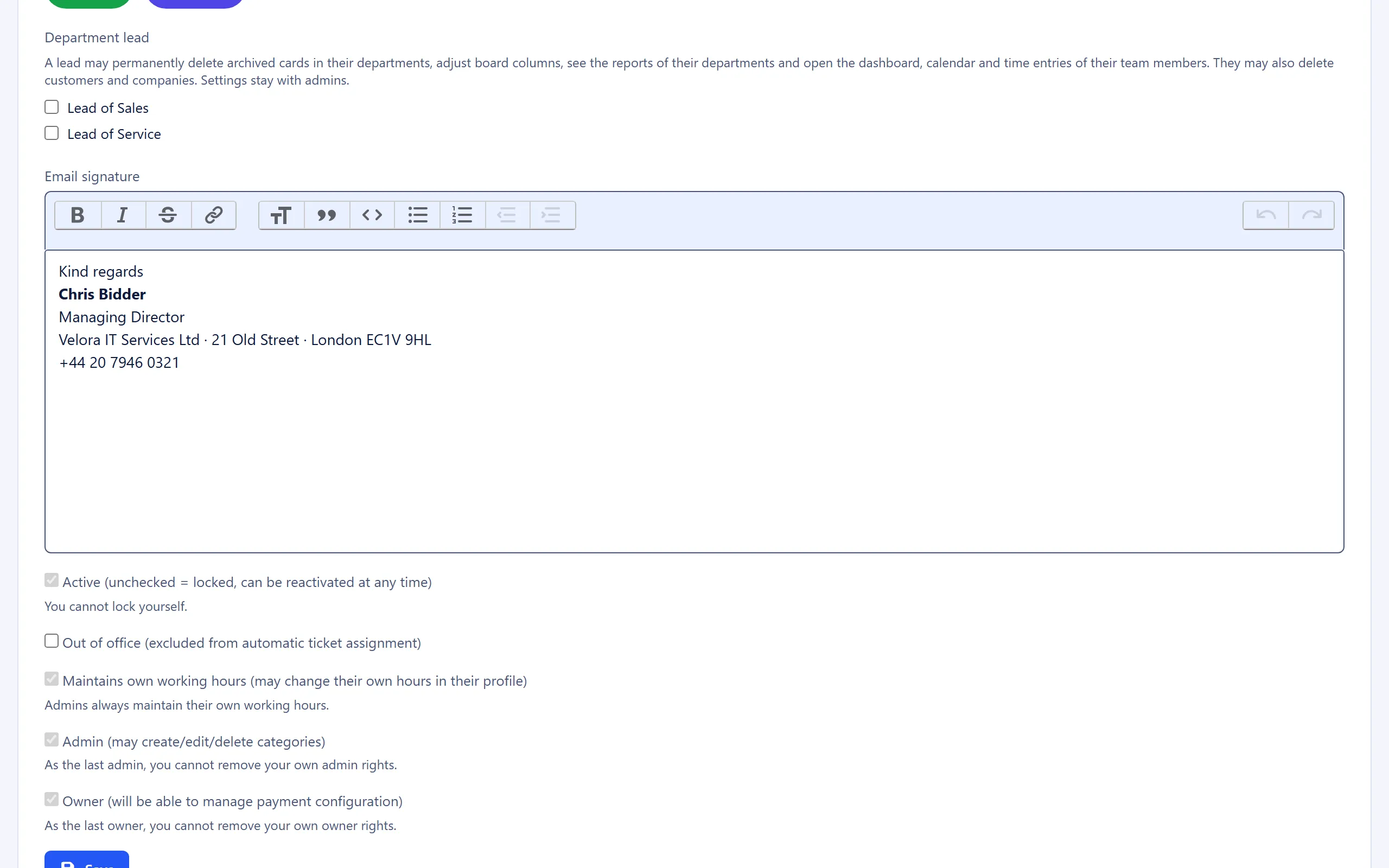
The first agent in an organisation is automatically Admin and Owner. Admin and Owner are set as checkboxes in the user form. Owner status must be transferred before an owner can be permanently deactivated.
Departments: who sees which data
Section titled “Departments: who sees which data”Department membership decides which data a person sees. This applies to:
- Tickets with a department (a new ticket inherits the department of its mailbox)
- Boards and pipelines assigned to a department
- Canned responses with visibility per department
- Internal knowledge base articles with a department
Everyone can see objects without a department. An agent can belong to several departments and then sees the data of all their departments.
Areas: who uses which modules
Section titled “Areas: who uses which modules”Each department has “Enabled areas”. An agent can use every area that is enabled in at least one of their departments. The Inbox is always enabled. Admins have all areas.
| Area | What is missing without it |
|---|---|
| “Sales” | Sales menu, pipelines, deal box and “Create deal” on the ticket, sales report |
| “Boards” | Boards menu, task boards, card box and “Create card” on the ticket, cards on the dashboard |
| “CRM (customers & companies)” | Customers menu, customer and company pages, CRM box on the ticket, bulk emails |
| “Calendar” | Calendar menu |
| “Appointments” | Appointments menu, own working hours in the profile |
| “Time report” | The time report. Everyone can still track time, as long as time tracking is switched on in the General settings |
| “Content” | Administration › Content, AI drafts for articles, “Content page from ticket” |
If someone opens a page without the matching area, they see the message “This area is not enabled for your department. Ask an admin if you need it.”
Department lead
Section titled “Department lead”Department lead is not a separate account type. It is set for each department in the user form with “Department lead”. The lead role only applies in the departments the person leads. On boards without a department, every lead has these rights.
A department lead can also:
- Permanently delete archived cards
- Create, rename, sort, colour, delete and clear board columns and pipeline stages
- Delete customers and companies
- See the reports under Reports › “Tickets” and Reports › “Sales”, limited to the departments they lead
- View their own team members’ data in the dashboard, calendar, sales agenda and time report
- Manage the ticket tags under Administration › Settings › Team › “Tags”
- Manage the other tag lists if the department they lead has the matching area itself: “Customers & companies” with “CRM (customers & companies)”, “Content” with “Content”, “Cards” with “Boards” and “Deals” with “Sales” (see Tags)
- Import and export customers and companies as CSV if the department they lead has the “CRM (customers & companies)” area itself. The “Import/Export” button then appears in the lists under Customers › Customers and Customers › Companies (see CRM import and export)
When doing so, a lead only sees what they would be allowed to see themselves. If a team member also works in another department, that department’s tickets and boards stay hidden.
Apart from the tag lists, a lead has no access to settings and cannot manage users. Creating, editing, duplicating, exporting and deleting boards and pipelines remains reserved for admins. An admin who also has the lead option set is treated as an admin.
Who sees what: overview
Section titled “Who sees what: overview”| Action | User | Department lead | Admin | Owner |
|---|---|---|---|---|
| Settings, forms, content management | no | no (exception: “Tags”) | yes | yes |
| View billing & plan | no | no | yes | yes |
| Change plan and seats, cancel the subscription | no | no | no | yes |
| Reset all of the organisation’s data | no | no | no | yes |
| Request deletion of the organisation | no | no | yes | yes |
| Create or delete boards and pipelines | no | no | yes | yes |
| Maintain columns and stages | no | own departments | yes | yes |
| Archive and restore cards | yes | yes | yes | yes |
| Permanently delete archived cards | no | own departments | yes | yes |
| Delete customers and companies | no | yes | yes | yes |
| Import and export customers and companies as CSV | no | with the “CRM (customers & companies)” area | yes | yes |
| Manage ticket tags | no | yes | yes | yes |
| Manage the other tag lists | no | with the matching area | yes | yes |
| Set tags on tickets, customers, content, cards and deals | yes | yes | yes | yes |
| Reports | no | own departments | all | all |
| Dashboard, calendar, time report of other people | own only | team members | all | all |
| AI log | no | no | yes | yes |
Common questions
Section titled “Common questions”An agent can’t see a board. First check the board’s department and the agent’s departments. Then check whether the “Boards” area (or “Sales” for pipelines) is enabled in one of their departments.
An admin can’t see a department’s tickets. The admin must be a member of the department. The account type alone is not enough.
A department lead can’t create a user. That is intentional. Only admins manage users.
An agent should only track time, without seeing the report. Remove the “Time report” area from their department. Time tracking on tickets and cards remains available.
See also
Section titled “See also”- “Users”: set the account type, departments and lead role.
- “Departments”: enable areas.
- “Tags”: who manages which tag list.
- Sales: who can see deals.
- Boards and time tracking: archive, deletion and time report.