
Blocklist and trusted senders
Two lists control which incoming emails end up in suspected spam: the “Blocklist” blocks unwanted senders, and “Trusted senders” brings automatically generated emails from known systems into the inbox. Only admins can see these pages.
Where to find the pages
Section titled “Where to find the pages”- Administration › Settings › Email › “Blocklist”
- Administration › Settings › Email › “Trusted senders”
Both pages have the same layout: an “Add” form at the top, and below it the list with type, pattern, reason and a bin icon (“Really remove this entry?”).
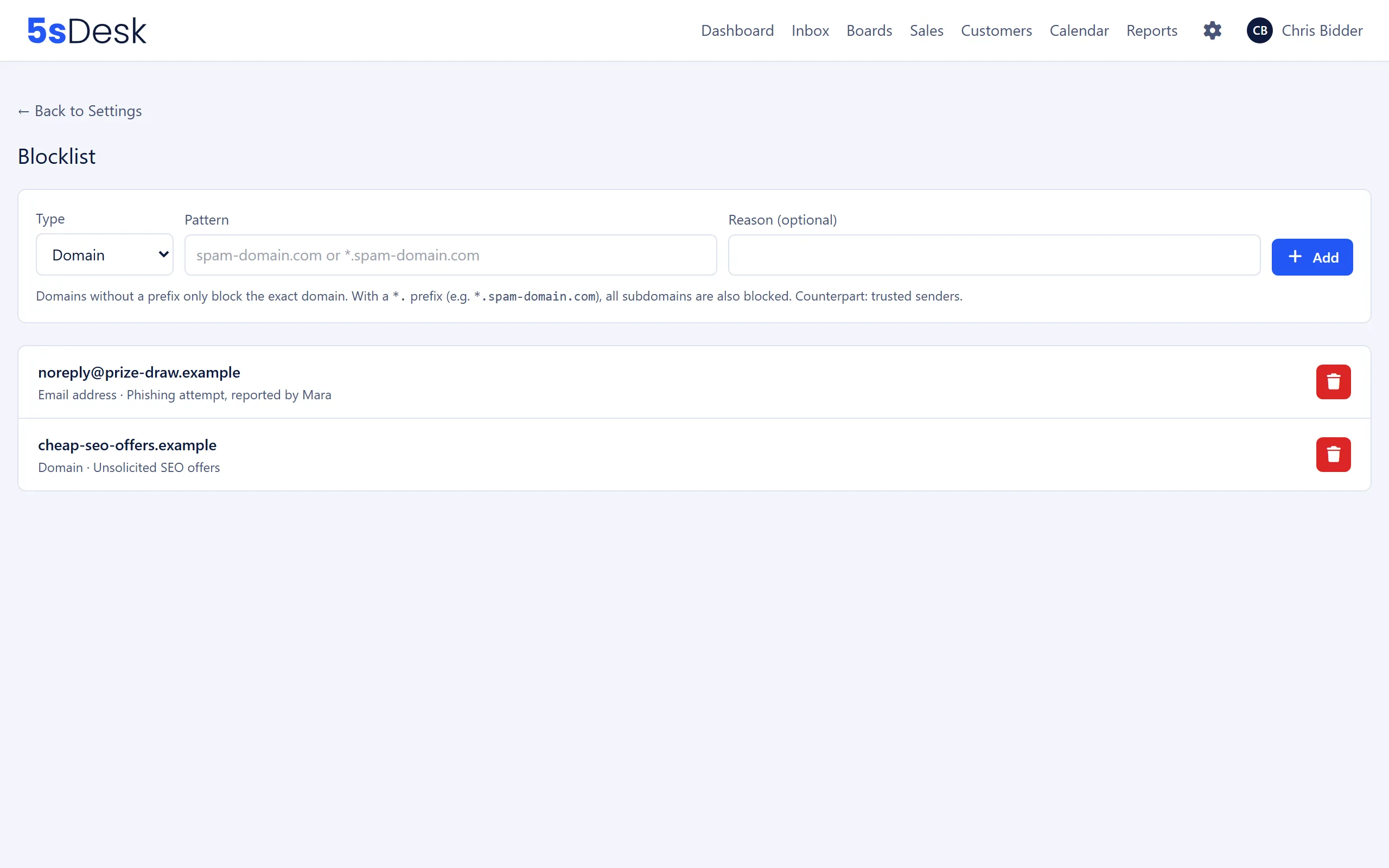
Blocklist
Section titled “Blocklist”| Field | Meaning | Default |
|---|---|---|
| “Type” | “Domain” or “Email address” | “Domain” |
| “Pattern” | The domain or address, e.g. spam-domain.com or *.spam-domain.com |
empty |
| “Reason (optional)” | Internal note | empty |
A domain without a prefix blocks only that exact domain. With the *. prefix (*.spam-domain.com), all subdomains are blocked too. Upper and lower case make no difference. Duplicate entries are not created.
What happens to emails from blocked senders
Section titled “What happens to emails from blocked senders”Emails from blocked senders still arrive and become tickets, but with the status “Suspected spam”. As a result, they
- do not appear in the standard inbox,
- do not trigger an automatic acknowledgement,
- do not trigger automatic assignment,
- are not included in SLA warnings or reports.
If a blocked sender replies to an existing ticket, that ticket moves to “Suspected spam”. Besides the sender address, 5sDesk also checks the reply address (Reply-To).
Button in the ticket
Section titled “Button in the ticket”In the ticket, under “More actions”, you will find “Block sender & mark as spam” (shortened to “Spam + Block” in the ticket list). After the confirmation “Block sender … and mark ticket as spam?”, 5sDesk adds the exact email address to the blocklist and sets the ticket to “Suspected spam”. All agents have this button. Only an admin can block a whole domain, using this page.
Trusted senders
Section titled “Trusted senders”Automatically generated emails (ticket systems, notifications, newsletters) that do not belong to an existing ticket go to suspected spam. Emails from the senders listed here go to the inbox as normal instead.
| Field | Meaning | Default |
|---|---|---|
| “Type” | “Email address” or “Domain” | “Email address” |
| “Pattern” | e.g. support@provider.com or provider.com; with the *. prefix, subdomains too |
empty |
| “Reason (optional)” | Internal note | empty |
The list only affects emails that 5sDesk recognises as automatically generated. A normal customer email does not need an entry.
Button in the ticket
Section titled “Button in the ticket”A ticket with the status “Suspected spam” shows “Not spam”: “Moves the ticket to the inbox and remembers the sender: their next emails no longer land in suspected spam.” 5sDesk then reports “Not spam: … is now a trusted sender.” The address is now on this list.
How the lists work together
Section titled “How the lists work together”- The blocklist takes precedence. If a sender is on both lists, the email stays in suspected spam.
- “Not spam” adds the sender to the allowlist and also lifts an address block that was created with “Block sender & mark as spam”.
- Domain blocks stay in place. If a domain block still applies to the address, “Not spam” reports: “Ticket moved out of suspected spam, but the domain block “…” still applies”. The next email will then land in suspected spam again. An admin removes the domain block here on the blocklist.
- Acknowledgement: automatically generated emails never get an acknowledgement, not even from trusted senders.
- Appointment booking: the blocklist also applies to public appointment booking. A blocked visitor sees a fake success message, and no appointment is created.
- Lead forms: the blocklist does not apply to form submissions. You set up spam protection for each form individually (see Forms).
See also
Section titled “See also”- Email and inbox: the “Suspected spam” status in the inbox and the “Mark as spam” bulk action.
- Delivery blocks: the opposite direction, meaning addresses to which 5sDesk no longer sends automatic emails.
- Appointment booking: spam protection for public booking.