
Email and inbox: mailboxes, delivery and spam
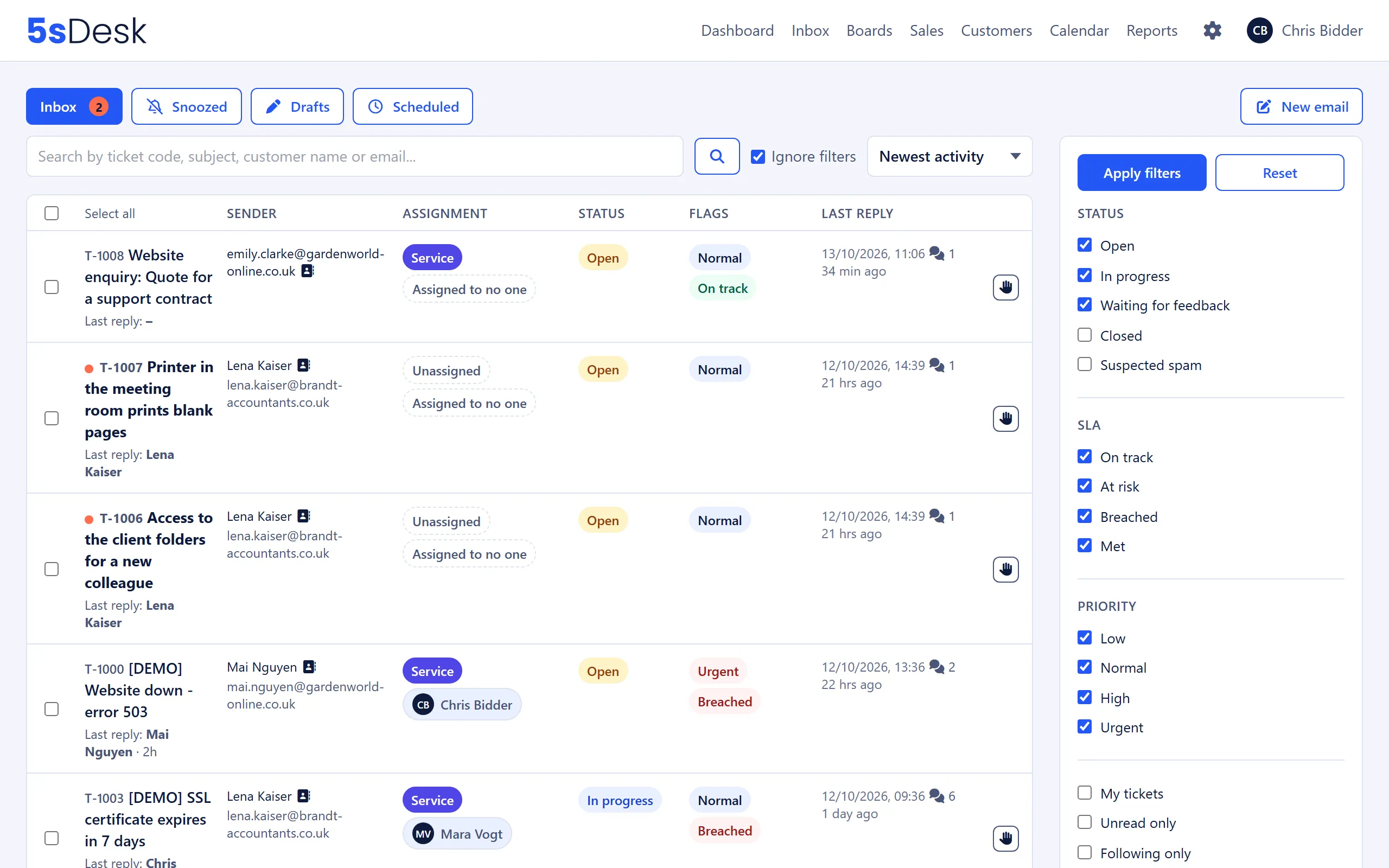
The inbox is where your support team receives email. As in any ticketing system, every incoming email either becomes a new ticket or is added to an existing one. This page explains how mailboxes, departments and automatic assignment work together, what happens when an email cannot be delivered, and which rules apply to attachments, blocked senders and scheduled sending.
Where to find it
Section titled “Where to find it”- Inbox: main menu › Inbox. Every agent sees the tickets of their departments.
- Mailboxes: Administration › Settings › Email › “Email inbox”. Admins only.
- Automatic assignment: Administration › Settings › Team › “Departments”.
- Delivery blocks: Administration › Settings › Email › “Delivery blocks”.
- Blocked and trusted senders: Administration › Settings › Email › “Blocklist” and “Trusted senders”.
- Attachment rules: Administration › Settings › System & Branding › “Mail attachments”.
- Importing mail history: Administration › Settings › Migration & Import › “Migration & Import”.
Multiple mailboxes and departments
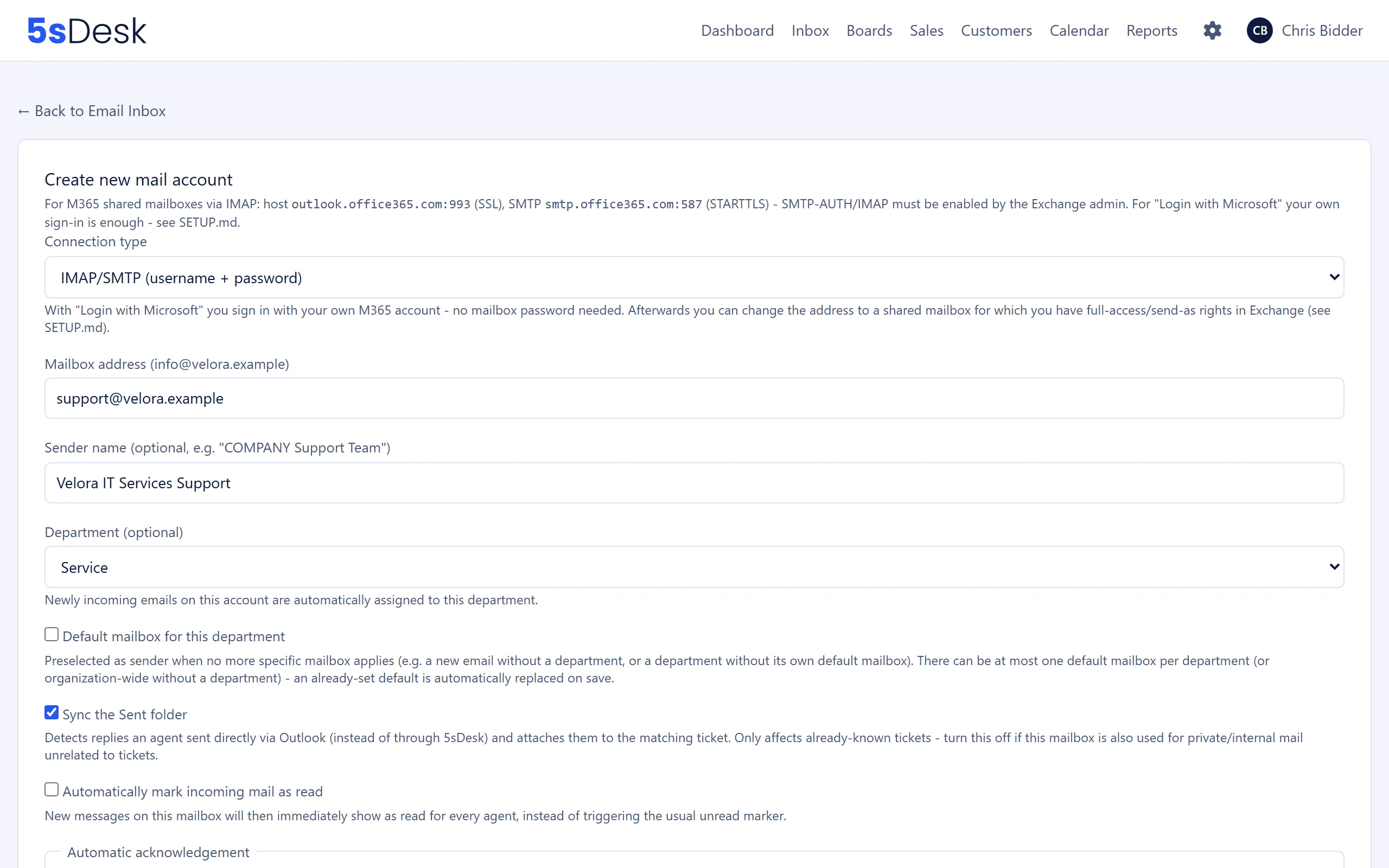
Section titled “Multiple mailboxes and departments”You can connect as many mailboxes as you like, for example support@, accounts@ and sales@, and work through them together as a shared inbox. Each mailbox can optionally have a “Department (optional)”. A new ticket that arrives through this mailbox is given that department automatically. Replies to existing tickets do not change the department.
You can also mark one “Default mailbox” per department (or one for the whole organisation, without a department). It is preselected as the sender when no more specific mailbox applies, for example for a new email without a department. There can be at most one default mailbox per department. Setting a new default replaces the previous one.
Automatic assignment
Section titled “Automatic assignment”You do not control assignment to a person on the mailbox. You set it on the department under “Departments”, using the “Automatic assignment of new tickets” field:
| Mode | Behaviour |
|---|---|
| “Off” | New tickets stay unassigned (default). |
| “Round robin” | Each new ticket goes to the next member of the department in turn. |
| “Fewest open tickets” | The ticket goes to the member with the fewest open tickets. If there is a tie, the round-robin order decides. |
Automatic assignment only applies when all of these conditions are met:
- The ticket is new (not a reply to an existing ticket) and has a department.
- It has no assignee yet. A manual assignment is never overwritten.
- The email comes from a person: no out-of-office replies, bounces or newsletters, and no blocked sender.
- It is not part of a history import (see below).
Agents who have marked themselves as out of office in “My Profile”, or whom an admin has set to “Out of office” under “Users”, are skipped. Tickets already assigned to them stay with them. The assigned agent is notified, and the ticket’s activity log shows that the assignment was automatic. Enquiries from lead forms are assigned in the same way (see Forms).
Assigning the customer
Section titled “Assigning the customer”Every new ticket gets a customer address: the sender address of the email, or the reply-to address if the email has one. Your replies go to this address. If the address belongs to a customer in the CRM, 5sDesk links the ticket to them straight away. Both the primary address and all additional email addresses of the customer count. So if a customer writes from their shared mailbox, the ticket ends up with the same customer, and your reply goes to the shared mailbox.
Replies to existing tickets
Section titled “Replies to existing tickets”5sDesk first matches a customer’s reply to a ticket using the email’s threading headers. If they are missing, 5sDesk looks for the ticket number in the subject. A match on the ticket number only counts if the email comes from the ticket’s customer address or from another address of the same customer. So if a person replies from their second address with the ticket number in the subject, the email lands in the same ticket, provided both addresses are stored on their customer.
Changing the customer on a ticket
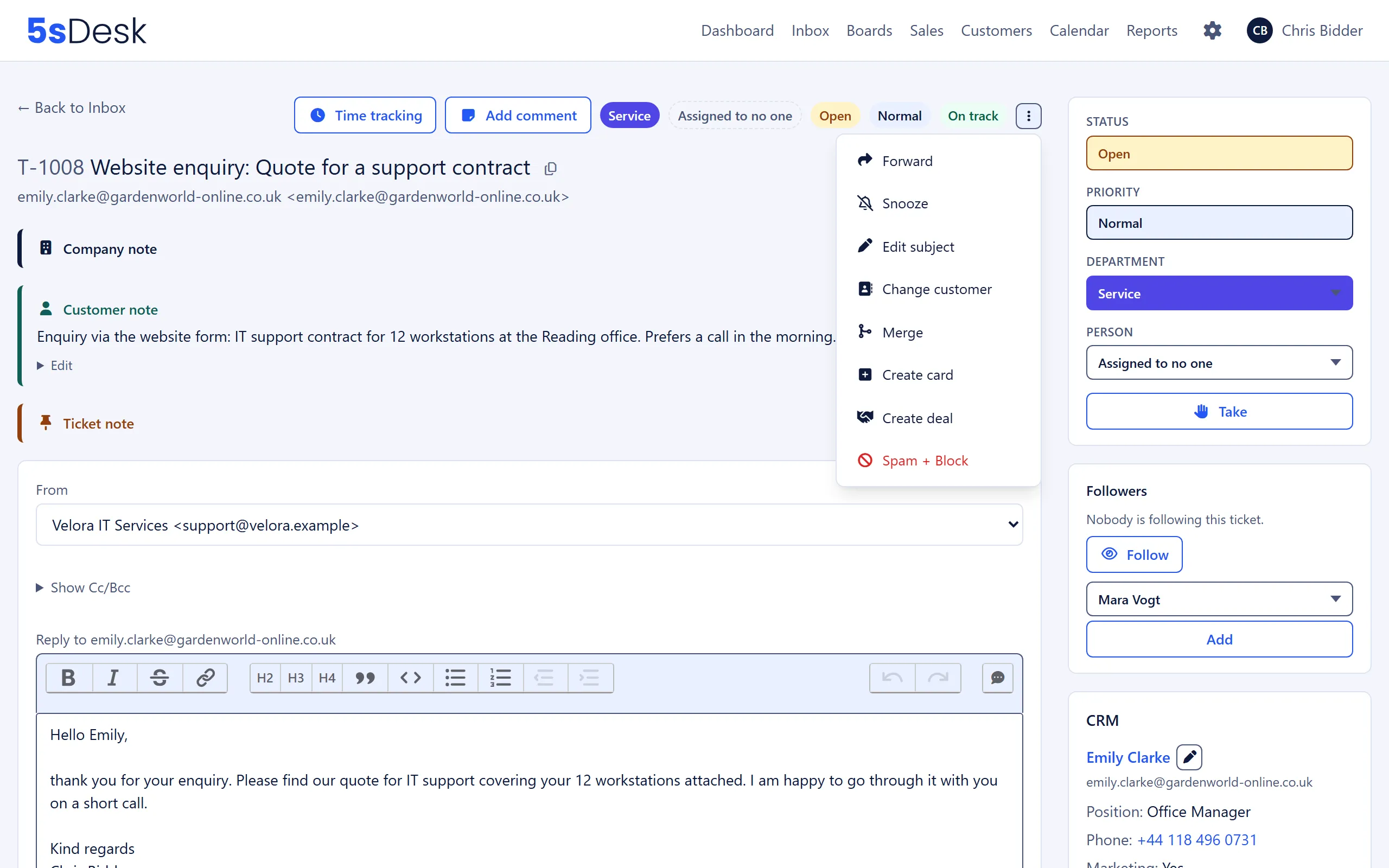
Section titled “Changing the customer on a ticket”Via “More actions” in the ticket header and “Change customer” you link a ticket to a different customer.
- Search for the customer in the field “Search customers …” and select them.
- If the ticket’s customer address doesn’t belong to any customer yet, a pre-ticked checkbox appears: “Save … as an additional email address of the customer (future emails from there are assigned automatically)”. If you leave it ticked, the address becomes an additional address of the selected customer.
- Click “Apply”. “Unlink” removes the link instead.
The ticket then appears in the selected customer’s customer portal. Where replies go depends on the address:
| Situation | Replies go to |
|---|---|
| The ticket’s customer address belongs to the selected customer, or you save it to them with the checkbox | the ticket’s existing customer address |
| The address doesn’t belong to the selected customer | the selected customer’s primary address |
Microsoft sign-in or IMAP/SMTP
Section titled “Microsoft sign-in or IMAP/SMTP”When you create an account, you choose the “Connection type”:
| Connection type | When to use it | What you need |
|---|---|---|
| “IMAP/SMTP (username + password)” | Any mail provider with IMAP and SMTP. This includes Microsoft 365 if the Exchange admin has enabled SMTP AUTH and IMAP for the mailbox. | Login username, password, IMAP and SMTP host with port and encryption. Use “Test connection” to check both before saving. |
| “Microsoft 365 (Login with Microsoft)” | Microsoft 365 mailboxes, without storing a mailbox password in 5sDesk. | Your own Microsoft account. Click “Sign in with Microsoft” to sign in to Microsoft. Then, under “Which mailbox?”, choose either “My own mailbox” or “Different address”, meaning a shared mailbox for which your account has full access and Send As rights. |
Our recommendation: for Microsoft 365, use the Microsoft sign-in. It works without a password and does not need the Exchange admin to enable IMAP.
If a Microsoft account loses its connection (for example after a password change or when permissions are revoked), the mailbox list shows “not connected” and the form shows “Not connected”. Open the account and click “Sign in with Microsoft” again. The mailbox list also shows “Live sync paused” when mail is not currently being fetched.
To make sure your outgoing emails are delivered reliably, check the “DNS settings (SPF/DKIM/DMARC)” for each mailbox. You set the records with your domain’s DNS provider, not in 5sDesk.
Sent folder sync
Section titled “Sent folder sync”With the “Sync the Sent folder” option (on by default), 5sDesk also reads the mailbox’s Sent folder. This means a reply that an agent wrote directly in Outlook instead of in 5sDesk still ends up in the history of the right ticket.
What happens in the background
Section titled “What happens in the background”- 5sDesk matches the sent email to an existing ticket using the threading headers or the ticket number in the subject.
- If no known ticket is found, 5sDesk deliberately does not create a new ticket. An email with no ticket reference is usually the agent’s private or internal correspondence.
- The ticket status stays the same. An email sent by an agent does not mean the customer has reported something new.
- Replies that 5sDesk sent itself also appear in the Sent folder later. They are recognised as duplicates and not shown twice.
Delivery problems and bounces
Section titled “Delivery problems and bounces”If a reply does not reach the recipient, their mail server sends a non-delivery report to your mailbox. 5sDesk recognises these reports and does not create a ticket for them. Instead, it marks the affected outgoing message in the ticket history with “Delivery failed (permanent)” or “Delivery failed (temporary)”.
| Label | Meaning | Result |
|---|---|---|
| “permanent” | The server has refused delivery for good, for example because the address does not exist. | The address is added to the delivery blocks automatically, with the reason “Permanently undeliverable”. |
| “temporary” | The server reports a delay or an interim status. The email may still arrive. | No block. If in doubt, 5sDesk treats a report as temporary. |
The label only appears on emails that 5sDesk knows about, meaning replies sent from 5sDesk or picked up by the Sent folder sync.
Delivery blocks
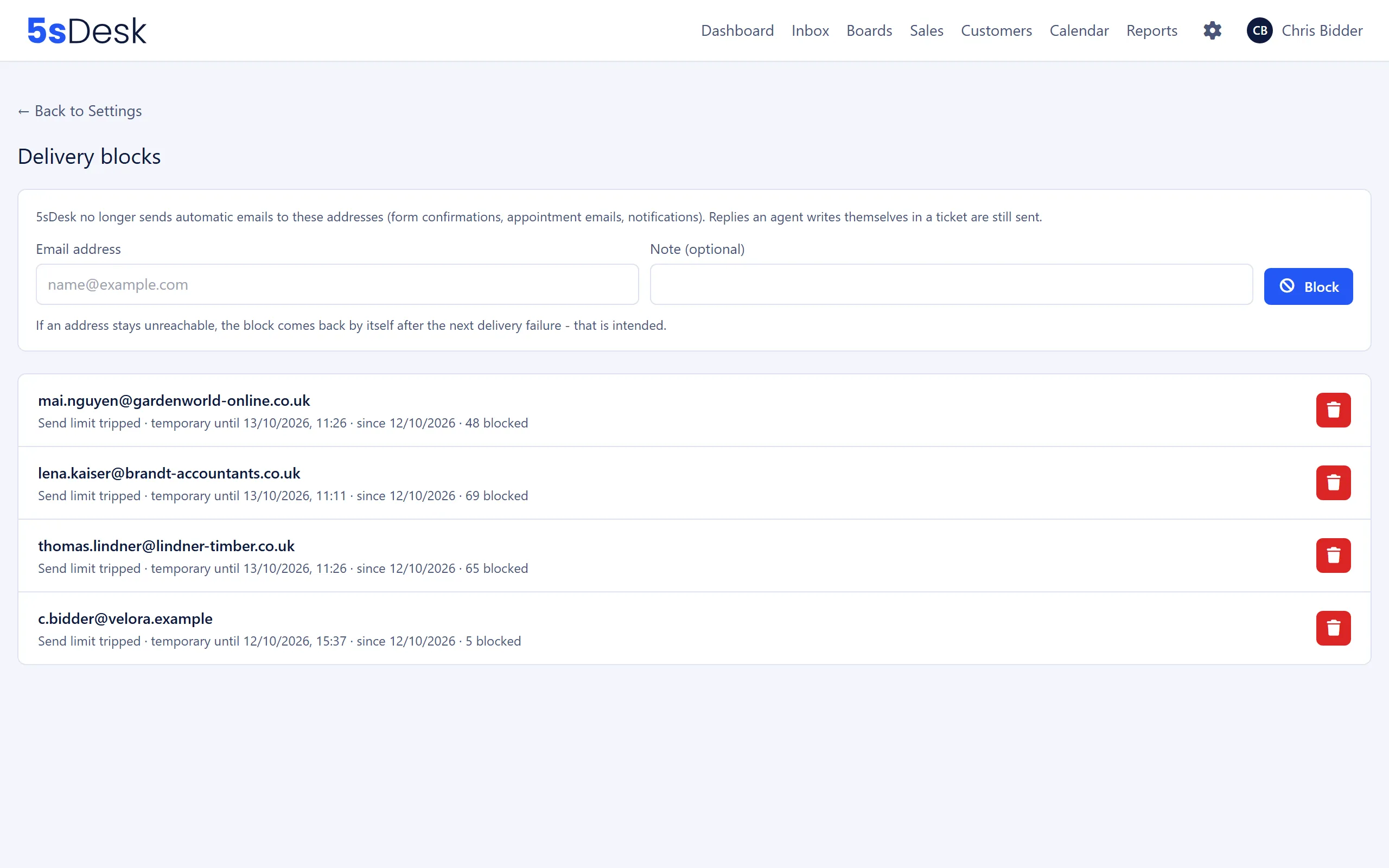
Section titled “Delivery blocks”The delivery blocks under “Delivery blocks” stop 5sDesk from sending further automatic emails to an address where that makes no sense.
What is blocked: only automatically generated emails, meaning form confirmations, appointment emails, marketing consent confirmation emails, acknowledgements and notifications.
What is not blocked: replies and new emails that an agent writes in a ticket. These are always sent, but will probably not arrive if the address is permanently undeliverable.
| Reason | How it arises | Duration |
|---|---|---|
| “Permanently undeliverable” | A bounce reported as permanent (see above). | “permanent” |
| “Send limit tripped” | More than 10 automatic emails to the same address within one hour, typically caused by a mail loop with another ticket system. | “temporary until” the end of the one-hour window |
| “Blocked manually” | An admin added the address with “Block”, optionally with a “Note (optional)”. | “permanent” |
For each entry, the list shows “since” when, how many times the block has stopped an email (“… blocked”) and, for manual blocks, “by” whom. Use “Lift block” to remove an entry. If the address remains unreachable, the block comes back by itself after the next permanent bounce.
In the ticket, agents see a banner “Delivery to … is suppressed.” with the reason and the date. Admins also see the link “Manage suppression list” there. A suppressed acknowledgement is recorded in the ticket’s activity log. If you forward to a blocked address, 5sDesk warns you but still sends the forward.
Scheduled sending
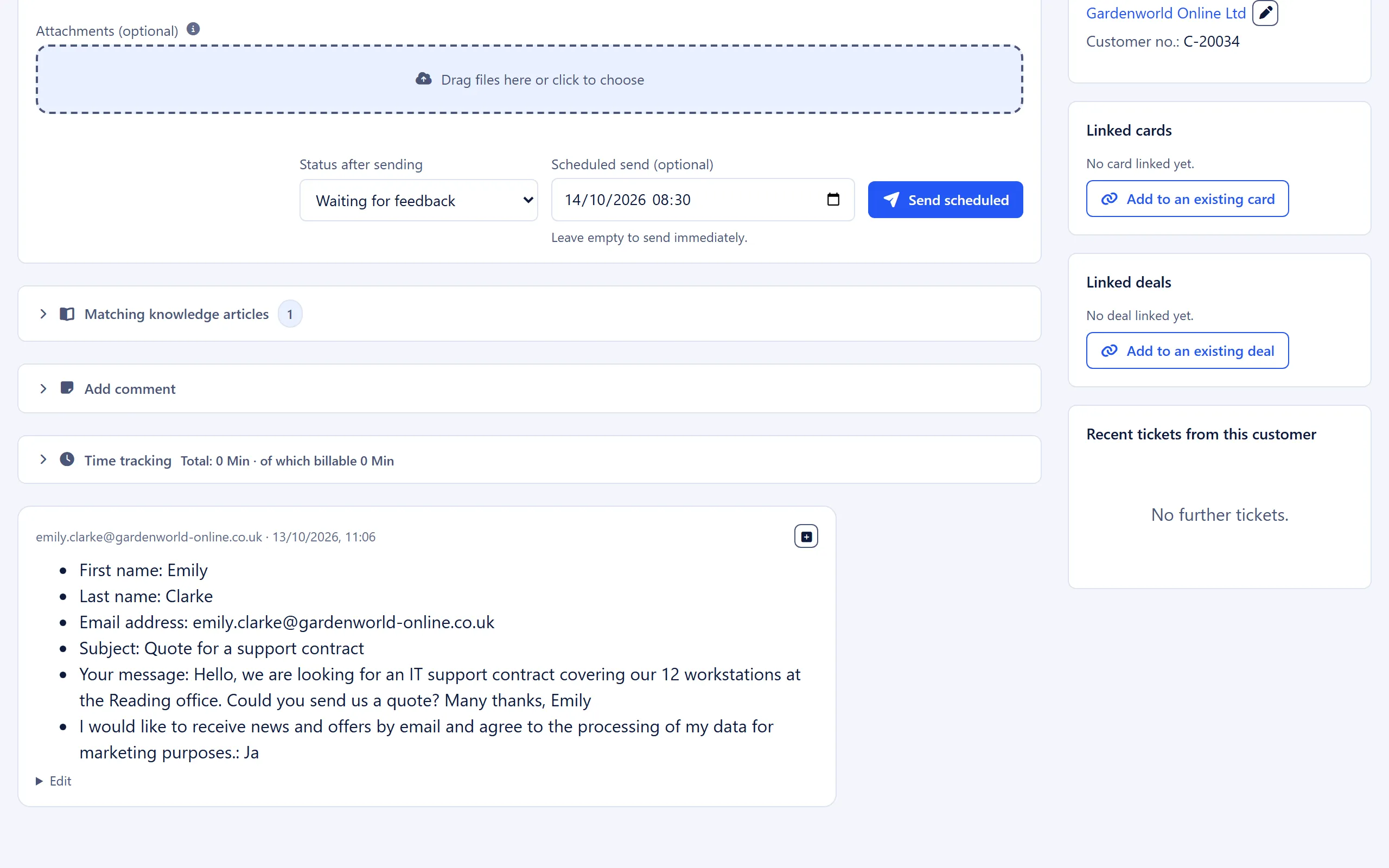
Section titled “Scheduled sending”Instead of sending straight away, you can have a reply or a new email sent at a later time.
How to do it
Section titled “How to do it”- Write your reply as usual.
- Enter a date and time under “Scheduled send (optional)”. The time must be in the future.
- Click “Send scheduled”.
The ticket immediately gets the status “Scheduled” and appears in the inbox on the “Scheduled” tab with the note “Sending scheduled for …”. If you deliberately chose a different status in the status field, that status applies straight away. Once the email has actually been sent, the status you chose is set in every case.
Cancelling
Section titled “Cancelling”Under “Scheduled replies”, the ticket lists every send that has not yet gone out, with “Sending on …”, a “Preview scheduled email” and the “Cancel now” button. When you cancel, the text, CC and BCC go back into your draft, and the ticket returns to the status it had before scheduling (as long as no other send is still pending). If the email is already being sent, 5sDesk reports “Too late” and the email goes out.
What happens in the background
Section titled “What happens in the background”Every 30 seconds, 5sDesk checks which emails are due and sends them through the selected mailbox. If sending fails (for example because a password has expired), the entry is marked as failed and is not retried automatically. You can see this on the ticket and schedule the reply again. You cannot remove a mailbox that still has scheduled emails pending. Cancel them first.
Blocking senders
Section titled “Blocking senders”The ticket has a “Block sender & mark as spam” button. It blocks exactly this email address (not the whole domain, so you do not accidentally block the sender’s colleagues as well) and moves the ticket to suspected spam.
Effect on future emails from this sender: they still arrive, so nothing is lost, but they go straight to suspected spam. This applies to new tickets as well as to replies to existing tickets: the ticket does not appear in the standard inbox, no acknowledgement is sent and there is no automatic assignment. The block also applies when the blocked address only appears as the reply address (Reply-To), for example in form emails.
“Not spam”: moves the ticket back to the inbox, lifts the address block and adds the sender to “Trusted senders”. If there is also a domain block, it stays in place. 5sDesk tells you that the next email will land in suspected spam again.
Domain blocks: admins block whole domains under “Blocklist” with the type “Domain”. An entry without a prefix blocks only that exact domain. An entry with *. (for example *.spam-domain.com) also blocks all subdomains. A domain block cannot be lifted from an individual ticket.
Attachment rules
Section titled “Attachment rules”5sDesk accepts common business files and always rejects executable files.
| Rule | File types |
|---|---|
| Always allowed | Images (png, jpg, jpeg, gif, webp, svg), PDF, Office (doc, docx, xls, xlsx, ppt, pptx), text (txt, csv, md, xml), forwarded emails (msg, eml), archives (zip, rar, 7z), web files (liquid, html, css, js), patches (patch, diff) |
| Also allowed | Whatever admins enter under “Additionally allowed extensions (comma-separated, without dot)”, for example heic or dwg |
| Never allowed | Executable files and scripts such as exe, bat, cmd, ps1, vbs, msi, jar, dll, apk. Not even via the additional list. |
| Limit | Value |
|---|---|
| Agent reply | 20 MB per file, 25 MB per message, at most 10 files |
| Request in the customer portal | at most 5 files; html, js, css, svg and xml are blocked there |
| Incoming email | 25 MB per attachment, 50 MB per email |
What happens when a rule is broken: for an incoming email, the affected attachment is not saved, but the email itself arrives. The ticket shows “… attachments were not kept:” with the reason for each file: “file type not allowed”, “blocked for security reasons”, “too large” or “message exceeds … in total”. For “file type not allowed”, admins see the link “Allow file type” right next to it, which leads to the “Mail attachments” page. Once you have added the extension, ask the customer to send the file again. Attachments that were already discarded cannot be recovered. When you upload in the reply editor, 5sDesk shows the allowed types and limits and rejects unsuitable files straight away.
Importing existing mail history
Section titled “Importing existing mail history”Under “Migration & Import”, you bring existing data into 5sDesk. You can safely repeat both methods, because emails and tickets that have already been imported are recognised and skipped.
Classic mail import
Section titled “Classic mail import”Imports the history of a mailbox that is already connected, from both the inbox and the Sent folder. You choose the “Mailbox”, an optional time range, the “Department for newly created conversations” (default: “Use the mailbox’s department”) and the “Status for imported conversations”.
| Imported | Not imported |
|---|---|
| Emails with their attachments, grouped into tickets; the ticket date is the date of the first email | Acknowledgements, automatic assignment, notifications to agents |
| Replies that were previously sent directly from Outlook, in the matching tickets | Response times (SLA) and reports for the imported period |
| Newsletters and automated emails with no ticket reference, as suspected spam | The department of existing tickets (stays as it is) |
Freshdesk
Section titled “Freshdesk”You enter the “Freshdesk domain” and the “API key” (stored encrypted, never displayed). Before the first run, you map Freshdesk agents and Freshdesk groups to agents and departments in 5sDesk.
| Imported | Not imported |
|---|---|
| Description, public replies, private notes, attachments | Customer data into the CRM |
| Status (taken from the current Freshdesk status on every run) | Knowledge base articles |
| Assignee and author according to the mapping; without a mapping both stay empty, and the Freshdesk name is added to notes as a hint | Department changes for tickets that have already been imported (the mapping only applies when a ticket is first created) |
Import scripts are available for osTicket and Zendesk; 5sDesk is looking for pilot customers for these.
Related settings
Section titled “Related settings”- Email inbox: create accounts, connection type, default mailbox, Sent folder sync, acknowledgement.
- Departments: automatic assignment per department.
- Delivery blocks: view, add and lift blocks.
- Blocklist and trusted senders: block or allow domains and addresses.
- Mail attachments: allow additional file extensions.
- Migration & Import: mail import and Freshdesk in detail.
- Forms: enquiries from lead forms follow the same automatic assignment.