
Manage account: delete or reset your organisation
On this page you see how much data your organisation holds, and you can delete it permanently or reset it to its state right after sign-up. Only admins can see this page. Only an owner can reset the organisation.
Where to find the page
Section titled “Where to find the page”Administration › Settings › System & Branding › “Manage account”.
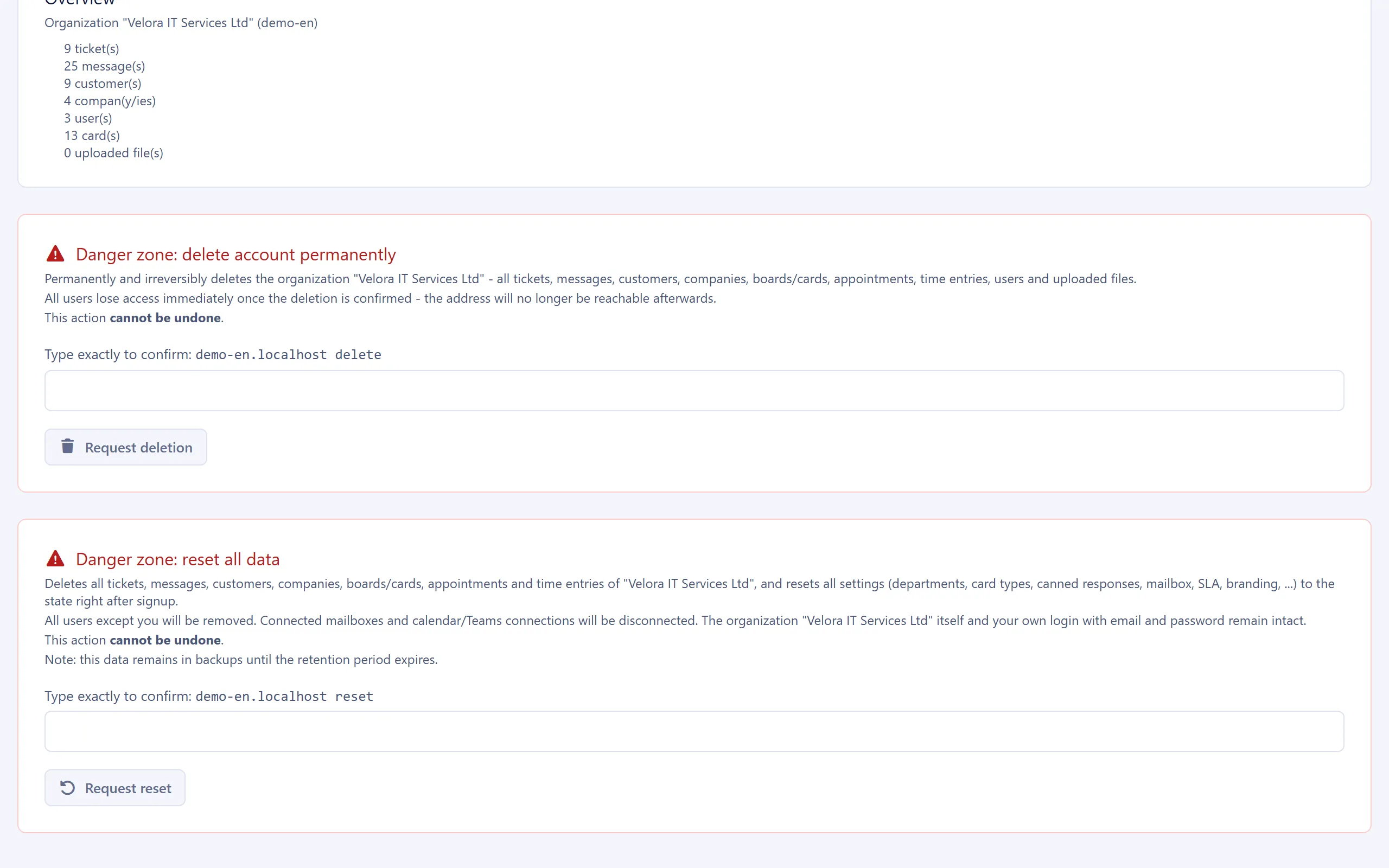
Settings at a glance
Section titled “Settings at a glance”Overview
Section titled “Overview”Shows the organisation’s name and subdomain, and the number of tickets, messages, customers, companies, users, cards and uploaded files.
Danger zone: delete account permanently
Section titled “Danger zone: delete account permanently”| Field | Meaning |
|---|---|
| “Type exactly to confirm:” | The phrase consists of your organisation’s address and the word “delete”, for example company.5sdesk.com delete. The exact wording is shown above the field. |
| “Request deletion” | Only becomes active once the phrase has been typed exactly. Sends a confirmation email to the email address of the admin who made the request. |
Danger zone: reset all data
Section titled “Danger zone: reset all data”Only visible to owners.
| Field | Meaning |
|---|---|
| “Type exactly to confirm:” | The organisation’s address and the word “reset”, for example company.5sdesk.com reset. |
| “Request reset” | Sends a confirmation email to the owner’s email address. |
Pending request
Section titled “Pending request”While a request is waiting for confirmation, the page shows “Deletion requested” or “Reset requested” with the email address of the person who made the request and when the link expires. “Cancel request” invalidates the link.
How to do it
Section titled “How to do it”- Type the phrase exactly and click “Request deletion” or “Request reset”.
- Open the confirmation email. The link is valid for 1 hour and can only be used once.
- The link opens a confirmation page in 5sDesk. Click “Yes, delete permanently” or “Yes, reset everything now” there and confirm the browser prompt.
- After deletion, you see “Account deleted”. After a reset, you stay signed in and see “The organization was successfully reset to its post-signup state.”
An expired or already used link shows “Link invalid or expired”. In that case, nothing has been deleted.
What changes
Section titled “What changes”Deleting removes the organisation completely: all tickets, messages, customers, companies, boards and cards, deals, appointments, time entries, users, settings, the AI log, the marketing consent history and all uploaded files. All users lose access immediately. The organisation’s address is no longer reachable afterwards.
Resetting deletes the same data and returns all settings (departments, card types, canned responses, mailboxes, SLA, branding and more) to their state right after sign-up. The following are kept:
- the organisation’s name, subdomain and creation date,
- plan, subscription and grace period (a reset does not start a new free trial),
- the access of the owner who performs the reset, with their email address and password.
All other users are removed. Connected mailboxes and calendar and Teams connections are disconnected.
See also
Section titled “See also”- Roles and permissions: Which actions are reserved for the owner.
- Billing & plan: Cancel your subscription before you delete the organisation.
- System maintenance: Delete tickets only.