
Appointment types
An appointment type is what customers can book through a public booking link, for example “Initial consultation (30 min)”. It defines who takes the appointment, how long it lasts, which buffers apply and how it takes place. Only admins can see this page.
Where to find the page
Section titled “Where to find the page”Administration › Settings › Appointments › “Appointment types”. You create a new appointment type with “New appointment type”.
The list
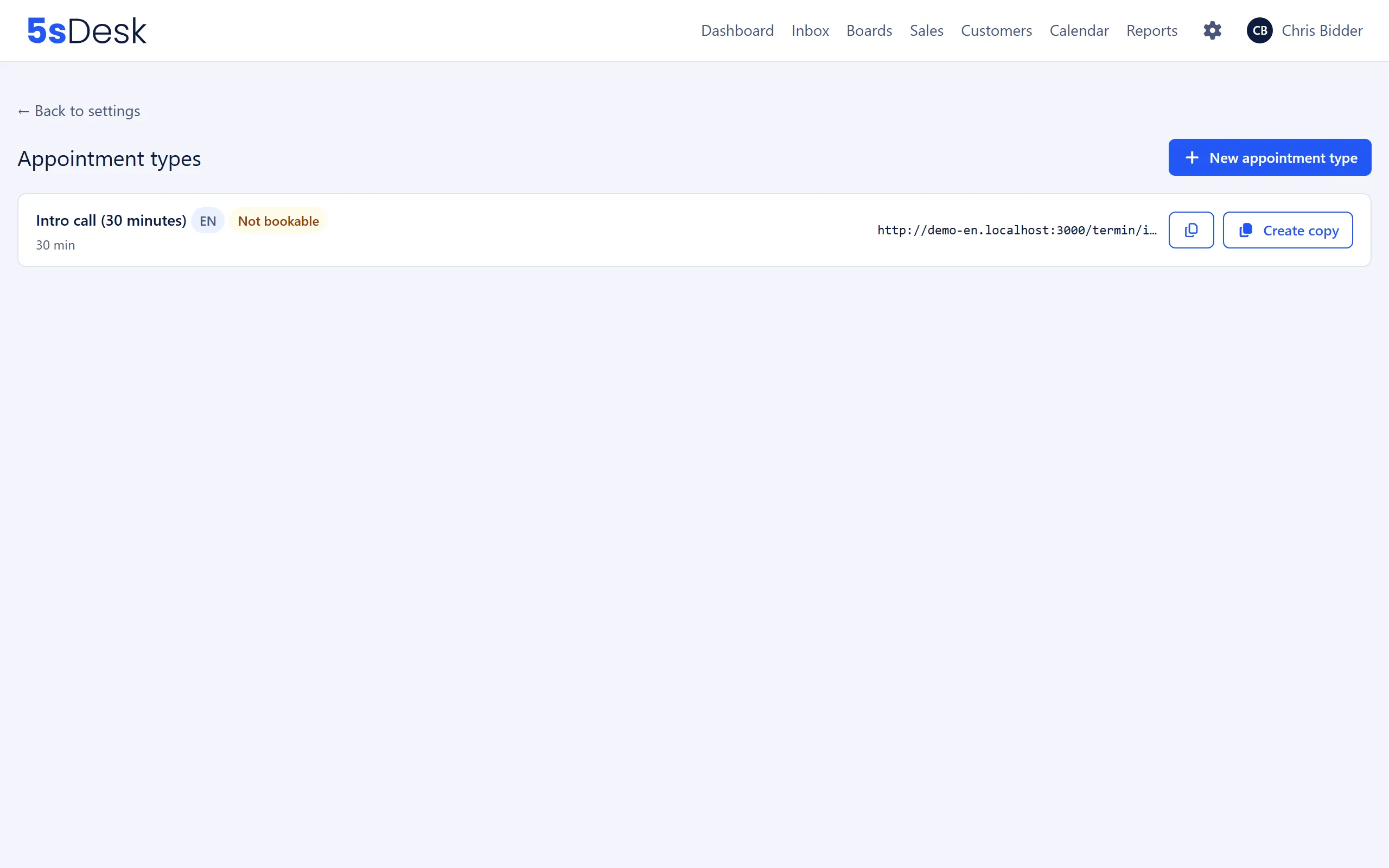
Section titled “The list”Each row shows the name, a badge with the language of the appointment type and the duration in minutes. For active appointment types, the booking link appears next to it in the form https://<your address>/termin/<short-name>, with a copy button (feedback: “Copied!”).
| Element | Meaning |
|---|---|
| “Inactive” badge | The appointment type is deactivated. The booking link and the embedded booking return “not found”. |
| “Not bookable” badge | The appointment type is active, but no responsible agent has connected a Microsoft or Google calendar. |
| Hint “No responsible agent can offer … (Microsoft or Google calendar missing).” | At least one allowed mode (for example a Teams meeting) can’t be covered by any responsible agent. |
| “Create copy” | Creates an inactive copy in the same language, named “Name (EN)”. The owner, times, modes, embedding and tracking settings are copied; the embedding key is new. |
| “Copy & translate with AI” | Only visible if an AI key is stored. Opens a dialog with “Target language”. The AI translates the name, intro, help texts, message field label and confirmation text. The copy is inactive at first. |
Settings at a glance
Section titled “Settings at a glance”Basic details
Section titled “Basic details”| Field | Meaning | Default |
|---|---|---|
| “Name” | Appears on the booking page, in emails and in the calendar. The short name in the booking link is created from it. | empty, required |
| “Language of the appointment type” | An appointment type has exactly one language. It applies to the booking page, the embedded booking, the confirmation and all customer emails. You can choose from 20 languages. | Default language of the customer portal |
| “Belongs to” | “A single agent”: one fixed contact person. “Department (pool)”: all active agents in the department are available, and bookings are distributed automatically. | A single agent |
Times and limits
Section titled “Times and limits”The form fields check the limits as you type. All minute values go in steps of 5, the minimum notice in steps of 15.
| Field | Meaning | Default | Limits |
|---|---|---|---|
| “Duration (min)” | Length of the appointment. | 30 | at least 5 |
| “Grid (min)” | Interval between the offered start times, for example 09:00, 09:15, 09:30. | 15 | at least 5 |
| “Buffer before (min)” | Free time before the appointment, which is also blocked. | 0 | at least 0 |
| “Buffer after (min)” | Free time after the appointment. | 0 | at least 0 |
| “Minimum notice (min)” | Earliest bookable time, counted from now. 240 minutes means: four hours from now at the earliest. | 240 | at least 0 |
| “Booking horizon (days)” | How far into the future bookings can be made. | 60 | 1 to 365 |
| “Max. open appointments per email” | How many appointments that haven’t taken place yet one email address may have at the same time. Counts across all appointment types of the organisation. If the limit is exceeded, the visitor sees “You already have … open appointments with this email address.” | 2 | 1 to 20 |
Allowed modes
Section titled “Allowed modes”At least one mode must be ticked, otherwise the appointment type can’t be saved.
| Field | Requirement for the agent | Default |
|---|---|---|
| “Microsoft Teams” | A connected Microsoft calendar (My Profile › Calendar). | on |
| “Google Meet” | A connected Google calendar. | off |
| “Phone” | None. The 5sDesk calendar is enough. | on |
For a department, it’s enough if any member has connected the right calendar. On the booking page, each time slot only offers the modes that the available agent can actually cover.
Custom texts
Section titled “Custom texts”All texts are optional and appear in the language of the appointment type.
| Field | Where the text appears |
|---|---|
| “Intro text (booking page)” | At the top of the booking page. |
| “Help text for the mode selection” | Below the Teams / Google Meet / Phone selection. |
| “Message field label” | As the label of the free-text field. |
| “Help text for the message field” | Below the free-text field. |
| “Message is required” | Booking isn’t possible without a message (“Please enter a message.”). Default: off. |
| “Confirmation page text” | On the page shown after a successful booking. |
Activating, deactivating, deleting
Section titled “Activating, deactivating, deleting”At the bottom of the edit screen, you’ll find “Create copy”, “Copy & translate with AI”, “Deactivate” or “Activate”, and “Delete”.
- “Deactivate” takes the appointment type out of service immediately: the booking link and the embedded booking respond with “not found”. Existing appointments are kept.
- “Delete” asks for confirmation (“Really delete this appointment type?”) and is only possible if there are no upcoming appointments left. Otherwise you’ll see “This appointment type still has … upcoming appointment(s) - please deactivate it instead.”
Embed on your website
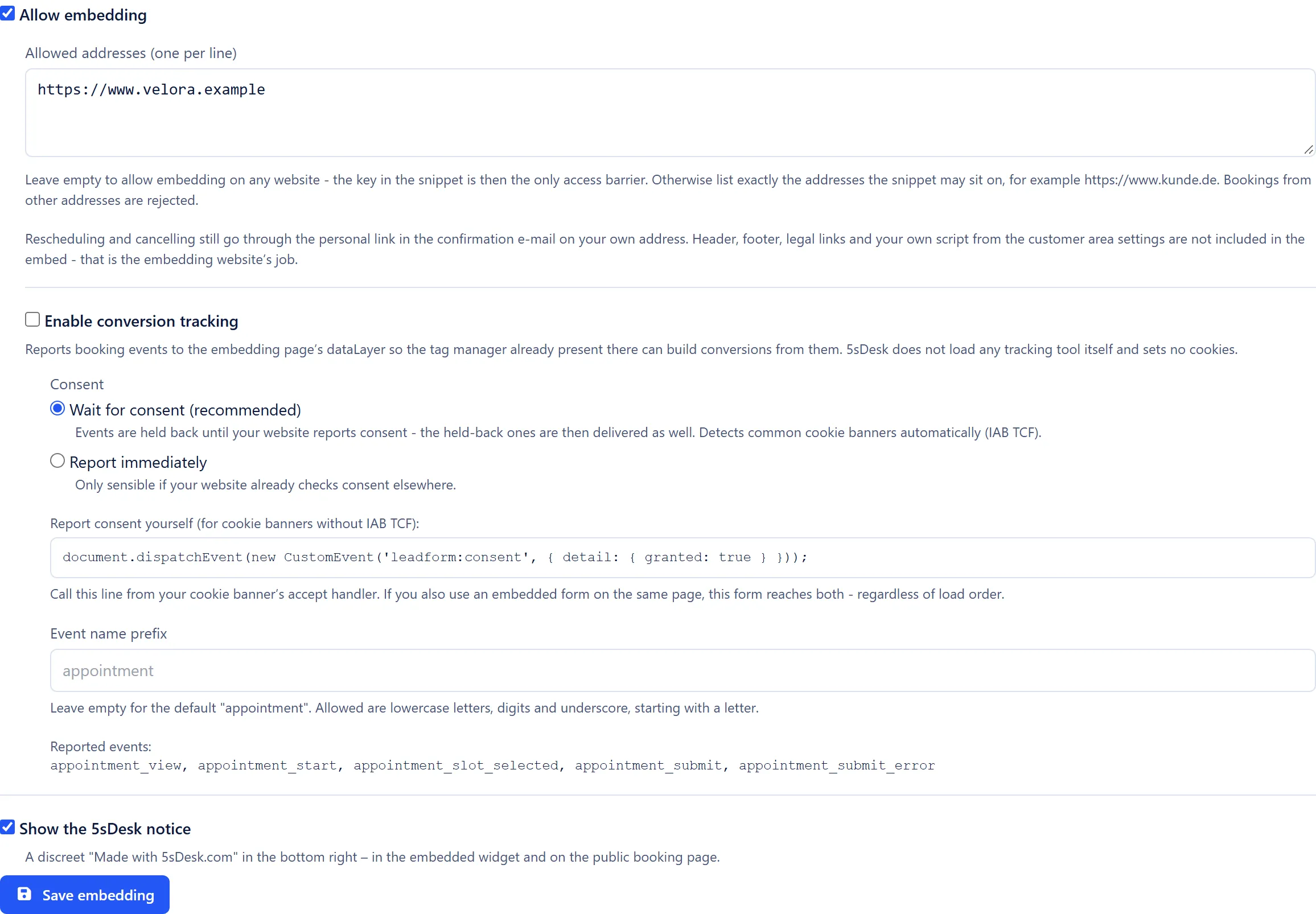
Section titled “Embed on your website”The “Embed on your website” section only appears after you’ve saved the appointment type for the first time. It has its own form with its own “Save embedding” button. The booking link keeps working regardless of the embedding settings.
| Field | Meaning | Default |
|---|---|---|
| “Allow embedding” | Enables the snippet. Off means that snippets already in place no longer display anything. | off |
| “Allowed addresses (one per line)” | Empty: any website may use the snippet, and the key in the snippet is the only barrier. Otherwise, enter the exact addresses, for example https://www.kunde.de. An entry such as https://*.kunde.de covers exactly one subdomain level. A * on its own is rejected. |
empty |
| “Show the 5sDesk notice” | Shows “Made with 5sDesk.com” in the bottom right of the widget and on the booking page. On the Starter plan, the option is ticked and locked (“On your plan this notice stays.” with the link “Change plan”). | on |
After you save with embedding enabled, the snippet appears (two lines: a script tag and a placeholder element) with “Copy snippet”. Paste both lines into your website where the booking should appear.
Conversion tracking
Section titled “Conversion tracking”This is also part of the embedding form. 5sDesk doesn’t load a tracking tool of its own and doesn’t set any cookies. Instead, it reports events to the dataLayer of the embedding page.
| Field | Meaning | Default |
|---|---|---|
| “Enable conversion tracking” | Switches the event reporting on. | off |
| “Consent” › “Wait for consent (recommended)” | Events are held back until the website reports consent, then sent afterwards. Common cookie banners (IAB TCF) are detected automatically. | selected |
| “Consent” › “Report immediately” | Only useful if your website checks consent elsewhere. | |
| “Event name prefix” | Empty means appointment. Lowercase letters, digits and underscores are allowed, starting with a letter. |
empty |
Events reported: <prefix>_view, <prefix>_start, <prefix>_slot_selected, <prefix>_submit, <prefix>_submit_error. For cookie banners without IAB TCF, the screen shows the line your website must call when the visitor consents, under “Report consent yourself”.
How to do it
Section titled “How to do it”- Click “New appointment type” and enter the “Name” and “Language of the appointment type”.
- Under “Belongs to”, choose an agent or a department.
- Check the duration, grid, buffers, minimum notice and horizon, and choose the allowed modes.
- Add custom texts if needed and click “Save”.
- Copy the booking link from the list, or open the appointment type again and set up embedding.
Effects
Section titled “Effects”- Customers see the appointment type under the booking link in their own time zone (“Detected timezone:” with a selector). Available times are based on the working hours, the 5sDesk calendar and the connected Microsoft or Google calendars of the responsible agents.
- For a department, the appointment goes to whoever has had the fewest appointments in the last 28 days. If there is a tie, it goes to whoever has gone longest without being assigned one.
- Each booking creates a customer in the CRM if needed and sends the confirmation, calendar invitation and reminders in the language of the appointment type.
See also
Section titled “See also”- Appointment booking: the process from the customer’s point of view, rescheduling, cancelling and reminders.
- Appointment booking: settings: time zone, reminders and deadlines for all appointment types.
- Users: working hours per agent and the self-service permission.
- Departments: members of a pool appointment type.
- AI features: required for “Copy & translate with AI”.