
System maintenance: bulk close or delete tickets
On this page you close many tickets at once or delete all of your organisation’s tickets, for example after a test run or a faulty import. Only admins can see this page.
Where to find the page
Section titled “Where to find the page”Administration › Settings › System & Branding › “System maintenance”.
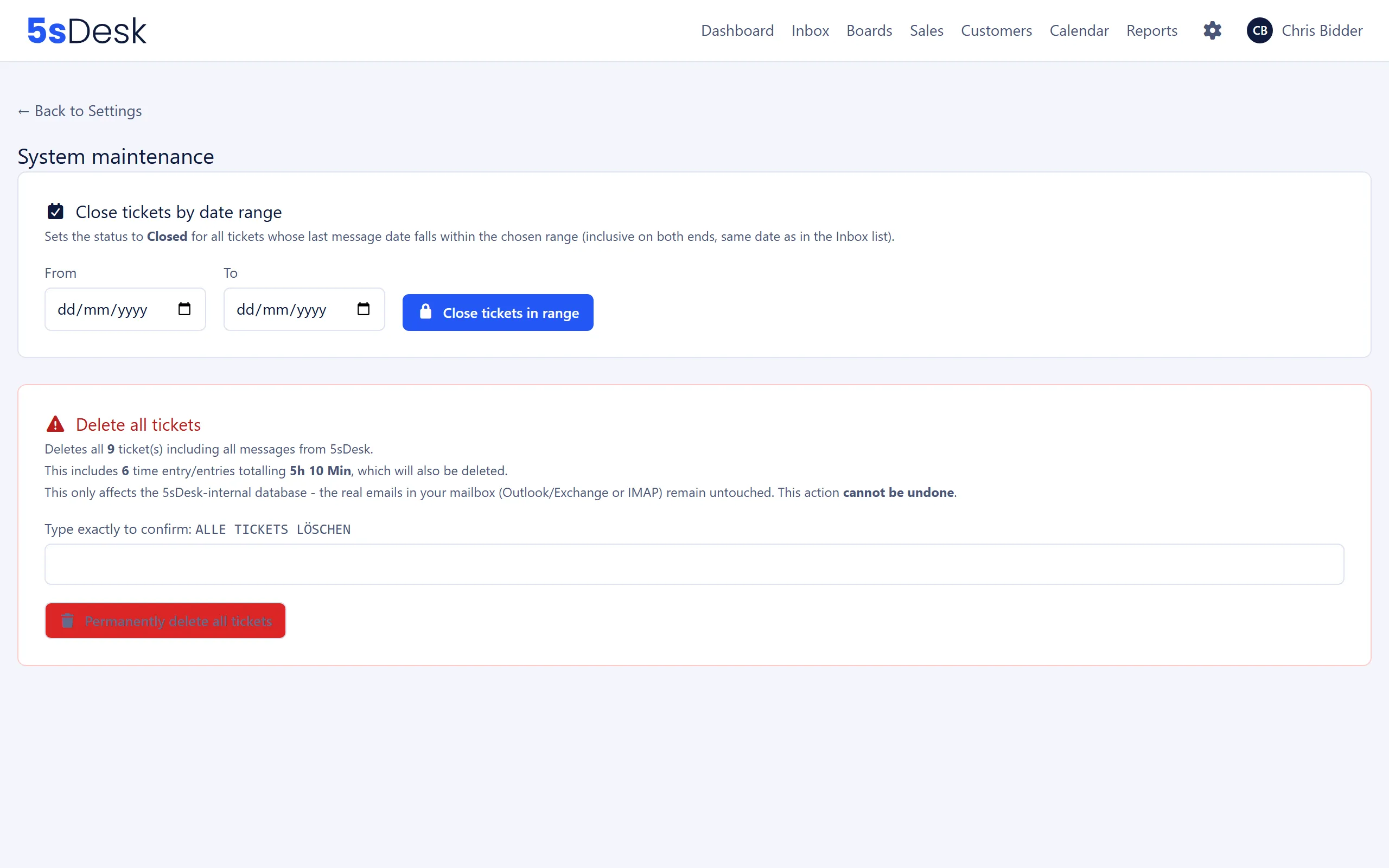
Settings at a glance
Section titled “Settings at a glance”Close tickets by date range
Section titled “Close tickets by date range”| Field | Meaning |
|---|---|
| “From” | First day of the range (inclusive). |
| “To” | Last day of the range (inclusive). |
| “Close tickets in range” | Sets all matching tickets to the status “Closed”. |
What counts is the date of a ticket’s latest message, the same date the inbox list shows. For imported tickets, this is the actual date of the email, not the day of the import. Drafts are not affected.
Before it runs, the browser asks whether all tickets in the selected range should be set to “Closed”. Afterwards, the page reports how many tickets were changed. If the from date is after the to date, you see “The from date must be before the to date.”
Delete all tickets
Section titled “Delete all tickets”The card shows in advance what would be deleted: the number of tickets and, if there are any, the number of time entries on tickets along with their total duration.
| Field | Meaning |
|---|---|
| “Type exactly to confirm:” | The button only becomes active once the field contains exactly ALLE TICKETS LÖSCHEN (German for “delete all tickets”; the app expects this German phrase in every interface language). |
| “Permanently delete all tickets” | Deletes all of the organisation’s tickets and messages after one more confirmation prompt. |
How to do it
Section titled “How to do it”- Read the counters above the input field and check whether any time entries are affected.
- Type
ALLE TICKETS LÖSCHENexactly into the field. - Click “Permanently delete all tickets” and confirm the prompt “Really delete ALL tickets and messages irrevocably?”.
- The page then reports the number of deleted tickets, messages and time entries.
What changes
Section titled “What changes”When you delete all tickets:
- All tickets are deleted, along with their messages, their attachments and the working time logged on them. Time entries on cards are kept.
- Drafts (new messages that have not been sent yet) are kept.
- Ticket numbering is not reset. Numbers already given to customers are not reused.
- The mailboxes’ fetch positions are kept. Emails that have already been processed therefore do not automatically reappear as tickets. If you need the history again, use the history import under Migration & import.
- Webhooks are not triggered for the deleted records.
See also
Section titled “See also”- Email: How tickets are created from emails and which statuses exist.
- Migration & import: Import a mailbox’s history again.
- Manage account: Reset or delete the whole organisation.