
Appointment booking settings
These settings apply to all appointment types in your organisation: the time zone your working hours are based on, when customers and agents are reminded, and how late customers can still cancel or reschedule an appointment themselves. Only admins can see this page.
Where to find the page
Section titled “Where to find the page”Administration › Settings › Appointments › “Appointment booking: settings”.
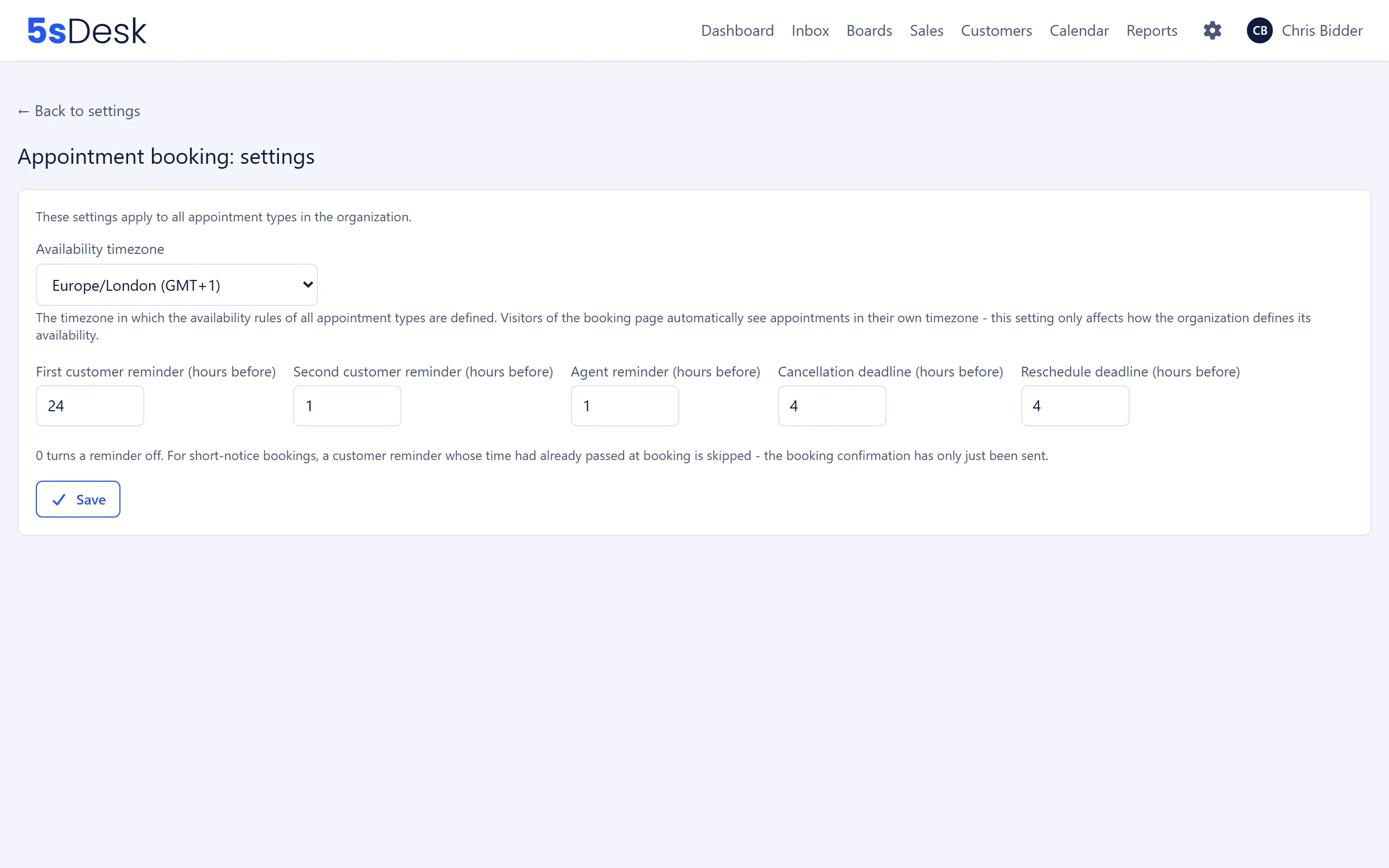
Settings at a glance
Section titled “Settings at a glance”All hour values are whole numbers from 0 upwards. An invalid value is rejected with “Invalid hour value - please enter a whole number of 0 or more.”
| Field | Meaning | Default |
|---|---|---|
| “Availability timezone” | The time zone in which all agents’ working hours are interpreted. “09:00 to 17:00” means 09:00 to 17:00 in this time zone. The list shows all known time zones with their current offset. | Europe/Berlin |
| “First customer reminder (hours before)” | Email “Reminder: … on …” to the customer, this many hours before the appointment. 0 switches it off. | 24 |
| “Second customer reminder (hours before)” | Email “Your appointment starts soon: …” to the customer. 0 switches it off. If both reminders are active, this value must be smaller than that of the first reminder. | 1 |
| “Agent reminder (hours before)” | Reminder to the responsible agent, this many hours before the appointment. 0 switches it off. | 1 |
| “Cancellation deadline (hours before)” | The customer can cancel through their management link up to this many hours before the appointment starts. | 4 |
| “Reschedule deadline (hours before)” | The customer can reschedule through their management link up to this many hours before the appointment starts. | 4 |
Click “Save” to save. The confirmation reads “Settings saved.”
Effects
Section titled “Effects”For visitors to the booking page
Section titled “For visitors to the booking page”- The time zone only affects how your organisation defines its availability. Visitors automatically see available times in their own time zone (“Detected timezone:” with a selector) and can change it.
- Confirmation and reminder emails show both times: “confirmed for … (local time …)”.
For reminders
Section titled “For reminders”- Reminders are only sent for confirmed appointments, and each one exactly once.
- If an appointment is booked or rescheduled into the reminder window, the relevant customer reminder is skipped. The customer has only just received the confirmation in that case.
- If the second customer reminder has already been sent, the first one is not sent afterwards.
- Each agent decides under My Profile › Notifications whether they receive their reminder by email.
For cancellations and rescheduling
Section titled “For cancellations and rescheduling”- On the “Manage appointment” page (linked in the confirmation email), the customer sees “Reschedule appointment” and “Cancel appointment” as long as the relevant deadline hasn’t been reached.
- Once it has passed, the buttons disappear. Instead, the page shows “The deadline to cancel/reschedule this appointment has already passed - please contact us directly.”
- A value of 0 means that cancelling or rescheduling is possible right up to the start of the appointment.
See also
Section titled “See also”- Appointment types: duration, grid, buffers, minimum notice and horizon for each appointment type.
- Appointment booking: the process from the customer’s point of view, rescheduling and cancelling.
- Users: working hours per agent, which apply in the time zone selected here.
- My Profile: the agent’s calendar connection and notifications.