
Sales pipelines, deals and close reasons
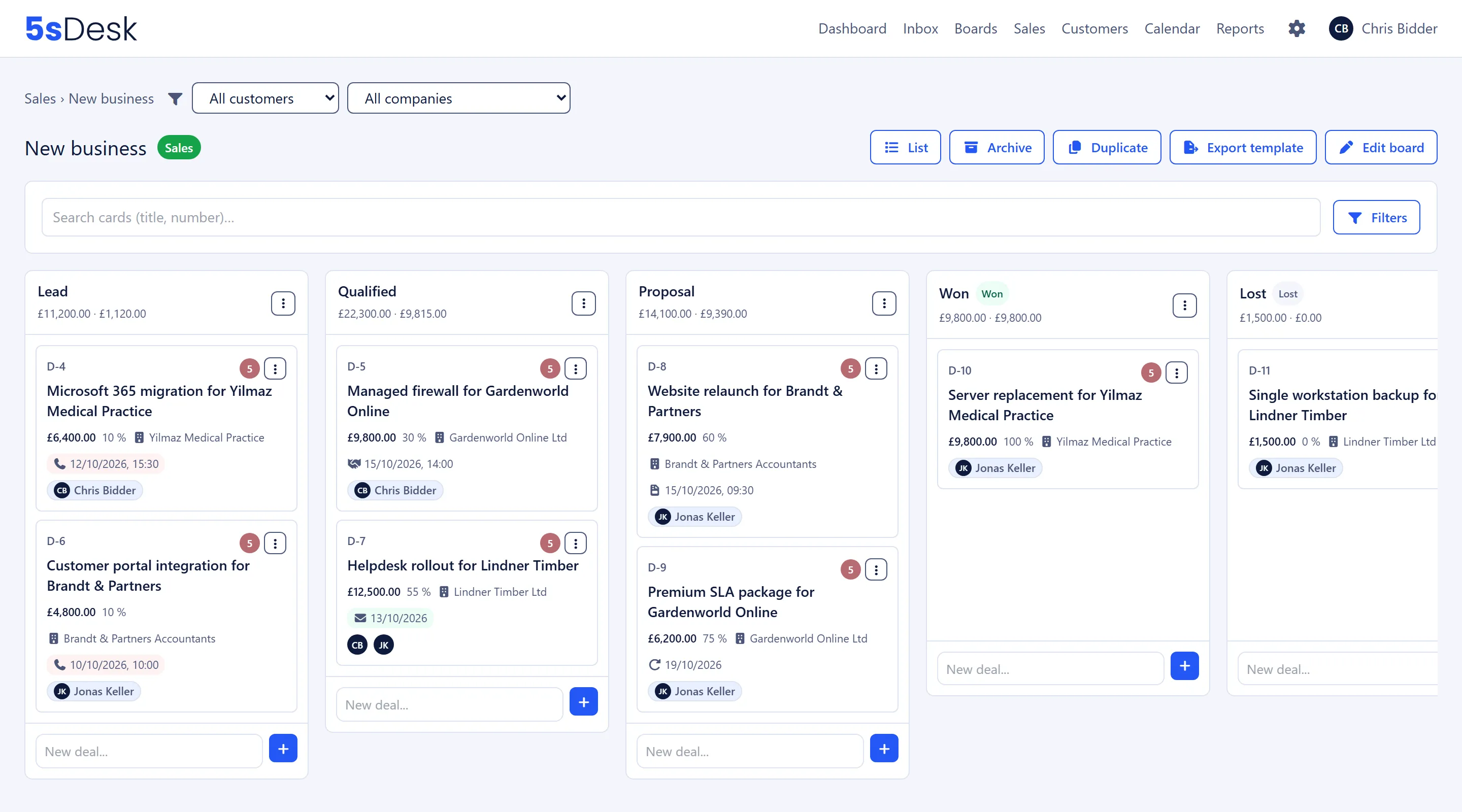
A sales pipeline is a board for deals: each column is a sales stage with a probability, and each deal carries a value, an expected close date and a next activity. This page is for sales staff who manage deals and for admins who set up pipelines and close reasons.
Where to find it
Section titled “Where to find it”- Sales area: main menu “Sales” with the tabs “Pipelines”, “Deals”, “Tasks” and “Reports”. The menu item appears as soon as the agent’s department has the “Sales” area enabled and at least one pipeline is visible to the agent (see Departments).
- Creating a pipeline: admins only, via “New pipeline” in the “Pipelines” overview.
- Close reasons, lead sources, deal numbers: Administration › Settings › Boards & AI › “Sales”, admins only (see Sales).
- The deals themselves are cards on the pipeline board, with additional deal fields.
Setting up a pipeline
Section titled “Setting up a pipeline”How to do it
Section titled “How to do it”- Open Sales › “Pipelines” and click “New pipeline”.
- Fill in the “Create new pipeline” form and save.
- If needed, adjust the stage kind and default probability of each column in the column menu.
| Field | Meaning | Default |
|---|---|---|
| “Name” | Name of the pipeline | Required |
| “Department” | Controls who can see the pipeline. “None (visible to all agents)” or a department. Note in the form: “Everyone with access to this pipeline sees all deal values. Visibility is controlled by the department.” | None |
| “Currency” | Three-letter code (EUR, CHF, USD). Applies to all deals in this pipeline and to the column totals. | EUR |
| “Lost reason required” | A reason must be chosen when a deal is moved into a lost stage. | off |
| “Background color”, “Transparency”, “Link in the menu under “Boards”“, “Logo” | Same as for task boards. |
Every new pipeline starts with this template:
| Stage | Stage kind | Default probability |
|---|---|---|
| “Lead” | “Open” | 10% |
| “Qualified” | “Open” | 30% |
| “Proposal” | “Open” | 60% |
| “Won” | “Won” | none (always counts as 100%) |
| “Lost” | “Lost” | none (always counts as 0%) |
You can rename, move, colour and add stages just like columns on a board. In the column menu (“Column options”), admins and the department lead of the pipeline’s department set the “Stage kind” (“Open”, “Won”, “Lost”) and “Default probability %”, then confirm with “Save stage”. If a column’s stage kind changes, all deals in it are adjusted silently: from that moment they count as closed or as open again, without a history entry on each deal.
How it differs from a task board
Section titled “How it differs from a task board”Pipelines and task boards share the same technology and interface, but they are kept separate. Deals carry a value, probability, expected close date, lead source, close reason and planned activities; cards on task boards don’t. That is why you can’t move cards between the two kinds. If you try via “Move to board”, you get the message “Cards cannot be moved between task boards and pipelines. Create a project card for the handover instead.” How to do that is explained under Project card for the project team.
If you change the department of an existing pipeline, assignees and followers who lose access are silently removed from its deals. The form shows the number of affected open deals beforehand.
What a probability means
Section titled “What a probability means”Every deal has an effective probability. It is determined in a fixed order:
- If the deal is in a won stage: 100%.
- If it is in a lost stage: 0%.
- Otherwise, the deal’s own value entered under “Probability %”.
- Otherwise, the stage’s “Default probability %”.
In the edit form, the field shows the hint “Empty = column default (60%)” or “Empty = column default (none set)”. The deal panel shows the effective value with the suffix “(manual)” or “(column default)”. If neither the deal nor the stage has a value, it shows “not set”, and the deal counts as 0% in weighted totals.
A deal’s own value is kept when you move it between stages. If you want the stage default again after a stage change, clear the field.
Weighted total
Section titled “Weighted total”Every column header in a pipeline shows two amounts: the total of all active deals in that stage, and next to it the weighted total (“Sum of deals in this column · weighted by probability”). The “Pipelines” overview shows “Open deals”, “Open total”, “Weighted”, “Won (30 days)” and “Lost (30 days)” for each pipeline. Archived deals are never counted. An active filter on the Kanban view doesn’t change the column totals (“Column sums still cover every deal of the stage.”).
Worked example: the “Proposal” stage (default 60%) contains a deal worth €7,900 with no value of its own, and a deal worth €6,200 with its own value of 75%.
| Deal | Value | Effective probability | Contribution |
|---|---|---|---|
| Deal A | €7,900 | 60% (column default) | €4,740 |
| Deal B | €6,200 | 75% (manual) | €4,650 |
| Column header | €14,100 | €9,390 |
Close reasons
Section titled “Close reasons”Close reasons explain why a deal was lost. Admins manage them under Administration › Settings › Boards & AI › “Sales” › “Close reasons”.
- Every new organisation starts with “Price”, “No need”, “Competitor”, “No response” and “Other” (in the language the organisation was created in).
- “New reason” creates your own reasons: name up to 60 characters, no duplicates.
- The arrows next to each reason change the order in which the reasons appear in the selection.
- Next to each reason you can see how many deals use it. A reason that is in use can’t be deleted: “This reason is still used by … deal(s) and cannot be deleted.” Otherwise the report and the deal panel would suddenly show no reason at all.
“Lost reason required” per pipeline
Section titled ““Lost reason required” per pipeline”If this option is set in the pipeline form, 5sDesk asks for a reason whenever a deal moves into a lost stage. The prompt works the same way on every route:
- Dragging the card in the Kanban view
- “Status” in the card header, or the “Move to previous column” and “Move to next column” arrows
- “Move to board” into a lost stage of another pipeline
The “Reason for the loss” dialog opens with the hint “This pipeline requires a reason when a deal moves into a lost stage.” and the selection “Choose a reason …”. If you don’t choose one, the deal stays where it was. If the deal already has a reason, you aren’t asked.
If no reasons have been created, the dialog shows “No close reasons exist yet. An admin can manage them under Settings › Sales.” and offers no save button. In that case, deals in this pipeline can’t be set to lost until an admin has created some reasons.
Without the option, you can add the reason to the deal at any time: the “Lost reason” field in the edit form (“No reason” removes it). Lost deals without a reason show “No reason recorded” in the panel and the warning icon “Lost without a reason” on the card.
What happens when you move a deal
Section titled “What happens when you move a deal”| Target stage | Effect on the deal |
|---|---|
| “Lost” | The close date is set (and kept if the deal later switches between lost and won), and the reason is applied. Open activities are cancelled. |
| “Won” | The close date is set and any existing reason is deleted. Open activities are cancelled. |
| “Open” | The close date and reason are deleted. The deal counts as open again. |
Deal numbers
Section titled “Deal numbers”Deals get their own prefix. Under Administration › Settings › Boards & AI › “Sales” › “Deal numbers”, the admin sets the “Format:”, by default D-$nummer; “Example:” shows the result. Cards on task boards use the format from “Card numbering” in the General settings, by default K-$nummer, together with the “Start number:”.
Cards and deals share one counter. Each new card or deal takes the organisation’s next free number. That is why D-17 and K-18 can sit side by side, and the numbers within each kind have gaps: between D-17 and D-20, two cards were created. Each number exists only once in the organisation, so searching for the bare number always finds exactly one item. The number isn’t stored but calculated from the counter and the start number; changing the start number later shifts all codes.
Creating a deal from a ticket
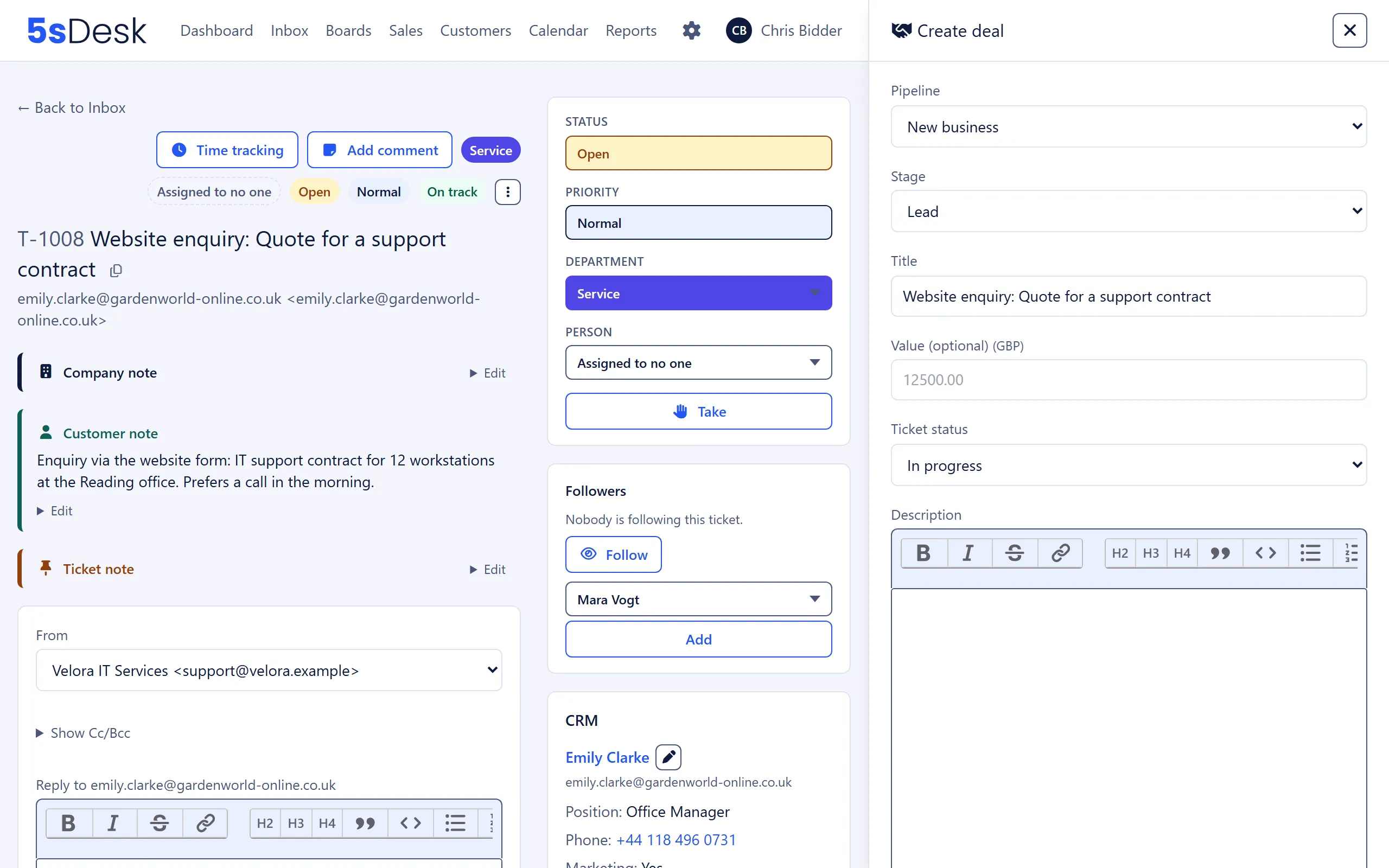
Section titled “Creating a deal from a ticket”You can turn a ticket into a deal in just a few clicks. In the ticket, under “More actions”, you’ll find the “Create deal” button next to “Create card”. It only appears if the agent can see at least one pipeline.
How to do it
Section titled “How to do it”- Open the ticket and choose “More actions” › “Create deal”.
- Fill in the fields in the “Create deal” side panel. The ticket stays readable next to it.
- “Create deal” saves and takes you back to the ticket.
| Field | Meaning | Default |
|---|---|---|
| “Pipeline” | Target pipeline, from the pipelines you have access to | first pipeline |
| “Stage” | Column of the selected pipeline | first stage |
| “Title” | Title of the deal | Subject of the ticket |
| “Value (optional)” | Amount in the pipeline’s currency, with a comma or full stop as the decimal separator and no thousands separators | empty |
| “Ticket status” | Status the ticket gets after the deal is created | “In progress” |
| “Description” | Free text with formatting, images and @mentions | empty |
What is carried over
Section titled “What is carried over”- Customer and company: 5sDesk finds the customer via the ticket’s link or via the sender address in the CRM and adds them to the deal along with their company. If the sender isn’t in the CRM, the deal has no customer.
- The ticket is linked as the source. The deal shows “Reference: entire ticket” and lists the ticket under “Linked tickets”; you can add more tickets with “Link ticket”.
- The ticket shows the new deal in the “Linked deals” box. With “Add to an existing deal” you can link a ticket to an existing deal later.
- You can jump back and forth in both directions: from the ticket to the deal and from the deal to the ticket.
Lead form as a deal source
Section titled “Lead form as a deal source”A lead form can create a deal directly instead of a card. In the form, under “Create a card on a board”, choose a pipeline from the “Pipelines” group for “Board” instead of a board from the “Boards” group. The “Column” is then the stage where every enquiry lands, for example “Lead”.
Two extra fields are only available when a pipeline is the target:
| Field | Meaning |
|---|---|
| “Form field for the deal value” | A text or hidden field of the form; the amount is used as the deal’s value. Input that can’t be read as an amount (for example “approx. 5000”) leaves the value empty, but the deal is still created. |
| “Lead source of the deal” | Assigned to every deal created via this form. Admins manage lead sources under Settings › “Sales” › “Lead sources”. |
Customer and company come from the submission, as with any form (see Forms). You can change the lead source on the deal later under “Lead source”; the deal list and the report can filter by it.
Tags on deals
Section titled “Tags on deals”Deals carry tags from the “Deals” list, which is separate from the “Cards” list used on task boards. Admins and the lead of a department with the “Sales” area manage the list under Administration › Settings › Team › “Tags”, tab “Deals” (see Tags).
- Setting tags: on the deal, choose “Edit”, click the chips you want in the “Tags” field and save. Anyone who may edit the deal can do this.
- If the list is still empty, the field shows “No deal tags yet. Admins and leads of a department with the sales area create them under Settings → Tags.”
- Tags appear as coloured chips on the deal and in the “Tags” column of a pipeline’s list view. The deal list under Sales › “Deals” has no “Tags” column, but you can filter by tags there.
- Tags used to be free text. How the old texts were carried over into the list is described under Boards and time tracking.
Deal list
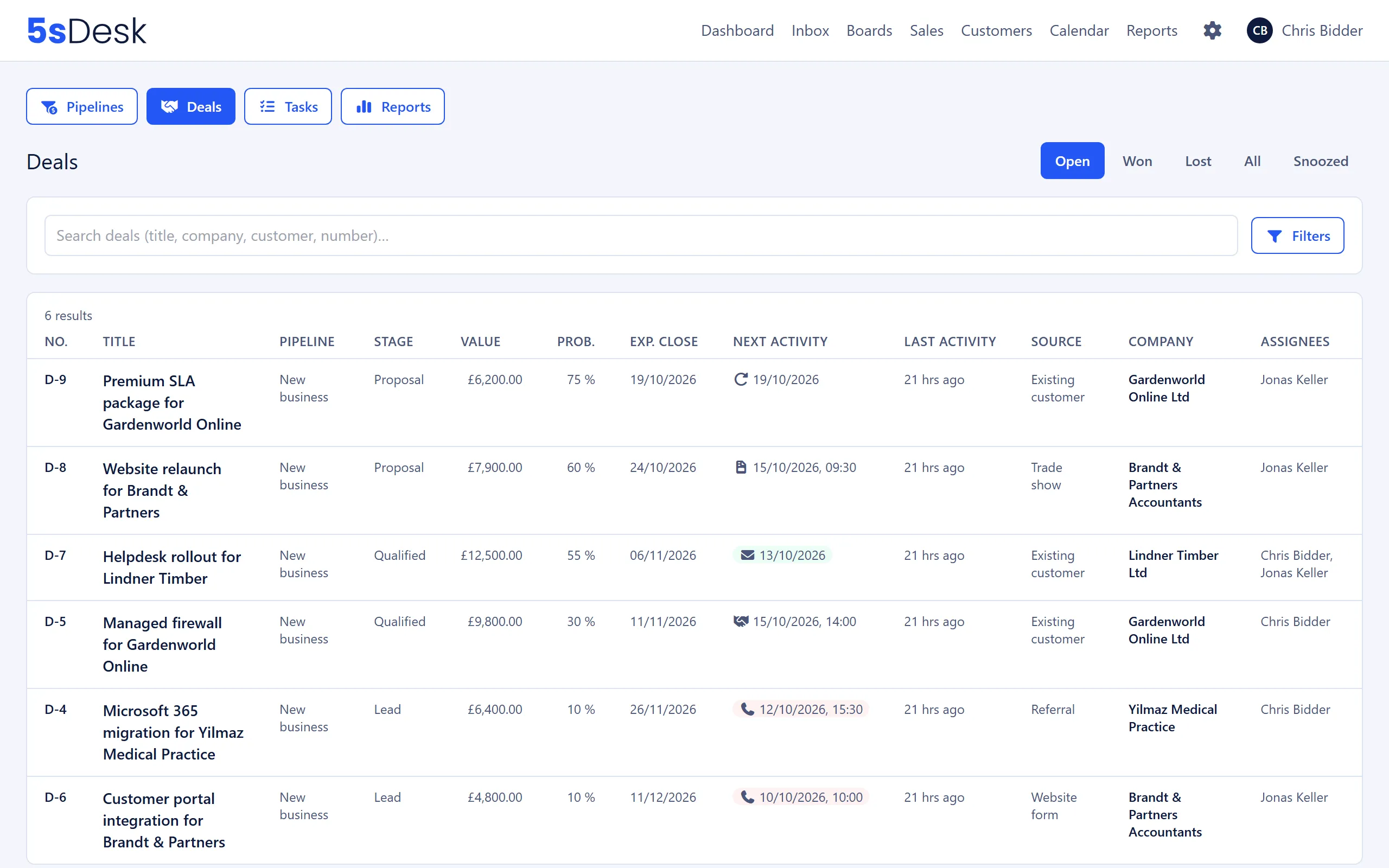
Section titled “Deal list”Under Sales › “Deals” you see all deals from the pipelines you are allowed to see, across all pipelines, in a single table.
- Tabs “Open”, “Won”, “Lost”, “All” and “Snoozed”. Snoozed deals only appear in the last tab, whatever their stage. Archived deals are missing from all tabs.
- Search “Search deals (title, company, customer, number)…”. A plain number finds the deal with that number.
- The badge “Without next activity: …” counts open deals with no planned activity. Clicking it sets the filter “Next activity” “is empty” in the “Open” tab.
- Columns: “No.”, “Title”, “Pipeline”, “Stage”, “Value”, “Prob.”, “Exp. close”, “Next activity”, “Last activity”, “Source”, “Company”, “Assignees”. Click a column header to sort; 25 deals per page.
The filter builder is the same as in the CRM lists (see CRM). For deals, the standard fields “Title”, “Number”, “Pipeline”, “Stage”, “Stage kind”, “Value”, “Probability (effective)”, “Expected close”, “Next activity”, “Closed at”, “Close reason”, “Assignees”, “Company”, “Customer”, “Created at”, “Last activity”, “Lead source” and “Tags” are available, plus card custom fields that apply to pipelines. For “Tags”, the conditions are “contains any of”, “contains all of”, “is empty” and “is not empty”. Saved filters are called “Template” (“Save as template”, “Visible to everyone”); they apply in the deal list and in the list view of every pipeline. The tab is not part of the template.
Customer appointments on a deal
Section titled “Customer appointments on a deal”When a customer books an appointment through appointment booking, you can link that appointment to one of their deals. The deal panel then shows a “Customer appointments” block with the upcoming appointments: appointment type, date and time, mode, customer and “with …” for the assigned agent, with cancelled appointments marked “Cancelled”. For your own upcoming Teams or Meet appointments, the join link is there too. Past and cancelled appointments are collapsed under “Past and cancelled appointments (…)”.
- Appointments are linked on the appointment page, not in the deal (see Linking an appointment to a deal). Without a link, the block shows “No upcoming customer appointment linked. Appointments are linked on the appointment page.”
- If, at the time of a new booking, the customer has exactly one open deal that the assigned agent can see, 5sDesk links the appointment automatically.
- “Unlink appointment from deal” (the icon on the row) removes the link after a confirmation prompt. The appointment itself stays as it is. Anyone who can see the deal can unlink. On archived deals, the icon is missing.
- The deal’s history records linking and unlinking; an automatic link carries the note “the customer’s only open deal at booking time”.
A linked appointment does not count as the deal’s next activity. A deal without a planned activity stays marked in red, even if a customer appointment is coming up.
Project card for the project team
Section titled “Project card for the project team”Once a deal has progressed to the point where the project team takes over, you create a project card on a task board from the deal. The deal stays in its pipeline and in the report.
How to do it
Section titled “How to do it”- Open the deal. The deal panel shows “Create project card”. The button appears on every deal that isn’t archived, whatever its stage.
- Fill in the fields in the “Create project card” side panel. The deal stays readable next to it.
- “Create project card” creates the card.
| Field | Meaning | Default |
|---|---|---|
| “Target board” | A task board with columns that you have access to | first board |
| “Column” | Column of the target board | first column |
| “Headline” | Title of the project card | Title of the deal |
| “Description” | Prefilled with the deal’s description, freely editable, with @mentions of people who can see the target board | Description of the deal |
| “Copy attachments” | Copies the deal’s attachments to the card as separate files | on |
Under “Carried over”, the panel shows the customer and company; both are always included. The note “Assignees stay empty, the team assigns itself. The deal stays in the pipeline.” sums up the rule: the project card has no assignees, and the deal’s custom fields are not copied.
Each deal can have at most one project card (“This deal already has a project card.”). After that, a back link replaces the button: the deal panel shows the card’s number and headline under “Project card” (or “Project card archived”), and the project card shows “From deal” with the number, title and “Pipeline …”. Both histories record the handover (“… created the project card … on board …”).
Who can see deals
Section titled “Who can see deals”- The pipeline’s department decides. A pipeline with a department is only visible to members of that department; a pipeline without a department is visible to all agents. This also applies to admins: an admin who isn’t a member of the department sees neither the pipeline nor its deals.
- In addition, the agent’s department needs the “Sales” area. Without it, the menu item is missing, even if the department matches.
- Anyone who can see a pipeline sees all the deal values in it.
- Customers never see deals, neither in the customer area nor in emails. The “Deals” section in customer and company records is for agents only.
Deals in company and customer records and “My deals”
Section titled “Deals in company and customer records and “My deals””Company and customer records
Section titled “Company and customer records”The detail page of a company or a customer has a “Deals” section with the open deals (number, title, pipeline, stage, probability, next activity, value) and a summary for each currency:
- “Open: … · …”: number and total value of open deals.
- “Won (12 months): … · …”: number and total value of deals won in the last twelve months.
- “Lost (12 months): …”: number of deals lost in the last twelve months.
Only deals from pipelines that the viewing agent is allowed to see are counted; archived deals are left out. If two pipelines for the same company use different currencies, separate lines appear, because the amounts can’t be added together. If an agent can’t see any pipeline, the section is hidden completely.
“My deals” on the dashboard
Section titled ““My deals” on the dashboard”Under “My deals”, the dashboard shows the open, non-archived deals the agent is assigned to, sorted by next activity. It also shows badges:
- “Open total: …” for these deals, per currency.
- “Overdue: …”: deals whose next activity is in the past.
- “Without next activity: …”: open deals with no planned activity, with a link to the matching filter in the deal list.
- A bell badge with the number of snoozed deals; these are left out of the list, and the badge opens the “Snoozed” tab.
Won and lost deals don’t appear here. For team figures, admins and department leads use a colleague’s dashboard view or Sales › “Reports”.
Related settings
Section titled “Related settings”- Sales: close reasons, lead sources, deal numbers.
- Tags: the “Deals” list with names, colours and order.
- General settings: card numbering with the start number, which deals share.
- Departments: the “Sales” area and the department lead who maintains stages.
- Custom fields: card custom fields that apply to pipelines.
- Forms: lead forms with a pipeline as the target.
- Boards and time tracking: list view, templates, archive.
- Roles and permissions: who creates pipelines and changes stages.