
Migration & Import: mail history and Freshdesk
With “Migration & Import”, you bring conversations from a ticket system you used before, or the history of existing mailboxes, into 5sDesk, once or repeatedly. Only admins can see this page.
Where to find the page
Section titled “Where to find the page”Administration › Settings › Migration & Import › “Migration & Import”.
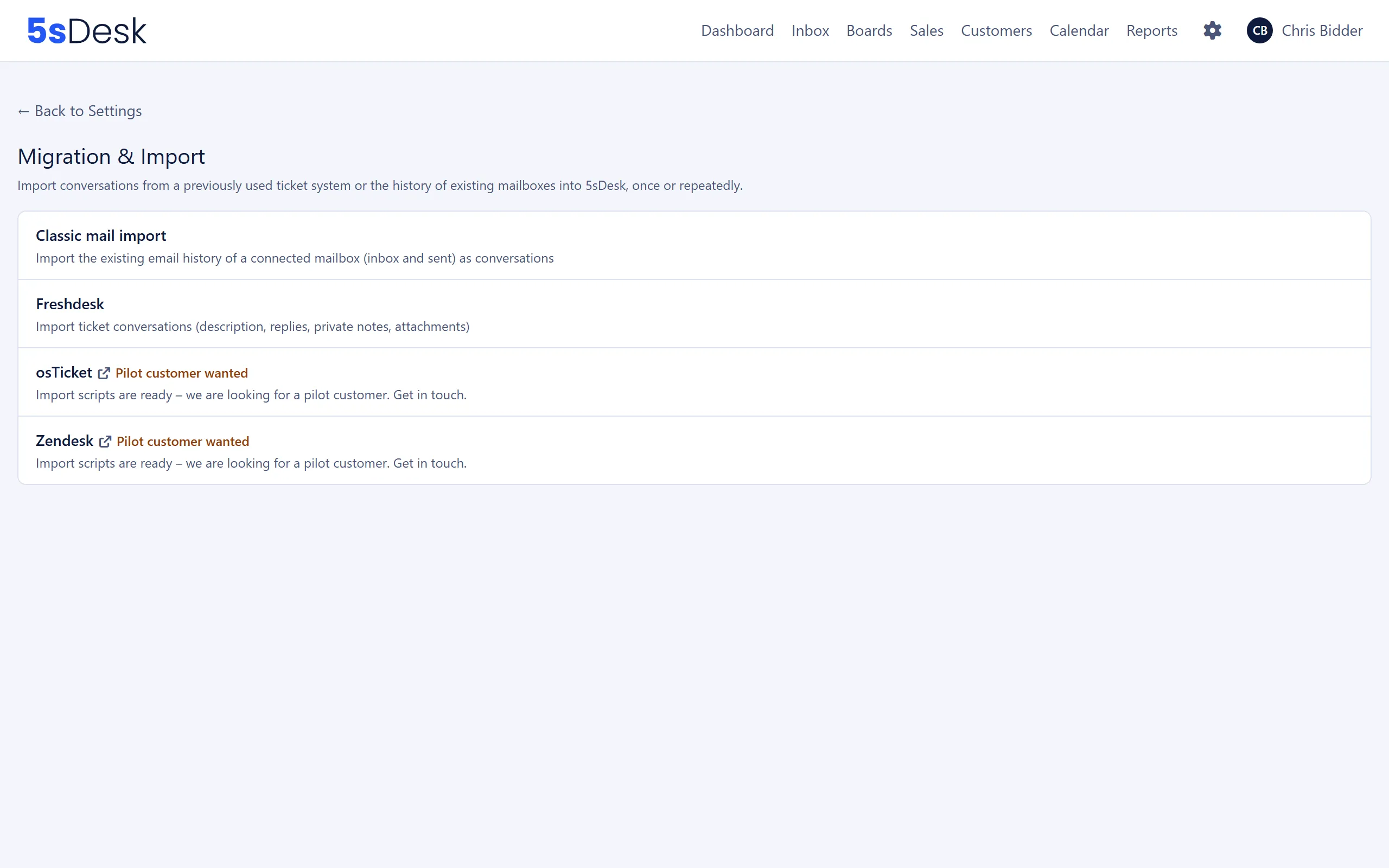
The overview lists four entries:
| Entry | Description in the app |
|---|---|
| “Classic mail import” | “Import the existing email history of a connected mailbox (inbox and sent) as conversations” |
| “Freshdesk” | “Import ticket conversations (description, replies, private notes, attachments)” |
| “osTicket” | Badge “Pilot customer wanted”. Import scripts are available and 5sDesk is looking for a pilot customer (“Get in touch.”). The link leads to the 5sDesk support portal |
| “Zendesk” | Same as osTicket |
Classic mail import
Section titled “Classic mail import”Fetches the existing mail history from a connected mailbox and creates conversations from it, from both the inbox and the Sent folder. This is independent of the mailbox’s ongoing live fetch.
| Field | Meaning | Default |
|---|---|---|
| “Mailbox” | One of the accounts connected under “Email inbox” | first mailbox |
| “From this date and time (local time, empty = no lower bound)” | Start of the time range | empty |
| “Up to this date and time (local time, empty = no upper bound)” | End of the time range | empty |
| “Department for newly created conversations” | Only applies to conversations that this import creates; existing tickets keep their department | “Use the mailbox’s department” |
| “Status for imported conversations” | “Open”, “In progress”, “Waiting for feedback”, “Closed” or “Suspected spam” | “Open” |
If no mailbox is connected, the page shows “No mailbox has been set up yet. …” with the “Go to Email Inbox” button.
How to do it
Section titled “How to do it”- Choose the “Mailbox” and narrow down the time range.
- Choose the department and status for new conversations.
- Click “Start import”.
- Follow the progress: first “Counting mailbox …”, then the count of processed, newly imported and skipped emails, and finally “Done.”
- “Cancel” stops the run between two messages. The display then shows “Cancelled.”.
If the server does not respond for a while, the page shows “No new response from the server for …”. This is normal for very large mailboxes. The import only stops automatically after 10 minutes without progress.
What happens and what does not
Section titled “What happens and what does not”- 5sDesk recognises emails that have already been imported by their Message-ID and skips them. You can safely repeat a run.
- Imported tickets carry the date of the email, not the date of the import. This keeps your reports consistent.
- No acknowledgements are sent, no automatic assignments are made and no agent notifications are triggered. SLA deadlines are not calculated from the import.
- Only one import can run per mailbox at a time (“An import is already running for this mailbox.”). You cannot remove the mailbox while the import is running.
- If the account is currently busy with the live fetch, the page reports “Account is currently busy with the live fetch, please try again.”
Freshdesk
Section titled “Freshdesk”The “Freshdesk” page has three areas: “Connection”, the “Open ticket import”, “Map Freshdesk agents” and “Map departments” buttons, and “Remove connection”.
Connection
Section titled “Connection”| Field | Meaning | Default |
|---|---|---|
| “Freshdesk domain” | Your Freshdesk address, e.g. firma.freshdesk.com. Only genuine Freshdesk domains are accepted |
empty |
| “API key” | From Freshdesk › Profile settings › API key. Stored encrypted and never displayed; when editing, “(leave empty to keep the stored key)” | empty |
| “Default department for imported tickets (optional, fallback when no group is mapped)” | Department for tickets with no mapped Freshdesk group | “None” |
“Save” stores your details. “Save & test connection” also checks access (“Saved. Connection tested successfully.” or “Saved, but the connection test failed: …”).
“Remove connection” deletes the domain and API key. Tickets that have already been imported are kept.
Map Freshdesk agents
Section titled “Map Freshdesk agents”The page lists every Freshdesk agent with a “5sDesk agent” selector (default “Not assigned”). The mapping makes sure an imported ticket gets the right assignee and that an imported reply or note is attributed to the right author. Without a mapping, both stay empty; for private notes, the Freshdesk name is included as a hint. Changes only take effect on the next import run.
Agents who no longer exist in Freshdesk are shown with the badge “no longer found in Freshdesk”. Their mapping remains usable until you delete it with “Remove mapping”.
Map departments
Section titled “Map departments”The page lists every Freshdesk group with a “5sDesk department” selector (default “Not assigned (use default department)”). The mapping only applies when a ticket is first created. A repeat import no longer changes the department of an existing ticket. For tickets with no group or no mapping, the default department from the connection page applies.
Ticket import
Section titled “Ticket import”| Field | Meaning | Default |
|---|---|---|
| “Import from this date (empty = entire Freshdesk history, filters by last updated)” | Date in the format YYYY-MM-DD | empty |
“Start import” fetches the tickets in the background. Progress: first “Counting tickets …”, then the count of processed tickets and of newly imported and skipped entries, and finally “Done.”. “Cancel” stops the run. Only one Freshdesk import can run per organisation at a time.
What is imported and what is not
Section titled “What is imported and what is not”For each ticket, the description, public replies, private notes and attachments are imported. The status is taken from the current Freshdesk status on every run. Imported tickets carry the Freshdesk date.
Customer data is not imported into the CRM, and knowledge base articles are not imported. A repeat run skips tickets and entries that have already been imported and only fetches what has been added since.
If Freshdesk reaches its page limit, 5sDesk reports “Freshdesk pagination limit reached”. In that case, not all tickets since the chosen start date were fetched, although those already loaded have still been imported. Start another run with a later start date.
See also
Section titled “See also”- Email inbox: connect a mailbox before you import its history.
- Departments: create target departments for imported tickets.
- Users: 5sDesk agents for the Freshdesk mapping.
- Import/Export: bring in master data (CRM, canned responses, knowledge base) as JSON.