
Users: add agents, roles and working hours
Under “Users” you create your agents’ accounts, assign departments and roles, and maintain signatures and working hours. Only admins can see this page.
Where to find the page
Section titled “Where to find the page”Administration › Settings › Team › “Users”.
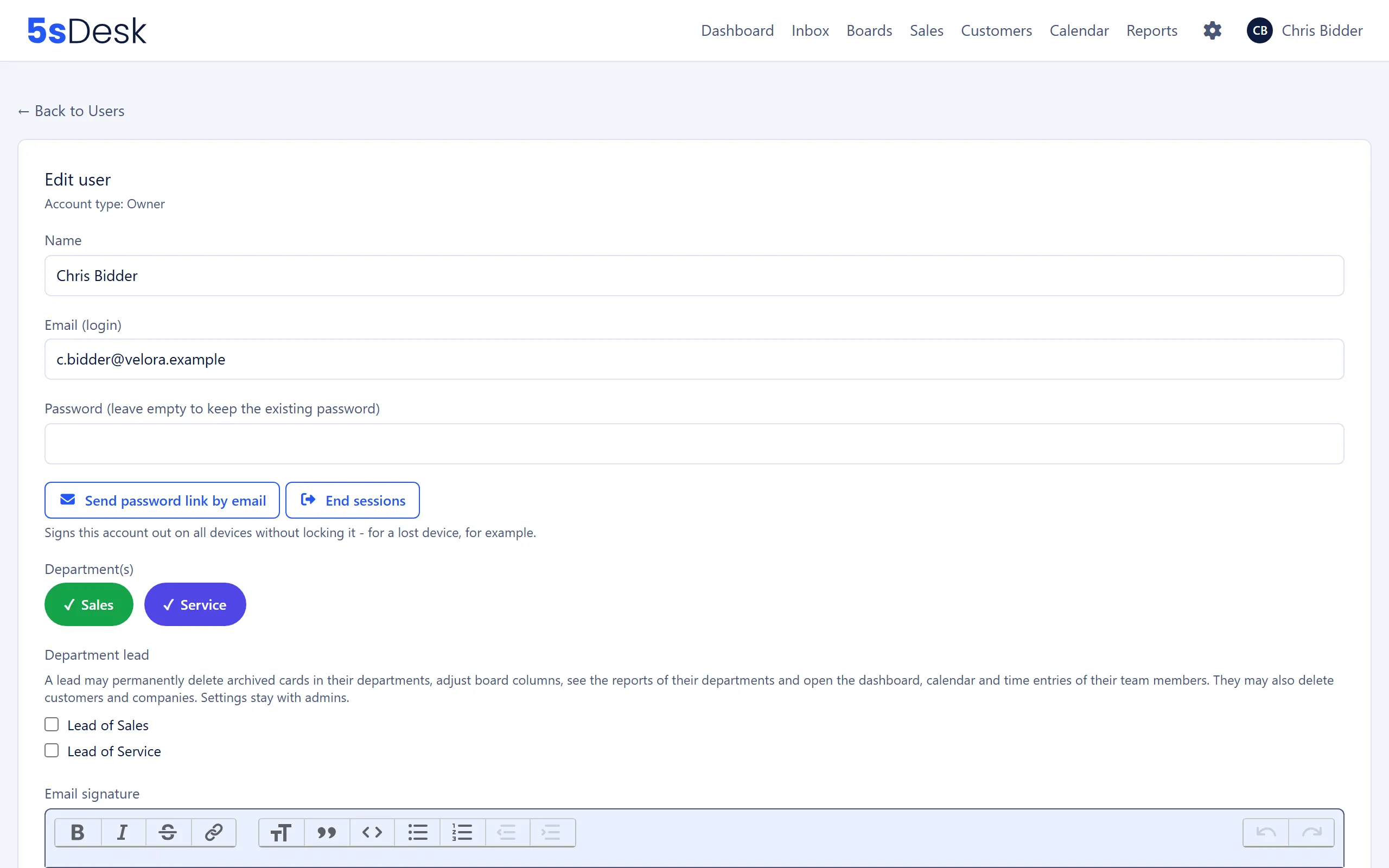
“New user” opens the “Create new user” form. Clicking an entry opens “Edit user”. In the edit form, “Edit working hours” and “Deactivate permanently” each open their own page. The link “Show … permanently deactivated users” below the list opens the deactivated accounts.
The list
Section titled “The list”Each user shows their name, email and badges: “Admin”, “Owner”, “Lead:
On a plan with a seat limit, the top of the page shows “… of … seats in use” and, for admins, the “Manage seats” link to billing. Only active users count as seats. When all seats are taken, “New user” is greyed out with the note “All seats are in use”. In that case, add seats or lock or deactivate a user.
If there are permanently deactivated accounts, the link “Show … permanently deactivated users” takes you to a separate list.
Settings at a glance
Section titled “Settings at a glance”When editing, the top of the form shows “Account type: Owner”, “Account type: Admin” or “Account type: User”. What each role may do is described under Roles and permissions.
| Field | Meaning | Default |
|---|---|---|
| “Name” | Display name. Required | empty |
| “Email (login)” | Sign-in address, unique within the organisation. Required | empty |
| “Password” | Required when creating a user. When editing: “(leave empty to keep the existing password)” | empty |
| “Department(s)” | At least one department. Membership decides which tickets, boards and areas the person can see | none |
| “Department lead” | One “Lead of |
off |
| “Email signature” | Personal signature in the editor. Without one, the global signature from General settings applies | empty |
| “Active (unchecked = locked, can be reactivated at any time)” | Locks the account temporarily. Locked users do not count as seats | on |
| “Out of office (excluded from automatic ticket assignment)” | The person is skipped by “Round robin” and “Fewest open tickets” | off |
| “Maintains own working hours (may change their own hours in their profile)” | Without this box ticked, the person can only view their working hours in their profile. Always on for admins: “Admins always maintain their own working hours.” | on |
| “Admin (may create/edit/delete categories)” | Admin rights, meaning access to settings, forms and billing | off |
| “Owner (will be able to manage payment configuration)” | Owner status. Can only be selected together with Admin. Only an owner can grant it | off |
The form itself lists what a department lead may do: permanently delete archived cards, adjust board columns, see the reports for their departments, open the dashboard, calendar and time entries of their team members, and delete customers and companies. On top of that, they can manage tag lists and import and export customers and companies as CSV, each depending on the areas of the department they lead (see Roles and permissions). All other settings remain reserved for admins.
Buttons when editing
Section titled “Buttons when editing”| Button | Effect |
|---|---|
| “Send password link by email” | Sends the person a one-time link to reset their password. The admin never learns the new password. If the email cannot be sent, the page shows the link so you can pass it on manually |
| “End sessions” | Signs the account out on all devices without locking it, for example after a device has been lost. For your own account, use “My Profile” |
| “Edit working hours” | Opens the working hours subpage |
| “Deactivate permanently” | Opens the confirmation page (see below) |
Setting a new password and locking the account both end all of the person’s active sessions.
Working hours
Section titled “Working hours”The “Working hours of …” subpage sets time ranges for each weekday during which customers can book an appointment with this person on the public booking page. “Add time range” adds a row (pre-filled with 09:00 to 17:00). Two ranges on the same day must not overlap. The times apply in the organisation-wide “Availability timezone” from Appointment booking settings.
Deactivate permanently
Section titled “Deactivate permanently”The confirmation page “Permanently deactivate “…”” lists the following under “What happens”: “Open tickets go back to the department”, “Open cards are released”, “Follows are removed”, “Department memberships are removed”. In addition, the person’s session ends and their personal appointment types are switched off. History, messages, closed tickets and reports stay linked to the person, and their email address remains in use.
This is not possible for your own account, for owners (“transfer ownership first”) or for the last active admin.
The “Permanently deactivated users” list shows these accounts with “Deactivated on …” and the badges “former admin” or “former owner”. They can no longer sign in, do not count as seats and cannot be reactivated.
How to do it
Section titled “How to do it”- Click “New user”.
- Enter the “Name”, “Email (login)” and an initial “Password”.
- Select at least one department and, if needed, “Lead of …”.
- Only tick “Admin” or “Owner” if the person should manage settings or billing.
- Click “Save”. Then use “Send password link by email” to send the person a link so they can set their own password.
What changes
Section titled “What changes”- Department membership decides what data a person sees in the inbox, boards, CRM and calendar, including admins.
- “Out of office” removes the person from automatic assignment (see Departments). Open tickets stay assigned to them.
- Locking (unticking “Active”) frees up the seat and signs the person out. Their assignments stay in place.
See also
Section titled “See also”- Roles and permissions: What owners, admins, users and department leads may do.
- Departments: Areas and automatic assignment for each department.
- My Profile: What agents maintain themselves (password, out of office, working hours, calendar).
- Billing & plan: Add seats.
- Appointment booking: How working hours turn into free slots.