
Custom fields
Custom fields let you record additional details on mail conversations, cards, customers and companies, for example a customer number, a device type or a contract end date. The fields appear in the relevant forms of the agent interface and, if you choose, in the customer portal too. Only admins can see this page.
Where to find the page
Section titled “Where to find the page”Administration › Settings › Custom fields › “Custom fields”. The page opens on the “Mail conversations” tab.
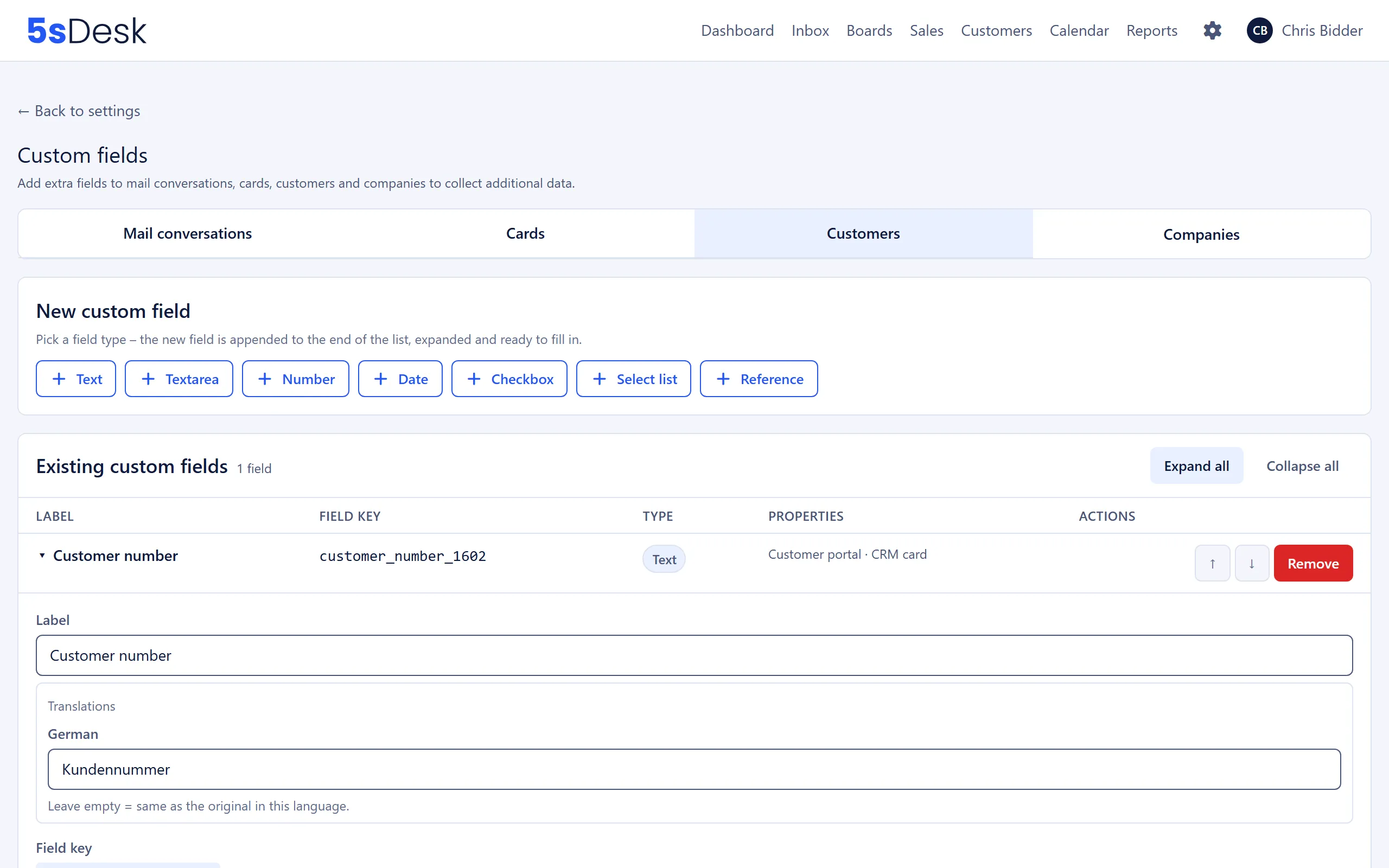
Page layout
Section titled “Page layout”At the top, you switch between the tabs “Mail conversations”, “Cards”, “Customers” and “Companies”. Each tab has its own field list and is saved separately.
- “New custom field”: click a field type. The new field is added at the bottom of “Existing custom fields”, expanded and ready to fill in.
- “Existing custom fields”: a table with label, field key, type and properties. “Edit field” expands a row. “Expand all” and “Collapse all” apply to the whole list. “Move up” and “Move down” change the order, and “Remove” archives a field.
- “Save” writes the tab’s complete list. Incomplete fields are reported with “One field is incomplete – the affected row has been expanded.”
Field types
Section titled “Field types”| Type | Meaning |
|---|---|
| “Text” | Single-line input. |
| “Textarea” | Multi-line input. |
| “Number” | A number, decimals allowed. |
| “Date” | Date picker. |
| “Checkbox” | Yes/no checkbox. |
| “Select list” | Predefined options, single or multiple choice. |
| “Reference” | A link to a customer or a company, with a search field. |
Settings at a glance
Section titled “Settings at a glance”For all field types
Section titled “For all field types”| Field | Meaning | Default |
|---|---|---|
| “Label” | The field name as agents and customers see it. Required. | empty |
| “Field key” | Internal name, generated automatically from the label on the first save (for example customer_number_a7f3). After that, neither the key nor the field type can be changed. Until you save, it shows “Will be assigned automatically on save.” |
automatic |
| “Help text” | A short hint below the field, for agents and customers. | empty |
| “Required” | The form can’t be saved without a value. Applies everywhere the field appears. | off |
| “Translations” | Label, help text, info text and option labels in the other interface language (German or English). The original texts apply to the default language of the customer portal. Empty means: same as the original. | empty |
Depending on the field type
Section titled “Depending on the field type”| Field | For | Meaning |
|---|---|---|
| “Options” | Select list | “Key” and “Label” for each option, “Add option” for more. At least one option; keys must be unique. |
| “Allow multiple selection” | Select list | Several options can be selected at once. Default: off. |
| “References” | Reference | “Customer” or “Company”. Default: Customer. |
Depending on the area
Section titled “Depending on the area”| Field | Areas | Meaning |
|---|---|---|
| “Applies to” | Cards | “Boards and pipelines” (default), “Boards only” or “Pipelines only”. Fields for pipelines also appear in the deal list and its filters. Values already recorded are kept, even if a field later no longer applies everywhere. |
| “Visible/editable in the customer portal” | Mail conversations, customers, companies | Customers see and fill in the field in the customer portal: for conversations in the form for new requests, for customers in their own profile, for companies in the shared company area. Reference fields are never shown in the customer portal. Default: off. |
| “Info text (customer portal only)” | Mail conversations, customers, companies | Formatted text that appears only below the field in the customer portal. Agents don’t see it. The input field only appears once “Visible/editable in the customer portal” is ticked. |
| “Show in CRM card (Inbox)” | Customers, companies | Shows the field in a ticket’s CRM sidebar as soon as a value is recorded. Empty fields stay hidden. Default: off. |
| “Locked for AI” | Customers, companies (not for references) | AI prefill never suggests a value for this field and leaves it unchanged. Default: off. |
| “Show in the ticket list” | Mail conversations | Shows the value as a chip under the ticket in the inbox list as soon as a value is recorded. At most 4 fields at a time, otherwise “At most 4 fields can be shown in the ticket list.” Default: off. |
Archiving and restoring
Section titled “Archiving and restoring”“Remove” doesn’t delete a field. It archives it after the prompt “Remove this field? Already collected values stay intact and the field can be restored from the "Archived fields" list.” Archiving only takes effect when you click “Save”.
Archived fields are listed at the bottom under “Archived fields” with their label and type. “Restore” brings the field back to the active list together with all saved values. The field key stays reserved, even while the field is archived.
Effects
Section titled “Effects”- Agents see the fields in the ticket, card, customer and company forms, in the order of the list. Required fields are marked with *.
- You can use custom fields as criteria in the filters of the CRM, the boards list view and the deal list.
- Customer custom fields are available for field mapping in forms. Company custom fields can’t be mapped there.
- Fields with “Visible/editable in the customer portal” appear in the customer portal, including values already recorded.
- Values in custom fields are not transferred when you merge duplicates.
See also
Section titled “See also”- Forms: mapping form fields to customer custom fields.
- Customer portal: where visible fields appear for customers.
- CRM: customer and company records with custom fields and filters.
- AI features: prefill that respects “Locked for AI”.
- Duplicate customers/companies: merging without transferring custom field values.