
AI features: provider, consent and limits
On this page you set up the AI features for your organisation: provider and model, style guidance, data protection approval and cost limits. You can also open the AI log from here. Only admins can see this page. Until it is set up, all AI buttons in the app stay hidden.
Where to find the page
Section titled “Where to find the page”Administration › Settings › Boards & AI › “AI features”. The log opens via “View AI log” on the same page.
Settings overview
Section titled “Settings overview”Status
Section titled “Status”The first block shows one of three states:
| Display | Meaning |
|---|---|
| “Not set up yet. Without a stored key, the AI buttons in the ticket and CRM forms stay hidden.” | No key is stored for the active provider. |
| “A key is stored, but the features have not been approved yet (see privacy below).” | A key is present, but consent is missing. |
| “Active. In the last 30 days: 42 calls.” and “Approved on …” plus “Today: 5 of 200 AI requests (daily limit, see Limits below).” | Everything is set up and the AI buttons are visible. |
The “View AI log” link takes you to the log (see below).
AI provider
Section titled “AI provider”| Field | Meaning | Default |
|---|---|---|
| “Active provider” | “Claude (Anthropic)” or “OpenAI”. Only the active provider handles requests. Both providers keep their own key and their own model, so switching discards nothing. | “Claude (Anthropic)” |
Claude (Anthropic) and OpenAI
Section titled “Claude (Anthropic) and OpenAI”Each provider has its own block. The active one carries the “Active” badge. The key belongs to your organisation, is stored encrypted, never displayed and never leaves the server. Usage is billed through your account with the provider.
| Field | Meaning | Default |
|---|---|---|
| “API key” | Key from the provider’s console (console.anthropic.com → API Keys or platform.openai.com → API keys). If a key is already stored, the block shows “API key stored” with the beginning and end of the key; the rest is replaced by asterisks. The field is then labelled “API key (leave empty to keep the stored key)”. | empty |
| “Model” (Claude) | “Claude Opus 5.5”, “Claude Sonnet 5.5”, “Claude Opus 5”, “Claude Sonnet 5”, “Claude Haiku 4.5”. Below the selection there is a short note on quality and cost for each model. | “Claude Opus 5.5” |
| “Model” (OpenAI) | “GPT-5”, “GPT-5 Mini”, “GPT-4.1”. | “GPT-5” |
Tone & style
Section titled “Tone & style”| Field | Meaning | Default |
|---|---|---|
| “Style guidance” | Free text that only applies when drafting customer replies. It is deliberately not used when extracting data for the CRM. The field is prefilled with the default guidance and you can edit it directly. Leaving it empty means the default guidance is used. Up to 2,000 characters, otherwise “Style guidance is too long (max. 2000 characters).”. | 5sDesk default guidance |
Privacy and consent
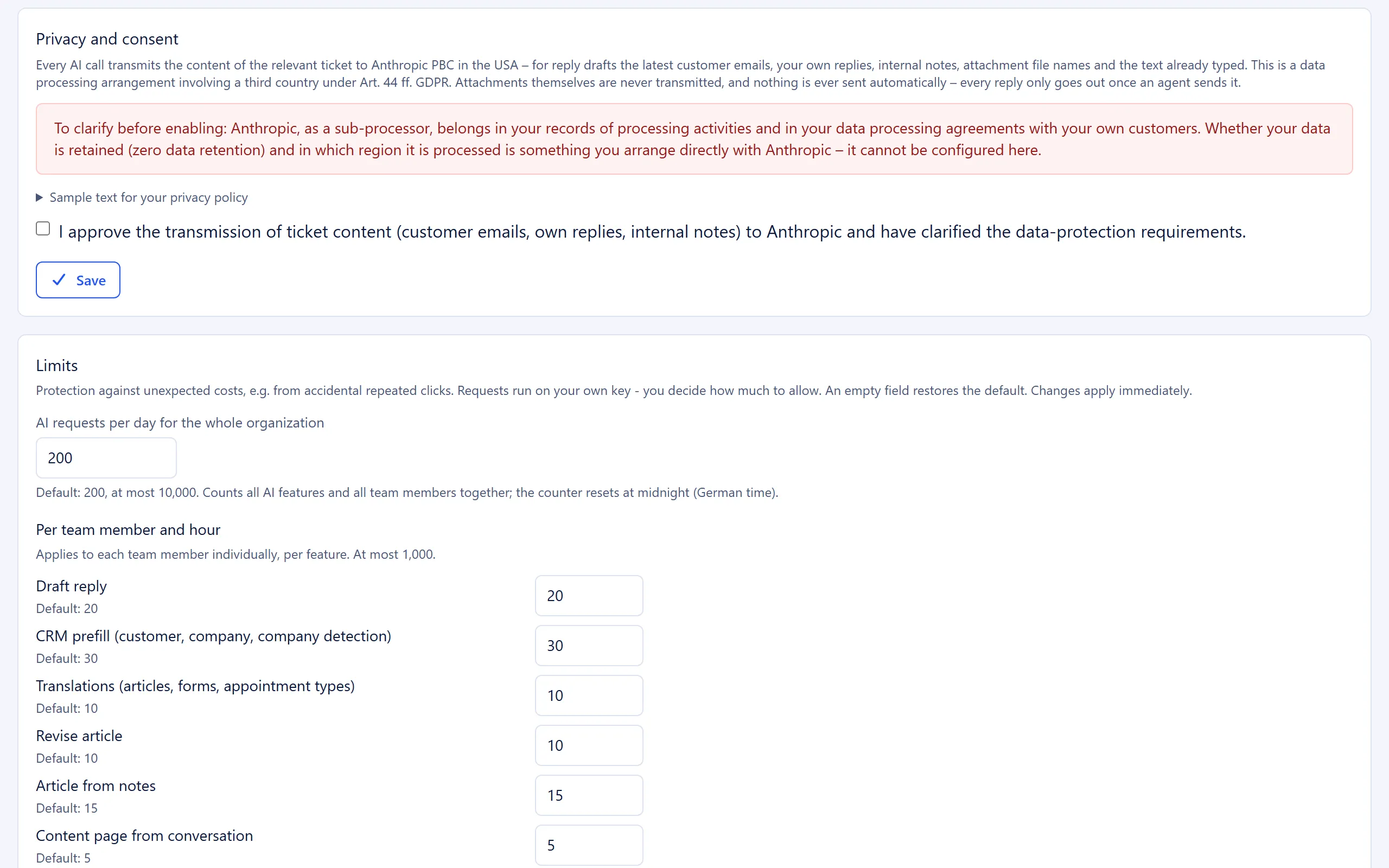
Section titled “Privacy and consent”This block describes what is sent to the active provider with each request: for a draft reply, the latest customer emails, your own replies, the internal notes, the file names of attachments and any text already typed. Attachments themselves are never transmitted, and nothing is ever sent automatically. A warning reminds you that the provider must be listed as a sub-processor in your record of processing activities and in your data processing agreements, and that you agree data storage (zero data retention) and the processing region with the provider yourself.
Below that is the expandable “Sample text for your privacy policy”, a suggestion for your own privacy policy. Depending on the active provider, it comes in a version for Anthropic or for OpenAI.
| Field | Meaning | Default |
|---|---|---|
| Checkbox “I approve the transmission of ticket content (customer emails, own replies, internal notes) to Anthropic and have clarified the data-protection requirements.” (for OpenAI: “… to OpenAI …”) | The actual approval. The AI features only become active once this box is ticked and a key is stored for the active provider. Without a key, ticking the box has no effect. | not ticked |
The time of the first approval is stored together with the agent and shown in the status as “Approved on …”. Saving again later does not overwrite this date.
All blocks up to this point belong to one form. Every “Save” button saves all of these blocks together and reports “Saved.”.
Limits
Section titled “Limits”The limits protect against unexpected costs, for example from accidental repeated clicking. An empty field sets the default value. Changes take effect immediately. This block has its own “Save” button (“Limits saved.”).
| Field | Meaning | Default | Maximum |
|---|---|---|---|
| “AI requests per day for the whole organization” | Counts all AI features and all team members together. The counter resets at midnight Central European Time (German time, one hour ahead of the UK). | 200 | 10,000 |
“Per team member and hour”, separately for each feature, up to 1,000:
| Feature | Default |
|---|---|
| “Draft reply” | 20 |
| “CRM prefill (customer, company, company detection)” | 30 |
| “Translations (articles, forms, appointment types)” | 10 |
| “Revise article” | 10 |
| “Article from notes” | 15 |
| “Content page from conversation” | 5 |
| “Summarize ticket” | 20 |
| “Check reply” | 30 |
5sDesk rejects invalid values without saving anything: “The daily limit must be a whole number from 1 to 10,000. Nothing was saved.” or “Each hourly limit must be a whole number from 1 to 1,000. Nothing was saved.”.
Remove key
Section titled “Remove key”For each provider with a stored key, a separate block appears at the bottom of the page: “Remove key – Claude (Anthropic)” or “Remove key – OpenAI”. The “Remove key” button deletes that provider’s key and switches the AI features off if that provider is currently active (“Key removed.”). The other provider’s key is not affected.
AI log
Section titled “AI log”The log under “View AI log” shows your organisation’s last 200 AI requests, newest first. It contains the complete history, including the content of customer emails, and is therefore only visible to admins.
Columns: “Time”, “Feature”, “Provider”, “Model”, “Agent”, “Ticket”, “Status” (“Success” or “Error”), “Prompt / Error” (a preview, or the error message if the request failed) and the “Details” link. If the provider answered the request with a different model from the one selected, the model shows the badge “Fallback for …”.
The detail page “AI call #…” shows the “System prompt”, the “Content sent” (unchanged, exactly as sent to the provider) and the “Response”, or the “Raw AI response” if the request failed, plus the number of output tokens and characters in the prompt. Very long texts are cut off after 20,000 characters.
Step by step
Section titled “Step by step”- Under “AI provider”, choose the “Active provider”.
- In the provider’s block, enter the “API key” and choose the “Model”.
- Adjust the “Style guidance” if needed.
- Read the “Privacy and consent” block, clarify the requirements and tick the consent checkbox.
- Click “Save”. The status now shows “Active”.
- Check the “Limits” and adjust them if needed.
Effects
Section titled “Effects”- After approval, the AI buttons appear in the ticket (draft reply, check reply, summarise ticket), in the CRM forms (prefill, company detection) and for articles, forms and appointment types (translate, revise, draft). Each feature only runs when an agent clicks.
- When the daily limit is reached, agents see “The daily limit of 200 AI requests for this organization has been reached. An administrator can raise it under Settings > AI.”. When an hourly limit is reached, they see “Too many AI requests. Please try again in 12 minutes.”.
- If the provider rejects the key, agents see “The stored API key is rejected by the AI provider. Please check under Settings > AI.”.
- Switching off: Untick the consent checkbox or click “Remove key”. The AI buttons disappear immediately. Ticket summaries that have already been saved stay readable, just without the button. AI-generated text in replies and articles is kept. The AI log remains.
- Switching provider: If you change the active provider while an approval is in place, no new consent is requested. The “Approved on” date stays the date of the first approval.
See also
Section titled “See also”- AI features: what each feature does and what is sent to the provider.
- Data protection and third-party services: how Anthropic and OpenAI fit in as sub-processors.
- Custom fields: exclude fields from prefill with “Locked for AI”.