
Delivery blocks: stop automatic emails to an address
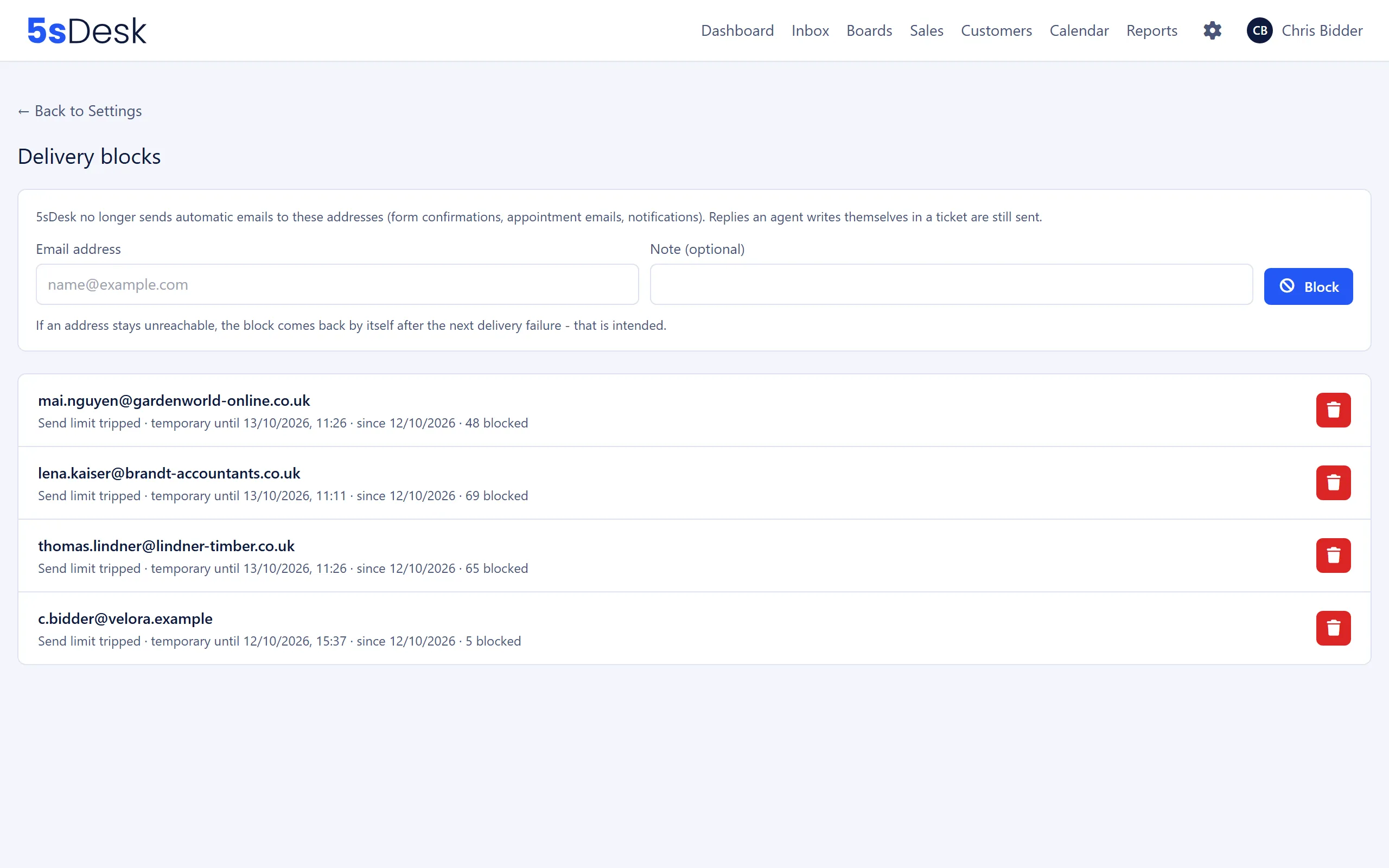
Delivery blocks show which addresses 5sDesk no longer sends automatic emails to, and why. Only admins can see this page.
Where to find the page
Section titled “Where to find the page”Administration › Settings › Email › “Delivery blocks”.
Settings at a glance
Section titled “Settings at a glance”Blocking manually
Section titled “Blocking manually”| Field | Meaning | Default |
|---|---|---|
| “Email address” | Address that should no longer receive automatic emails | empty |
| “Note (optional)” | Internal note, shown below the entry | empty |
“Block” creates a permanent entry with the reason “Blocked manually”.
The list
Section titled “The list”Each entry shows the address and, below it:
| Detail | Meaning |
|---|---|
| “Permanently undeliverable” | A mail server reported an email to this address as permanently undeliverable (hard bounce). Permanent |
| “Send limit tripped” | More than 10 automatic emails went to this address within one hour. Temporary until the end of that hour |
| “Blocked manually” | Added by hand on this page. Permanent |
| “temporary until …” or “permanent” | How long the block lasts |
| “since …” | Date of the entry |
| “… blocked” | How many automatic emails the block has stopped so far |
| “by …” | Name of the admin, for manual blocks |
Below the entry, you see the mail server’s diagnostic code for bounces, or your note for manual blocks. The newest entries are at the top.
Lifting a block
Section titled “Lifting a block”The bin icon (“Lift block”) removes the entry after the confirmation “Really lift the block for this address?”. Automatic emails are then sent to the address again.
What this affects
Section titled “What this affects”Only automatic emails are blocked: form confirmations, appointment emails, double opt-in, notifications to agents, customer portal sign-in and the automatic acknowledgement. Replies that an agent writes in a ticket are still sent.
In the ticket of a blocked customer, a banner “Delivery to … is suppressed.” appears with the reason, for example “The address hard-bounced on ….”. It also explains that automatic emails to this address are suppressed, but that your own reply is still sent and will probably not arrive. The “Manage suppression list” link leads to this page.
A forward to a blocked address is sent, but shows a notice that it may not arrive.
See also
Section titled “See also”- Email and inbox: how 5sDesk detects bounces and shows them in the ticket.
- Blocklist and trusted senders: the opposite direction, for incoming emails.
- Email inbox: automatic acknowledgement per mailbox.