
Canned responses: snippets with placeholders
Canned responses are prepared replies that agents insert in a ticket’s reply editor. Placeholders are filled with the ticket’s data when they are inserted. Only admins can see this page, but all agents can use the canned responses.
Where to find the page
Section titled “Where to find the page”Administration › Settings › Email › “Canned Responses”.
“New snippet” opens the “Create new snippet” form. Clicking an entry opens “Edit snippet”.
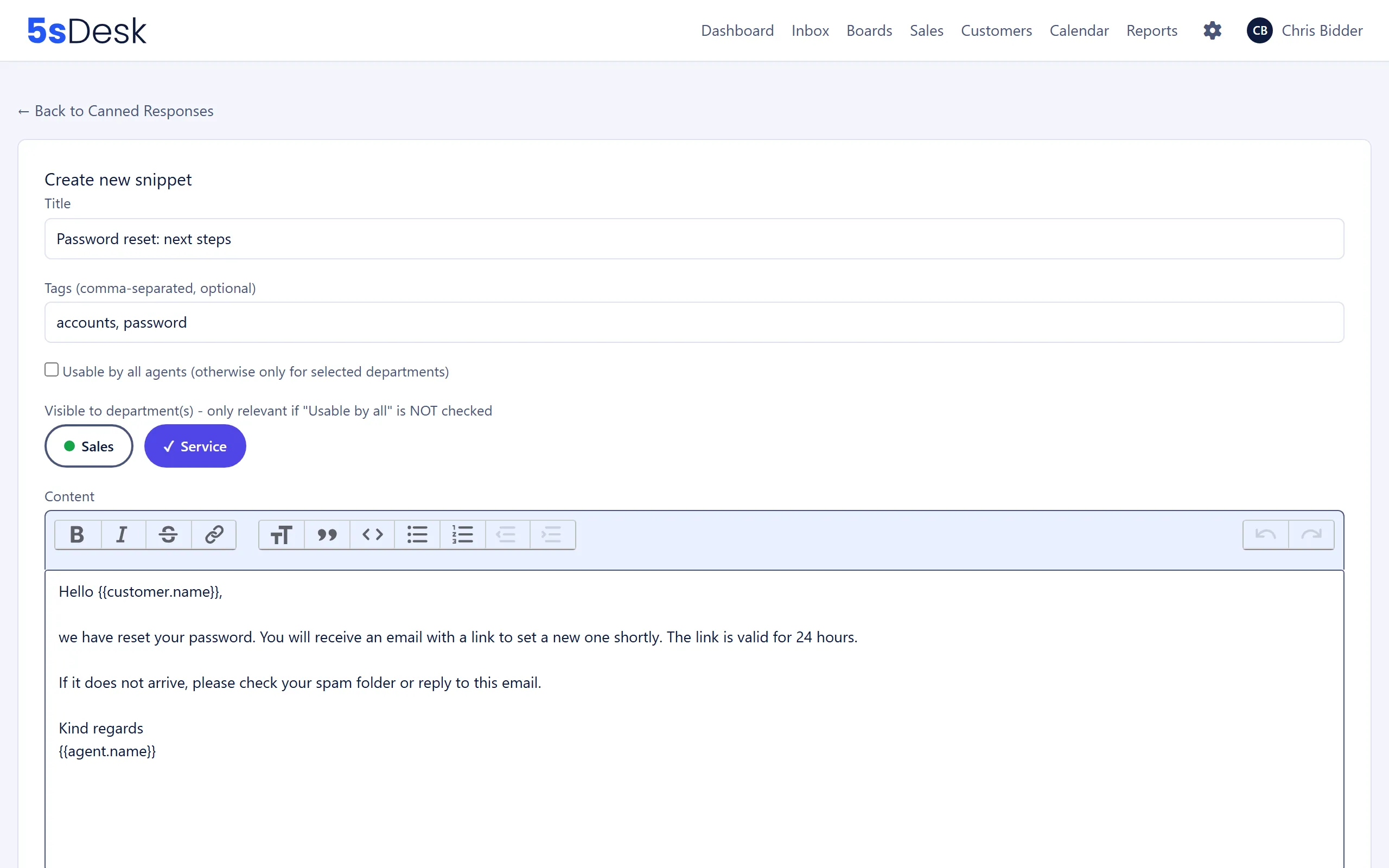
Settings at a glance
Section titled “Settings at a glance”Trigger character
Section titled “Trigger character”At the top of the list is “Trigger character in editor:” with an input field. When an agent types this character in the reply editor, the canned response search opens. Default: /c. The field must not be empty.
Each entry shows the title, tags, the counter “used …x” and the visibility: the “All” badge or the names of the departments it is shared with (“No department” if none is selected). The bin icon deletes the canned response after the confirmation “Really delete?”.
| Field | Meaning | Default |
|---|---|---|
| “Title” | The name agents use to find the canned response in the search. Required | empty |
| “Tags (comma-separated, optional)” | Keywords for sorting and searching, e.g. “Shipping, Complaint” | empty |
| “Usable by all agents (otherwise only for selected departments)” | When ticked, all agents can see the canned response | on |
| “Visible to department(s)” | One checkbox per department; this block only appears if the tick above is removed | none |
| “Content” | Text of the canned response in the editor. Required | empty |
Below the content, you see “Available placeholders: …”. The list is:
{{customer.name}}, {{customer.email}}, {{customer.salutation}}, {{customer.first_name}}, {{customer.last_name}}, {{customer.title}}, {{customer.greeting}}, {{customer.position}}, {{customer.language}}, {{company.name}}, {{company.domain}}, {{company.customer_number}}, {{ticket.number}}, {{ticket.subject}}, {{agent.name}}, {{agent.email}}, {{mailbox.name}}, {{mailbox.address}}.
The customer fields come from the CRM if the ticket is linked to a customer. Without a link, 5sDesk only fills {{customer.name}} and {{customer.email}}, using the sender details of the ticket. {{mailbox.name}} and {{mailbox.address}} stay empty when you insert a canned response in the editor. They are intended for the automatic acknowledgement (see Email inbox).
Preview / test
Section titled “Preview / test”“Preview / test” shows the content with sample data (Max Mustermann, Musterfirma GmbH, ticket 12345). The preview reports placeholders without a value: “These placeholders had no value with the sample data: …”.
How to do it
Section titled “How to do it”- Click “New snippet”.
- Enter a “Title” and, optionally, “Tags”.
- Decide on visibility: leave “Usable by all agents” ticked, or untick it and choose departments.
- Write the “Content” and add placeholders from the list.
- Check it with “Preview / test” and click “Save”.
What this affects
Section titled “What this affects”- Agents type the trigger character in the reply editor and choose the canned response from the search. When it is inserted, the placeholders are filled with the ticket’s data.
- Agents only see canned responses that are “Usable by all agents” or have been shared with one of their departments.
- Each time a canned response is inserted, the usage counter “used …x” in the list goes up.
See also
Section titled “See also”- Email and inbox: writing replies in the ticket and inserting canned responses.
- Email inbox: the same placeholders in the automatic acknowledgement.
- Import/Export: back up or transfer canned responses as JSON.