
Customer portal and knowledge base
The customer portal is your organisation’s public site. Your customers read knowledge base articles there, sign in without a password, open tickets and follow the progress of their requests. This page is for agents who maintain content and for admins who set up the customer portal.
Where to find it
Section titled “Where to find it”- Customer portal: runs on your organisation’s subdomain. Customers sign in via “Login” in the header and then find their tickets under “My Tickets”. Agents who are signed in see the link “Go to agent area” on the home page.
- Maintaining content: Administration › “Content”. Every agent whose department has the “Content” area enabled can see the content tree (see Departments). Only admins can create, move and delete categories, internal links and external links. Any agent with access can edit the content itself.
- Settings: Administration › Settings › System & Branding › “Customer portal”, admins only. This is where you set the default language, the content languages, the two switches for the customer portal and customer login, and the header and footer menus (see Customer portal).
Passwordless login
Section titled “Passwordless login”Your customers don’t need a password. They request a login link by email and are signed in as soon as they click it. The first login also creates the customer record in the CRM.
What the customer sees
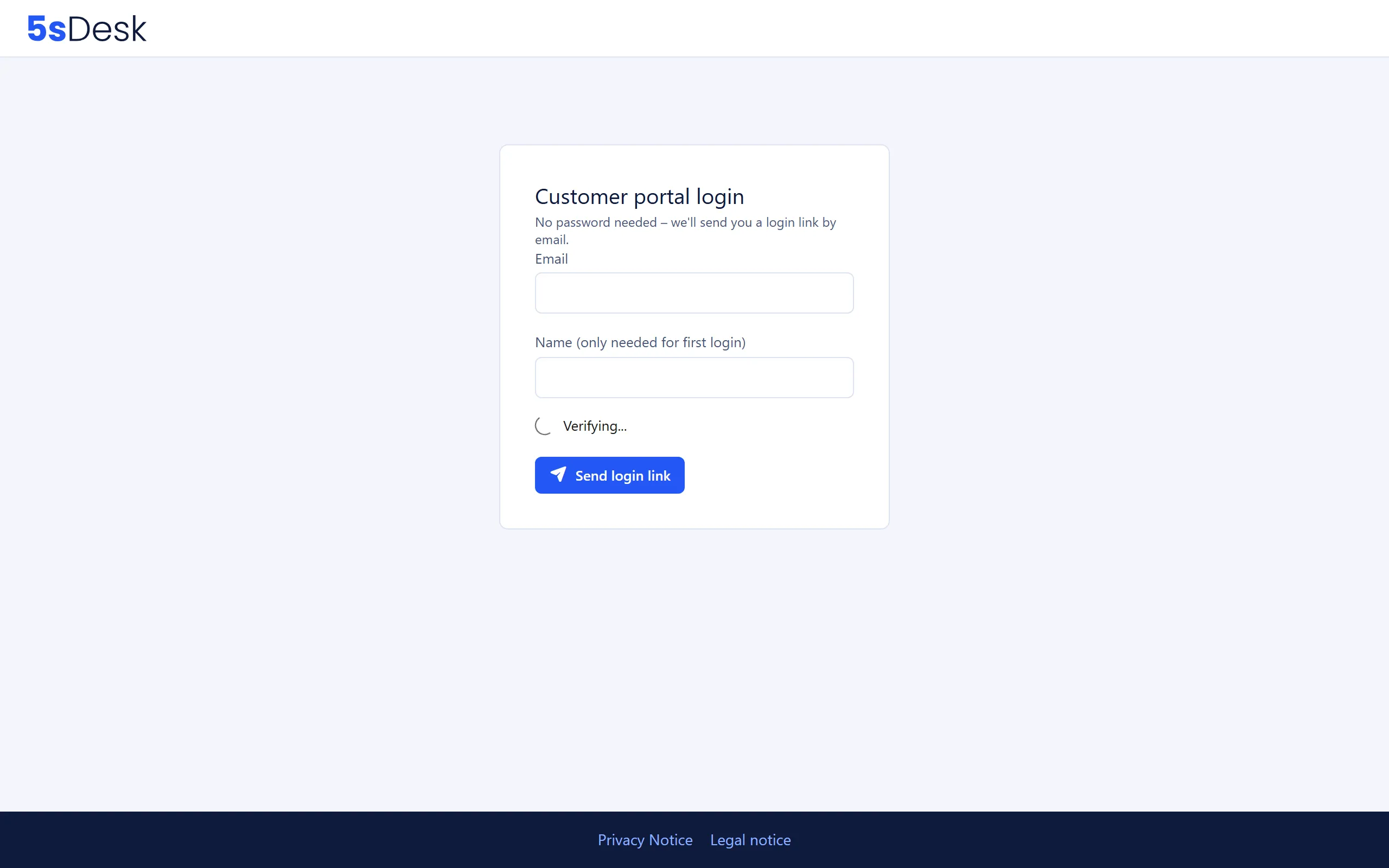
Section titled “What the customer sees”- On the home page, the customer clicks “Customer login” (or “Login” in the menu) and lands on “Customer portal login”.
- They fill in “Email”. On their first login, they also fill in “Name (only needed for first login)”. Then they click “Send login link”.
- The page confirms: “Login link sent! Please check your inbox (including spam folder) and click the link.”
- The email “Your login link” contains the link. It is valid for 30 minutes and works exactly once.
- After clicking, the customer lands on “My Tickets”. If they have chosen a “Preferred language” in their profile, that language version opens straight away.
What happens in the background
Section titled “What happens in the background”- 5sDesk looks up the customer by all of their addresses. Logging in with the primary address or with an additional address from the “Email addresses” field of the customer record leads to the same customer account (see CRM).
- If there is no customer with that email address yet, 5sDesk creates one with the name and address. An existing customer is not changed.
- The login link goes to the address the customer entered, not to their primary address.
- The link is sent as a system email through your organisation’s mailbox. Without a mailbox set up, the customer sees “Could not send the login link. Please try again later.” So set up incoming email first.
- A link that has expired, has already been used or is wrong leads back to the login page with “The link is invalid or has expired.” The customer simply requests a new link.
- The link only works on the subdomain it was requested from.
- The login form is rate-limited to prevent abuse: at most 20 requests in 15 minutes per IP address. After that, “Too many login attempts from this address. Please try again in … minute(s).” appears. A honeypot and ALTCHA add further protection. A blocked attempt looks like a success to the sender, but no email is sent.
- A customer portal session ends after 12 hours of inactivity. An agent signed in on the same browser is not signed out by this.
Article visibility levels
Section titled “Article visibility levels”Who can see an article depends only on the article itself: the checkbox “Publicly visible (otherwise internal only, for assigned departments)” and the list “Visible to department(s) - only relevant if “Publicly visible” is NOT set”. The category an article sits in has no effect on its visibility.
| Article setting | Who sees it |
|---|---|
| “Publicly visible” set | Customers in the customer portal (once “Published” is also set) and all agents |
| “Publicly visible” not set, no department selected | All agents, no customers |
| “Publicly visible” not set, one or more departments selected | Only agents who belong to at least one of these departments. This also applies to admins. |
The publishing status also counts: “Published (draft, if not set)”. A draft appears neither in the customer portal nor in the article suggestions when you reply to a ticket. It stays visible in the content tree, marked with the pencil icon “Draft”.
What to watch out for when writing
Section titled “What to watch out for when writing”- Before you set “Publicly visible”, check whether the text contains customer data, ticket numbers or internal agreements. Pages the AI has drafted from a ticket carry the notice “AI draft – please review” for this reason and start out unpublished and not public.
- “Public view” in the panel opens the article as customers see it.
- The “Teaser text (optional)” appears in full above the article and is shortened to about 160 characters in overviews. Without a teaser text, 5sDesk shows the first sentences of the content there.
- With “Link existing content”, an article can appear in several places in the tree. “Remove link” only deletes the link, not the article.
The content tree
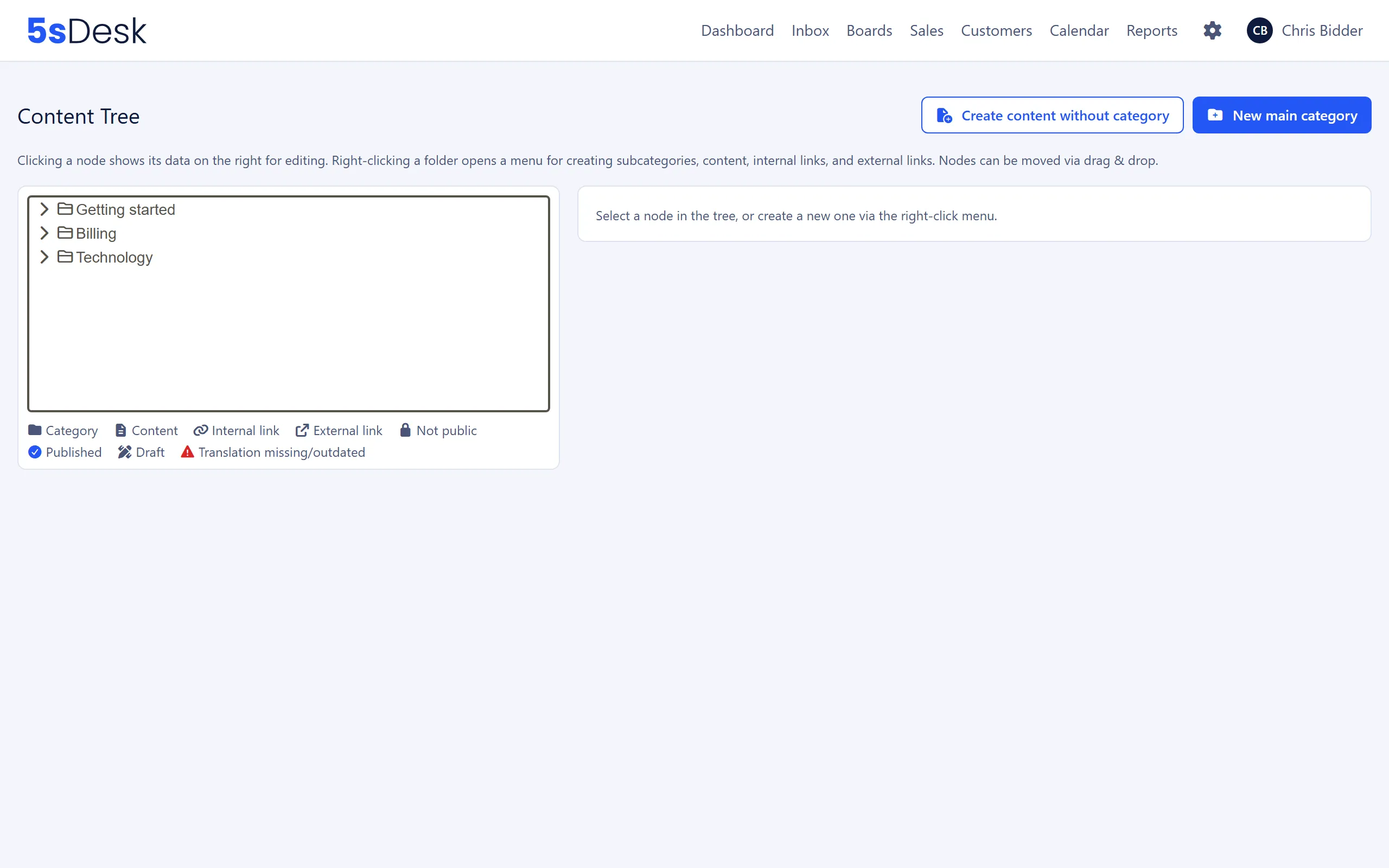
Section titled “The content tree”The legend below the tree explains the icons: “Category”, “Content”, “Internal link”, “External link”, “Not public”, “Published”, “Draft”, “Translation missing/outdated”. Clicking a node opens the editing panel on the right.
Above the tree you’ll find “Create content without category”, “New main category” and “Content without translation”. Right-click a folder to open the menu with “Create subcategory”, “Create content here”, “Link existing content”, “Create external link”, “Edit” and “Delete”. On a content item, the menu offers “Edit content”, “Translation” and, for a link, “Remove link”. You can move nodes by drag and drop. Only admins can do this.
You can only delete a category once it contains no content and no subcategories (“Category cannot be deleted while content or subcategories are still assigned to it.”).
Tags for content
Section titled “Tags for content”Content items carry tags from the “Content” list, for example for the editorial status or the type of article. Admins and the lead of a department with the “Content” area manage the list under Administration › Settings › Team › “Tags”, tab “Content” (see Tags).
- Setting tags: in the content item’s panel, click the chips you want in the “Tags” field and save. Anyone who may edit the content can do this. If the list is still empty, the field shows “No content tags yet. Admins and leads of a department with the content area create them under Settings → Tags.”
- In the tree, tags appear as small chips after the title, including on internal links to the item.
- As soon as content tags exist, a “Tag” selection appears above the tree. Choose a tag and the tree hides all content without it; categories stay visible as the path to the matches and expand. “All content” shows everything again. You can only choose one tag at a time.
- Tags are only visible internally. The customer portal doesn’t show them.
Multiple languages
Section titled “Multiple languages”The customer portal has one source language and any number of content languages. Each content language has its own prefix, for example /en/a/…. The source language has no prefix.
Setting up languages
Section titled “Setting up languages”Under Administration › Settings › System & Branding › “Customer portal”, the admin sets:
| Field | Meaning |
|---|---|
| “Default language for customer area” | The language your articles and categories are written in (“Deutsch” or “English”). Once translations exist, it is locked: “The default language cannot be changed while translations exist.” |
| “Content languages” | Additional languages with “Language code”, “Label in the switcher”, “Interface” (language of the portal interface), “Full-text search” and the “active” checkbox. Add a new language with “Add language”. |
If you remove a content language, saved translations are kept but can no longer be reached.
Maintaining translations
Section titled “Maintaining translations”The article panel has a “Translations” section with one row per language and the status “missing”, “draft”, “outdated” or “published”. Clicking a row opens the panel “Translation: …” with its own title, slug, teaser text and content. “Back to original” takes you back.
- The “Published” checkbox decides whether customers see the translation: “While this is unchecked, customers in this language keep seeing the original.”
- The translation inherits the visibility of the original. Publishing a translation does not make a non-public or unpublished article public.
- For categories, you maintain “Name and slug per language”. Left empty, the original name is shown.
Fallback to the original: If a translation is missing or not published, the customer portal shows the original article with the notice “This content is not available in the selected language yet and is shown in its original language.” In search, such results appear after the translated ones with the suffix “(original language)”.
Outdated translations: If someone changes the original after the translation was last saved, its status changes to “outdated”. The panel shows “The original was changed on …, after this translation was last saved. Please review.” Until then, the translation stays online. The page “Content without translation” lists all articles and categories with the status “missing”, “draft” or “outdated” for each language.
AI translation and the AI notice
Section titled “AI translation and the AI notice”If AI is enabled (see AI features), the toolbar of the translation panel has the button “Translate to … with AI”. Before replacing anything, 5sDesk asks: “The title and text of this translation will be replaced by the AI version. Continue?” The result is a draft that you review and publish yourself.
Any content the AI has written text into (a translation, “Revise with AI”, “Write content from information”, a page from a ticket) carries a permanent marker. Customers then see this at the foot of the article: “Note: This text was created in whole or in part with the help of artificial intelligence (AI) and was editorially reviewed prior to publication.” You can’t remove this marker in the panel. It stays even if you later rewrite the text completely. On a fallback page, the notice appears in the portal language while the article itself is shown in the original.
How customers see their own tickets
Section titled “How customers see their own tickets”Under “My Tickets”, customers don’t see their tickets by ticket status but in three groups that show whose turn it is. Empty groups are hidden. Within each group, the most recently updated ticket is at the top.
| Group in the customer portal | Underlying ticket status |
|---|---|
| “You should reply” | “Waiting for feedback” |
| “We’ll reply” | “Open”, “In progress”, “Suspected spam” and tickets with a scheduled reply (badge “Reply in progress”) |
| “Resolved” | “Closed” |
Each ticket shows a status badge with the normal status name. A search field “Search tickets…” filters by subject.
Inside a ticket
Section titled “Inside a ticket”- The “Ticket details” box shows “Created”, “Reference” (the ticket number), “Assigned agent” (or “Not yet assigned”), “Department” and “Attachments”. Assigned agents appear with their nickname if one is set in their profile. Replies from your team appear under “Support”, not under the person’s name.
- The customer portal recognises the customer’s own messages by any of their addresses. If they write from their primary address one time and from an additional address the next, both messages appear as “You” rather than under the sender address.
- With “Close ticket”, customers set the ticket to “Closed” themselves. Only the person who opened the ticket can do this.
- A closed ticket shows “This ticket is closed. Please create a new ticket for a new issue.” and no longer has a reply field. If the customer instead replies by email to a message from the ticket, the ticket reopens with the status “Open”.
- A reply in the customer portal to a ticket with the status “In progress” or “Waiting for feedback” sets it to “Open”, ends any running follow-up reminder and notifies the assignees and followers. The ticket history shows an entry for the automatic reopening.
- Logged work time, internal notes, tags and deals are never visible to customers.
New ticket
Section titled “New ticket”“Create new ticket” requires “Subject” and “Message”. Attachments are optional, as are the custom fields marked as visible in the customer portal (see Custom fields). While the customer types, 5sDesk suggests matching articles (“This might already help”). The new ticket starts with the status “Open”, with no department and no assignee.
Portal and customer login can be switched off separately
Section titled “Portal and customer login can be switched off separately”Under Administration › Settings › System & Branding › “Customer portal” › “Access”, there are two switches with different scope.
| Switch | Off means |
|---|---|
| “Customer area active” | Every page of the customer portal shows the page “Customer area currently unavailable”: knowledge base, search, login and tickets. The legal pages (legal notice, privacy policy), public appointment booking, lead forms and the marketing consent confirmation link stay available. |
| “Customer login active” | Only signing in is blocked. The knowledge base and search stay public. Instead of the form, the login page shows “Customer login is currently disabled.”, login links already sent lead to the same message, and the “View your ticket?” box is missing from the home page. |
Shared company area
Section titled “Shared company area”By default, each customer sees only their own tickets. For companies with several contacts, there is the shared company area. It needs two levels of approval:
- Organisation-wide under “Customer portal”: “Offer a shared company area” and, optionally, “Allow replies to tickets of company colleagues”. This only makes the feature available.
- Per company in the CRM under “Customer portal” › “Shared company area”: “Off – everyone sees only their own tickets”, “Read – colleagues’ tickets are visible” or “Reply – tickets are visible and can be answered”.
Contacts with access see the menu item “Company” with “People at your company” and “Your company’s tickets”. Only the person who opened a ticket can close it. Replying to other people’s tickets is only possible with “Reply” and not on closed tickets. Find out more under CRM.
Related settings
Section titled “Related settings”- Customer portal: switches, languages, intro text, header and footer menus, custom JavaScript.
- Departments: enabling the “Content” area, departments for internal articles.
- Tags: the “Content” list for tags on content items.
- Custom fields: fields that customers see and fill in on the customer portal.
- AI features: enabling AI translation and revision.
- Legal: legal notice and privacy policy, which stay available even when the customer portal is switched off.
- Roles and permissions: who creates categories and edits articles.