
Billing and plan: seats, invoices, payment
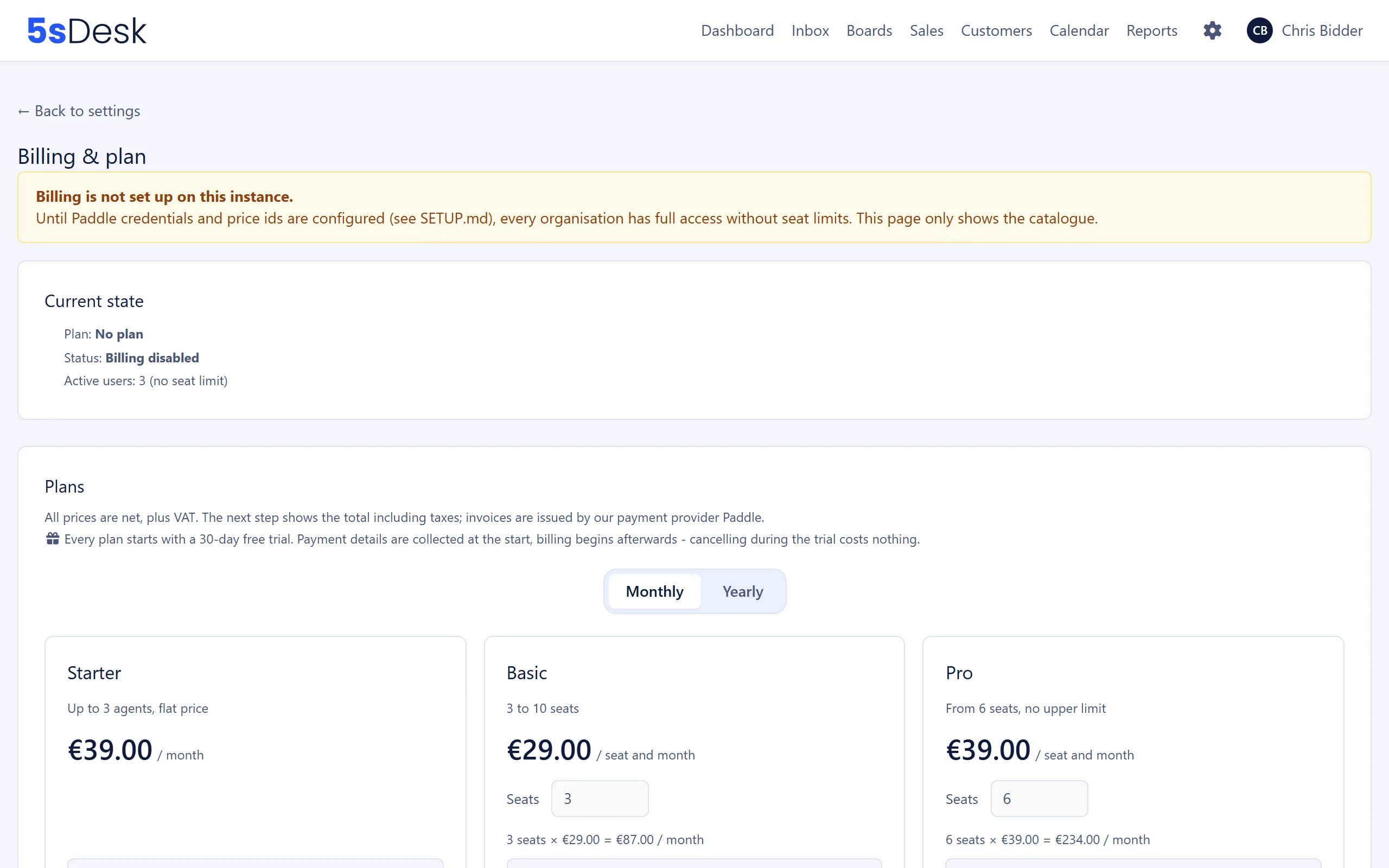
On this page you see your organisation’s billing status, choose a plan, adjust seats and get to your invoices and payment details. What Starter, Basic and Pro cost and how they differ is shown in the ticketing system pricing. All admins can see this page. Only an account with the owner role can buy a plan, change seats or cancel.
Where to find the page
Section titled “Where to find the page”Administration › Settings › System & Branding › “Billing & plan”, and also directly in the Administration › “Billing & plan” menu.
Settings at a glance
Section titled “Settings at a glance”Current state
Section titled “Current state”| Row | Meaning |
|---|---|
| “Plan” | No plan, Starter, Basic or Pro, with the billing interval. |
| “Status” | For example “Free trial”, “Active” or “Payment overdue”. Without a running subscription, this shows “Paused …”, “Ended …” or “No plan chosen …”, each with the note that the mail channel is locked. |
| “Free trial” | Days remaining and end date. From then on, the chosen plan is charged. |
| Seats | “Seats: … of … in use (only active users count)” or “Active users: … (no seat limit)”. |
| “Next billing on …” | Next billing date for a running subscription. |
| Startup discount | Only if you booked with the startup discount. During the free trial “Startup discount: 25% for 24 months from the first payment”, afterwards “Startup discount: 25% until …”. The row disappears once the discount has ended. |
| Grace period | Without a plan: when the public area will be switched off, or since when it has been switched off. |
Buttons in this card, only for owners and only once payment details exist:
| Button | Meaning |
|---|---|
| “Invoices & payment details” | Opens the customer portal of the payment provider Paddle with your invoices and payment details. |
| “Change payment method” | Opens the page for changing the payment method directly. |
| “Cancel subscription” | After a confirmation prompt, cancels at the end of the current term. Everything stays usable until then. |
| “Undo cancellation” | Appears when a cancellation is scheduled and keeps the subscription running. |
Admins without the owner role see “Only owners can buy a plan, change seats or cancel.” instead.
Adjust seats
Section titled “Adjust seats”Only for plans priced per seat (Basic, Pro) with a running subscription.
| Field | Meaning |
|---|---|
| “Purchased seats” | New number of seats between the plan’s minimum (at least the number of active users) and the plan’s maximum. |
| “Change seats” | Additional seats are charged pro rata straight away. Fewer seats are credited against the next invoice. During the free trial, nothing is charged immediately. |
| Plan | Seats | Pricing model | Features |
|---|---|---|---|
| Starter | “Up to 3 agents, flat price” | Flat rate | Core features |
| Basic | “3 to 10 seats” | Per seat | Also “API access” and “Hide the 5sDesk notice” |
| Pro | “From 6 seats, no upper limit” | Per seat | Also “API access” and “Hide the 5sDesk notice” |
Use the “Monthly”/“Yearly” switch to choose the billing interval. All prices are net, plus VAT. For seat-based plans, you enter the number of seats directly on the plan card. “Select plan” starts the checkout, and “Switch to this plan” changes a running subscription. “Hide the 5sDesk notice” applies to the notice in forms and on appointment booking pages.
Next to the switch is the “Startup discount” tick box with the badge “−25%”. When it is ticked, each plan card also shows the “Startup price”. The tick box only appears while no subscription is running, and it is pre-filled with what you entered when you signed up. See Startup discount for details.
How to do it
Section titled “How to do it”- Sign in as the owner and open “Billing & plan”.
- Choose the interval, the plan and, for seat-based plans, the number of seats. If your company was founded within the last 24 months, tick “Startup discount”. Click “Select plan”.
- The checkout opens on the platform domain. Enter your payment details with Paddle there. The link is valid for ten minutes.
- When you have finished, the “Thank you!” page takes you back to billing as soon as the purchase has been processed.
What changes
Section titled “What changes”Without a running subscription (no plan chosen, cancelled or paused), only the mail channel is locked:
- You cannot connect, edit, test or remove mailboxes.
- Agents cannot send emails (reply, forward, new email, scheduled sending, bulk email). The automatic acknowledgement of receipt is not sent.
- Tickets, boards, deals, CRM, settings and AI stay usable. Incoming emails are still fetched.
- Without a plan, up to 3 active users are possible. With a cancelled or paused subscription, no new users can be activated.
Free trial: every plan starts with a 30-day free trial. You enter your payment details at the start, and you are only charged afterwards. Cancelling during the free trial costs nothing. A plan change during the free trial takes effect immediately and is only charged from the first billing date.
Grace period: an organisation without a subscription has 30 days from when it was created. From 10 days before the end, the app shows a notice. When the period runs out, the customer portal, appointment booking, forms and email fetching are switched off. After a cancellation or pause, the same 30-day period starts from the end of the term. As soon as you buy a plan, everything works again immediately.
Overdue payment: access stays in place for the time being. The page shows “The last payment failed. Please update the payment method to keep access.”
Startup discount
Section titled “Startup discount”Companies founded within the last 24 months get 25% off their plan for 24 months. This is a self-declaration; no proof is required.
- You declare it when signing up with “We are a startup”, or before your first purchase with the “Startup discount” tick box. Unticking the box at checkout also discards what you entered at sign-up.
- The 24 months start with the first payment. The free trial does not count towards them. Afterwards, the full price applies again automatically.
- The discount cannot be added later while a subscription is running.
- Changing to another plan with the same interval, or changing seats, leaves the discount as it is.
- When you switch between monthly and yearly, only the remainder of the 24 months applies. A final period that is only partly covered is discounted pro rata. Example: with 15 months remaining and a switch to yearly, the first year is discounted by 25% and the second by 6.25%.
- Cancelling also ends the discount. If you buy again within the 24 months, only the remaining time applies. Months without a subscription are not added back, even though the hint next to the tick box still says “for the first 24 months”.
See also
Section titled “See also”- Users: Deactivate users to free up seats.
- Mailboxes: Connect mailboxes once a plan is active.
- Roles and permissions: The difference between owner and admin.
- Data protection: Paddle as the payment provider.