
General settings: numbering, signature, sign-in
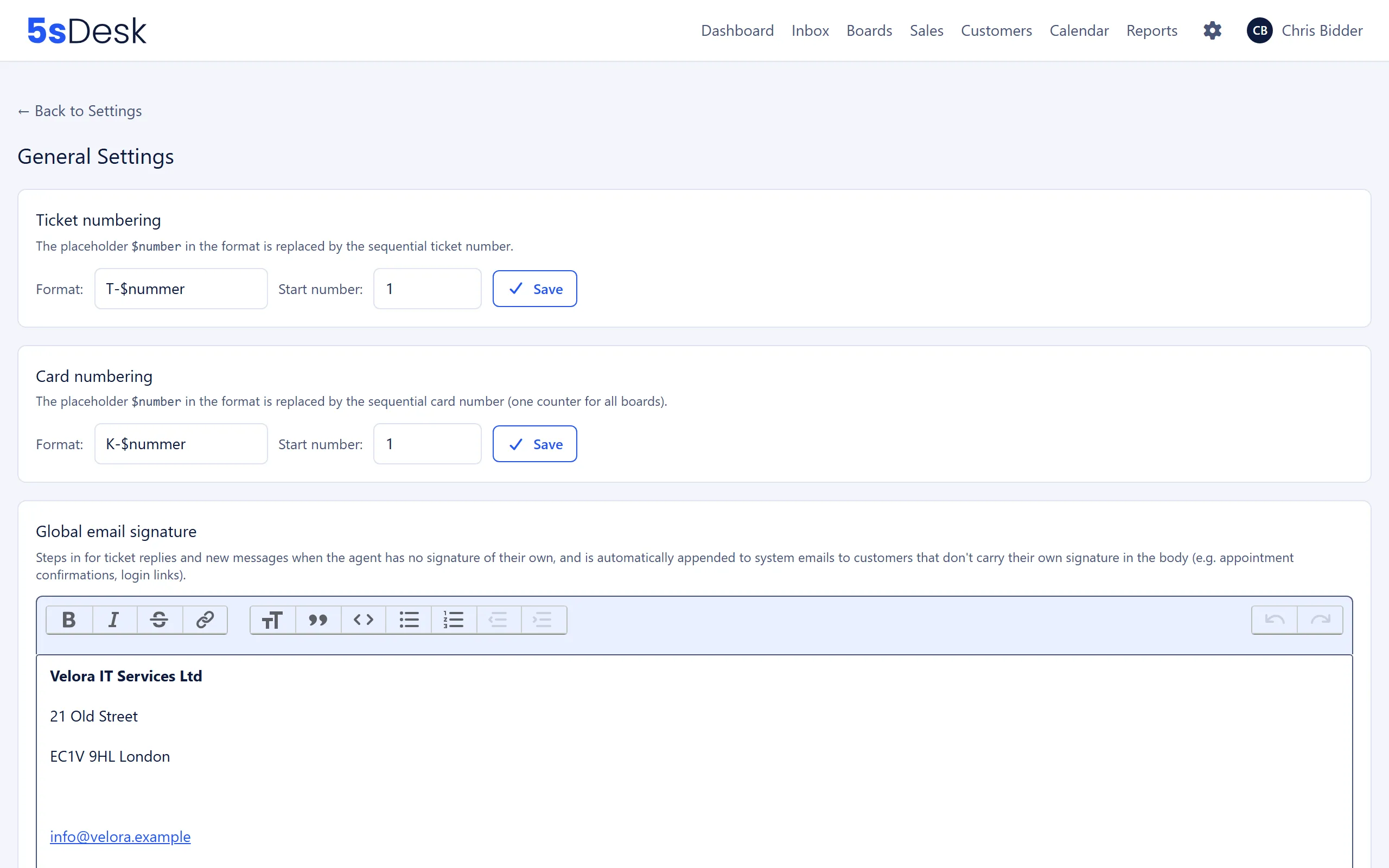
On this page you set the basic organisation-wide settings: number formats for tickets and cards, the global email signature, marketing consent, the date format and several switches for reply behaviour, sign-in and time tracking. Only admins can see this page.
Where to find the page
Section titled “Where to find the page”Administration › Settings › System & Branding › “General settings”.
Each block has its own “Save” button. Changes in a block are only saved when you click that block’s button.
Settings at a glance
Section titled “Settings at a glance”Ticket numbering
Section titled “Ticket numbering”| Field | Meaning | Default |
|---|---|---|
| “Format:” | Pattern for the ticket number. The placeholder $nummer is replaced by the sequential number and must be included. |
T-$nummer |
| “Start number:” | The number the count starts from. Must be a positive whole number. | 1 |
The number is not stored. It is calculated from the counter every time it is displayed. If you change the start number later, the displayed numbers of all existing tickets shift.
Card numbering
Section titled “Card numbering”| Field | Meaning | Default |
|---|---|---|
| “Format:” | Pattern for the card number, also with the required placeholder $nummer. |
K-$nummer |
| “Start number:” | Where the count begins. | 1 |
There is one shared counter for all boards and pipelines in an organisation. Deals use the same counter with their own prefix (default D-$nummer), which you change under Sales. Each number therefore only occurs once across the organisation, for example K-17 and D-18.
Global email signature
Section titled “Global email signature”An editor for a signature that is used in two cases:
- In ticket replies and new messages when the agent has no signature of their own. An admin maintains each agent’s personal signature under Users.
- Automatically in system emails to customers that do not already contain a signature, for example appointment confirmations and sign-in links for the customer area.
If the field is empty, the “Company details” express dialog fills it with the company name, street, postcode and city, email address and website when you click “Save & generate texts”. An existing signature is never overwritten. See Legal for details.
Global info
Section titled “Global info”An editor for a text that is always inserted below the signature when a ticket reply or new message is pre-filled, for example a note about a holiday closure. The agent sees the text in the editor and can change or remove it.
Marketing consent
Section titled “Marketing consent”| Field | Meaning | Default |
|---|---|---|
| “Email confirmation required” | When ticked, marketing consent only takes effect after the customer has clicked a confirmation link sent by email (double opt-in). This applies both when an agent ticks the box in the customer record and when a form submits the consent. | off |
Imports and the API count as trusted sources and set consent immediately, without a confirmation email. With the CSV import from the customer list, however, a “Yes” is only applied if you confirm in the mapping step: “Verifiable consent exists for every contact marked “Yes””. A withdrawal of consent always takes effect immediately. Admins can skip the confirmation in individual cases if there is proof that consent has already been given. Read more under CRM.
Date & time
Section titled “Date & time”| Field | Meaning | Default |
|---|---|---|
| “Date format” | DD.MM.YYYY, DD/MM/YYYY, MM/DD/YYYY or YYYY-MM-DD, each with an example. | DD.MM.YYYY |
| “Time” | 24-hour or 12-hour (AM/PM). | 24-hour |
The format applies to all agents in the app and in notifications to agents. Each agent can choose a different one under My Profile. The customer portal, appointment emails and replies to customers are not affected.
Quote history in replies
Section titled “Quote history in replies”| Field | Meaning | Default |
|---|---|---|
| “Append quoted history to outgoing replies” | When you reply, the latest messages of the conversation are quoted at the end of the email, the way email programs do it. | on |
| “Number of quoted messages” | How many messages are quoted (1 to 10). | 4 |
Each quoted message is stripped of its own quoted history, so the thread does not grow with every round. Signatures of quoted messages are left out.
Send as another agent
Section titled “Send as another agent”| Field | Meaning | Default |
|---|---|---|
| “Administrators may send on behalf of other agents” | Lets admins send replies and new emails on behalf of another active agent, for example while that agent is on holiday. | off |
The customer sees the selected agent’s signature and placeholders. The reply counts towards that agent in reports. The person who actually sent it is recorded and shown in the ticket’s activity log. The editor shows a “Send as” picker for this.
Sign-in with verification code
Section titled “Sign-in with verification code”| Field | Meaning | Default |
|---|---|---|
| “Require an emailed verification code on every sign-in” | After entering their password, every agent must enter a 6-digit code that is sent to their email address. | off |
What you should know:
- The code is valid for 10 minutes. After 5 failed attempts it is blocked. A new code can be requested after 60 seconds at the earliest.
- Anyone who selects “Trust this browser for 30 days” when signing in does not need a code in that browser for 30 days. The trust ends earlier after a password change, a lock or “Sign out on all devices”.
- Switching the setting off ends the trust for all browsers in the organisation.
- Agents who are already signed in stay signed in. The setting applies from their next sign-in.
- The codes come from the platform’s sender address, not from the organisation’s mailbox. You do not need a mailbox for this.
If platform mail delivery is not set up on the server, the page shows the note “No platform mail delivery is configured on this server: codes are only written to the server log.”
Time tracking
Section titled “Time tracking”| Field | Meaning | Default |
|---|---|---|
| “Allow time tracking on mails (tickets)” | Working time can be logged on tickets. | on |
| “Allow time tracking on cards” | Working time can be logged on cards. | on |
Both boxes are saved together. Time already logged is kept and stays visible in reports and the CSV export. Only logging, editing and deleting time is switched off. A running timer can still be stopped or discarded. With both boxes unticked, time tracking disappears from the navigation and the dashboard.
“Getting started” checklist
Section titled ““Getting started” checklist”| Field | Meaning | Default |
|---|---|---|
| “Show the checklist on the dashboard” | Shows the checklist with the first setup steps on the dashboard. | on |
You can hide the checklist on the dashboard with “I’ll take it from here”. You can switch it back on here at any time.
What changes
Section titled “What changes”- Number formats take effect immediately for all displayed ticket and card numbers, including existing ones.
- The global signature and global info appear in new replies and messages, and in system emails to customers.
- Marketing consent with confirmation changes the process in the customer record and in forms: until the customer confirms, they are shown as “Confirmation pending”.
- The verification code applies the next time each agent signs in.
See also
Section titled “See also”- Email: Replies, signatures and quoted history in day-to-day work.
- CRM: How marketing consent works with and without a confirmation email.
- Boards and time tracking: What time tracking on tickets and cards can do.
- Users: Personal email signature for each agent.
- Sales: Your own prefix for deal numbers.