
Email inbox: connect mailboxes via IMAP or Microsoft 365
On this page, you connect the mailboxes from which 5sDesk creates tickets and through which agents reply. Only admins can see this page.
Where to find the page
Section titled “Where to find the page”Administration › Settings › Email › “Email inbox”.
Click “New account” to add a mailbox. Each entry in the list opens the “Edit account” form. To the right of each entry are two icons: “DNS settings (SPF/DKIM/DMARC)” and “Remove mailbox”.
The list
Section titled “The list”Each mailbox shows its address and, below it, the IMAP host or “Microsoft 365 (Login with Microsoft)” with “Connected as …” or “not connected”. On the right, you see the assigned department as a coloured badge, or “No assignment”. A star marks the “Default mailbox for the organization” or the “Default mailbox for this department”.
If a mailbox shows “Live sync paused: …” in red, 5sDesk is currently not fetching emails from it. Open the account, check the connection and save again.
Settings at a glance
Section titled “Settings at a glance”Connection type
Section titled “Connection type”| Field | Meaning | Default |
|---|---|---|
| “Connection type” | “IMAP/SMTP (username + password)” or “Microsoft 365 (Login with Microsoft)” | IMAP/SMTP |
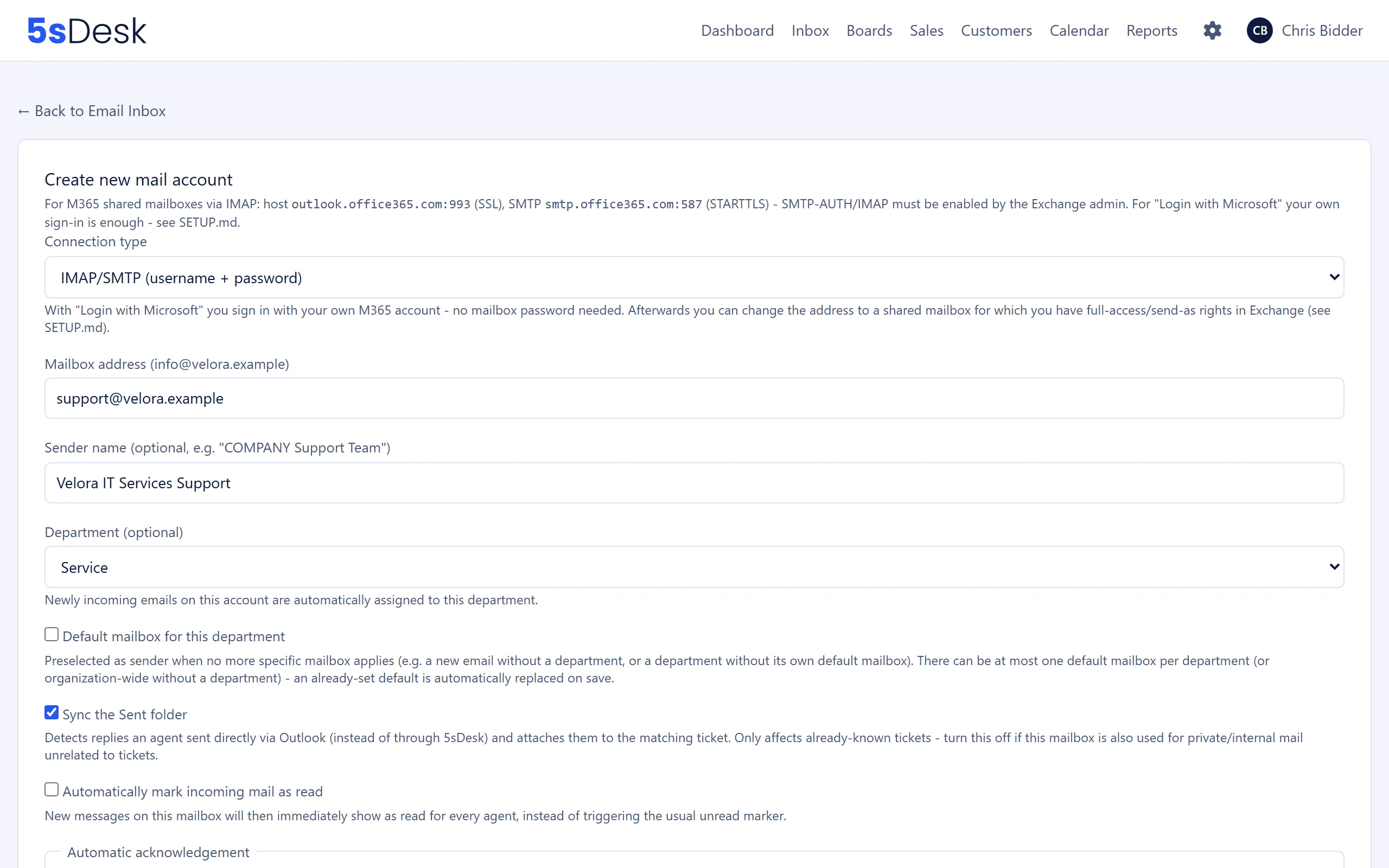
For IMAP/SMTP, you enter the login details and servers:
| Field | Meaning | Default |
|---|---|---|
| “Mailbox address (info@velora.example)” | The mailbox address, which is also the sender address | empty |
| “Login username (usually the same as the mailbox address)” | Username for IMAP and SMTP | empty |
| “Password” | When editing: “(leave empty to keep the existing password)” | empty |
| “IMAP host” / “IMAP port” | Incoming mail server | Port 993 |
| “IMAP encryption” | “SSL/TLS (implicit)”, “STARTTLS” or “No encryption” | SSL/TLS |
| “SMTP host” / “SMTP port” | Outgoing mail server | Port 587 |
| “SMTP encryption” | “SSL/TLS (implicit)”, “STARTTLS” or “No encryption” | STARTTLS |
| “Use authentication” | Untick this only for an SMTP relay without sign-in; IMAP always needs login details | on |
If you change the server, port or username when editing, you have to enter the password again. With “No encryption”, the form warns you that login details are sent in plain text.
For Microsoft 365, click “Sign in with Microsoft” and sign in with your own account. You do not need a password for the mailbox. Then choose under “Which mailbox?”:
- “My own mailbox (…)” or
- “Different address (e.g. a shared mailbox for which I have full-access/send-as rights in Exchange)”, with its own “Mailbox address” field.
If the form shows “Not connected” and asks you to sign in again, the Microsoft authorisation has expired or been revoked. Click “Sign in with Microsoft” again. The existing account is reconnected, not created a second time.
Assignment and behaviour
Section titled “Assignment and behaviour”| Field | Meaning | Default |
|---|---|---|
| “Sender name (optional, e.g. “COMPANY Support Team”)” | Display name shown before the sender address | empty |
| “Department (optional)” | New tickets from this mailbox are given this department | “No assignment” |
| “Default mailbox” | Preselected as the sender when no more specific mailbox applies. At most one per department and one for the whole organisation without a department; an existing default is replaced when you save | off |
| “Sync the Sent folder” | Detects replies that an agent sent directly from Outlook and attaches them to the matching ticket | on |
| “Automatically mark incoming mail as read” | New messages show as read for all agents straight away | off |
Automatic acknowledgement
Section titled “Automatic acknowledgement”| Field | Meaning | Default |
|---|---|---|
| “Send an acknowledgement when a new email creates a new ticket” | Turns on the acknowledgement for this mailbox | off |
| “Subject” | Required, at most 200 characters | “We received your request: {{ticket.subject}}” |
| “Text” | Template in the editor; if you leave the text empty, 5sDesk uses the default template when you save | Default template with ticket number and signature |
The acknowledgement is only sent for new tickets from people: not for replies to existing tickets, not for out-of-office replies, bounces or newsletters, not to blocked senders and not during a history import. If the customer replies to the acknowledgement, the reply lands in the same ticket. It is suppressed for addresses on the delivery block list and when the send limit has been tripped. The ticket history then shows “Acknowledgement to … suppressed (suppression list or outbound guard)”.
Available placeholders: {{customer.name}}, {{customer.email}}, {{customer.salutation}}, {{customer.first_name}}, {{customer.last_name}}, {{customer.title}}, {{customer.greeting}}, {{customer.position}}, {{customer.language}}, {{company.name}}, {{company.domain}}, {{company.customer_number}}, {{ticket.number}}, {{ticket.subject}}, {{agent.name}}, {{agent.email}}, {{mailbox.name}}, {{mailbox.address}}, plus {{signature}} for the organisation signature.
“Preview” shows the subject and text with sample data. The preview lists placeholders without a value under “Unresolved: …”.
How to do it
Section titled “How to do it”- Click “New account” and choose the “Connection type”.
- Enter the login details and servers, or sign in with “Sign in with Microsoft” and choose the mailbox.
- Click “Test connection”. If it works, you see “Connection successful” with a note that IMAP and SMTP are reachable. For Microsoft 365, the test checks access to the address you entered.
- Assign a “Department (optional)” if needed and set the toggles.
- Click “Save”. 5sDesk tests the connection again as it saves. If the test fails, nothing is saved (“Connection failed, nothing was saved: …”).
The connection test is limited to 30 attempts per 10 minutes per organisation.
DNS settings
Section titled “DNS settings”The “DNS settings:
” subpage shows the detected domain of the mailbox and explains the three records:| Record | What 5sDesk checks | What you set with your DNS provider |
|---|---|---|
| “SPF” | “Check now” reads the domain’s TXT record | For Microsoft 365: v=spf1 include:spf.protection.outlook.com -all. Otherwise, your mail provider’s include entry, ending in -all or ~all |
| “DKIM” | “Not checked automatically” (the selector differs from provider to provider) | For Microsoft 365, enable it in the Defender portal or add two CNAME records, selector1._domainkey and selector2._domainkey. Otherwise, ask your provider about “enabling DKIM signing” |
| “DMARC” | “Check now” reads the TXT record at _dmarc.<domain> |
Recommended: v=DMARC1; p=quarantine; rua=mailto:postmaster@<domain> |
For each record, the check returns “Correctly configured”, “No record found”, “Invalid (multiple records found)” or “Check failed: …” and shows the record it found. You can run at most 20 checks per 10 minutes per organisation.
Removing a mailbox
Section titled “Removing a mailbox”The “Remove mailbox:
” page shows how many tickets and messages are linked to the mailbox and asks: “Should the tickets/messages of this mailbox also be deleted?”- “No”: only remove the mailbox. Tickets and messages are kept (without a mailbox assignment). This is the default.
- “Yes”: permanently delete the mailbox and all of its tickets and messages. The button then reads “Permanently delete mailbox and all emails”.
Both options only affect the 5sDesk database. The actual emails in the connected mailbox are not touched. You cannot remove the mailbox while scheduled emails are still pending through it or a history import is running. Cancel the scheduled emails first.
What this affects
Section titled “What this affects”- New emails in the mailbox become tickets in the inbox. If a department is assigned, new tickets inherit that department and take part in its automatic assignment (see Departments).
- The default mailbox is preselected when you reply and when you use “New email”.
- Customer portal sign-in, form confirmations and appointment emails need a connected mailbox as the sender.
See also
Section titled “See also”- Email and inbox: how tickets are created from emails, Sent folder sync and bounces.
- Migration & Import: import the mail history of a connected mailbox later on.
- Delivery blocks: why an acknowledgement was suppressed.
- Departments: automatic assignment of new tickets per department.
- Mail attachments: allowed file extensions for attachments.