
Tags
Tags are colour-coded labels for grouping tickets, customers and companies, articles, cards and deals. Each area has its own list, so a “Partner” tag for customers doesn’t show up when you pick tags for cards. Ticket tags appear as chips in the inbox and on the ticket. The other lists are described on this page and on the linked feature pages.
Where to find the page
Section titled “Where to find the page”Administration › Settings › Team › “Tags”.
At the top, the page shows the tabs “Tickets”, “Customers & companies”, “Content”, “Cards” and “Deals”. You only see the tabs for the lists you’re allowed to manage. If you can manage just one list, the tab bar is hidden. Each tab shows the list for that area with a short note on where the tags appear.
“New tag” opens the “Create tag” form. Clicking an entry opens “Edit tag”. The area the tag belongs to is shown below the heading, and “← Back to tags: …” takes you back to that area’s list.
Who manages the lists
Section titled “Who manages the lists”| List | Admins | Department lead |
|---|---|---|
| “Tickets” | yes | every department lead |
| “Customers & companies” | yes | only the lead of a department that has the “CRM (customers & companies)” area itself |
| “Content” | yes | only the lead of a department that has the “Content” area itself |
| “Cards” | yes | only the lead of a department that has the “Boards” area itself |
| “Deals” | yes | only the lead of a department that has the “Sales” area itself |
Without the right permission, the page shows “Only admins and the lead of a department with this area can manage tags.” Setting tags on tickets, customers, articles, cards and deals is different: anyone who may edit the item can do it. There’s no separate permission for that (see Roles and permissions).
Settings at a glance
Section titled “Settings at a glance”| Field | Meaning | Default |
|---|---|---|
| “Name” | Required. Up to 40 characters for ticket tags, up to 50 characters in all other lists. The name is unique within its list, regardless of upper and lower case. The same name may appear in several lists. | empty |
| “Colour” | “Shown as a coloured chip on tickets, customers, articles or cards.” | Violet |
If the name is already taken, 5sDesk shows “A tag with this name already exists.” You rename a tag via “Edit tag”. All assignments are kept.
The list
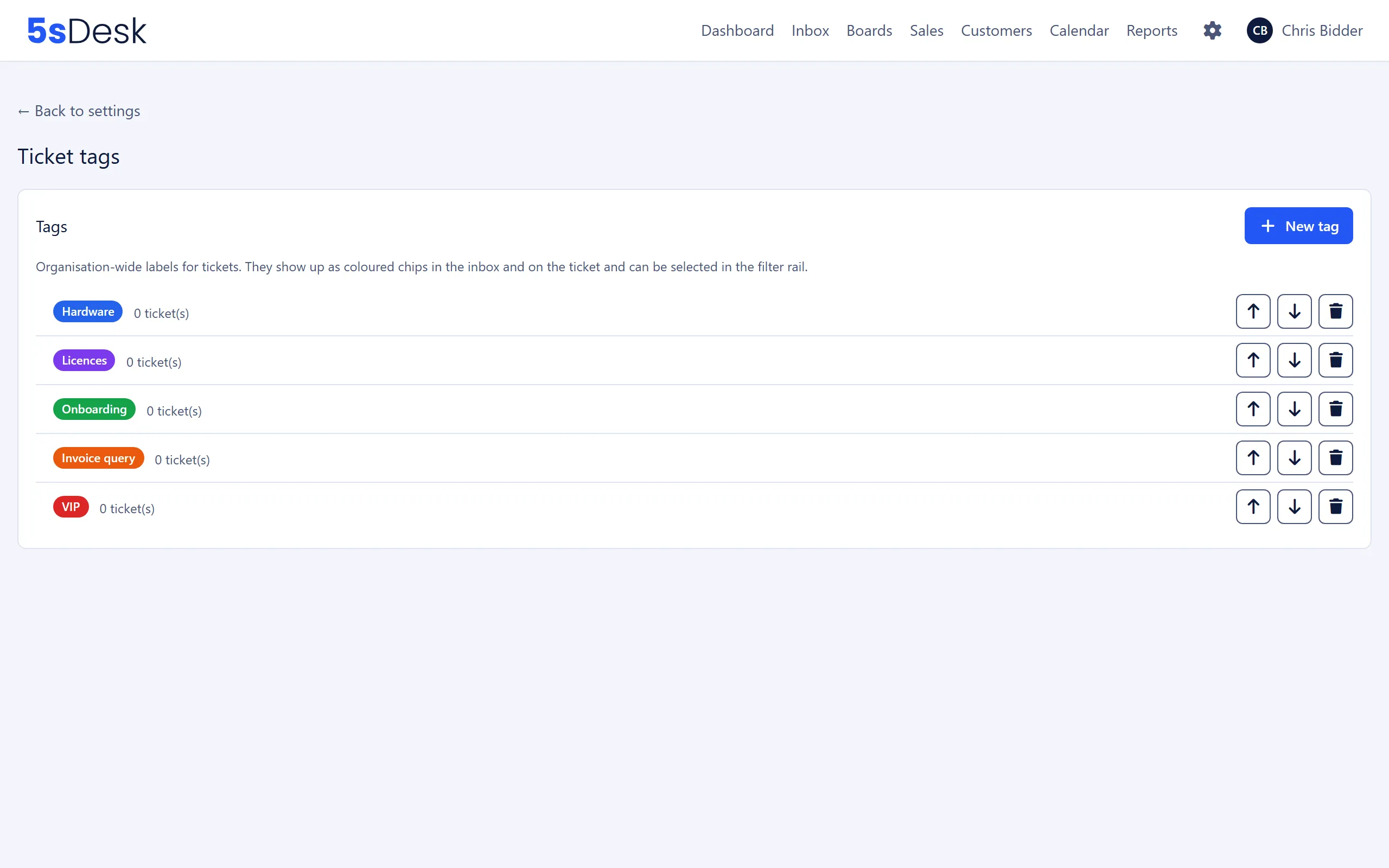
Section titled “The list”Each tag shows its chip in the chosen colour and a counter of how often it’s used:
| Tab | Counter |
|---|---|
| “Tickets” | “… ticket(s)” |
| “Customers & companies” | “… customer(s)/company(ies)” |
| “Content” | “… article(s)” |
| “Cards” | “… card(s)” |
| “Deals” | “… deal(s)” |
To the right:
| Icon | Effect |
|---|---|
| Up / down arrow | Moves the tag in the order. The order applies wherever tags from this list are shown or selected |
| Bin | Deletes the tag after a prompt, for example “Delete this tag? It will be removed from all tickets.” or “… from all customers and companies.”, “… from all articles.”, “… from all cards.” or “… from all deals.” |
Moving and deleting take effect immediately, without reloading the page.
Effects
Section titled “Effects”| List | Where the tags appear and what they do |
|---|---|
| “Tickets” | Agents set tags on the ticket. The chips appear in the ticket list and on the ticket, and the inbox filter bar offers them for selection. The AI summary can set existing tags (see AI features). |
| “Customers & companies” | “Tags” field in the customer and company form, chips in the customer and company lists, on the detail page and in the CRM box on a ticket. “Tags” and “Company tags” filters in the lists, adding tags in bulk and bulk mail to a tag (see CRM). |
| “Content” | “Tags” field in the edit panel of a content item, chips and a tag filter in the content tree. Internal only: the customer portal shows no tags (see Customer portal). |
| “Cards” | “Tags” field when editing a card on a task board, chips on the card and in the list view, “Tags” filter (see Boards and time tracking). |
| “Deals” | “Tags” field when editing a deal on a pipeline, chips on the deal and in the pipeline’s list view, “Tags” filter (see Sales). |
If a list is empty, the forms show a note on who creates the tags instead of the chips.
See also
Section titled “See also”- CRM: tags on customers and companies, filters, bulk action and bulk mail by tag.
- Boards and time tracking: tags on cards and in the filter.
- Sales: tags on deals.
- Customer portal: tags in the content tree.
- Email and inbox: setting tags on a ticket and filtering in the inbox.
- AI features: tags from the AI summary.