
Import/Export
On this page you export your organisation’s master data as a JSON file and import such a file again, for example as a template for a second organisation. Only admins can see this page.
Where to find the page
Section titled “Where to find the page”Administration › Settings › System & Branding › “Import/Export”.
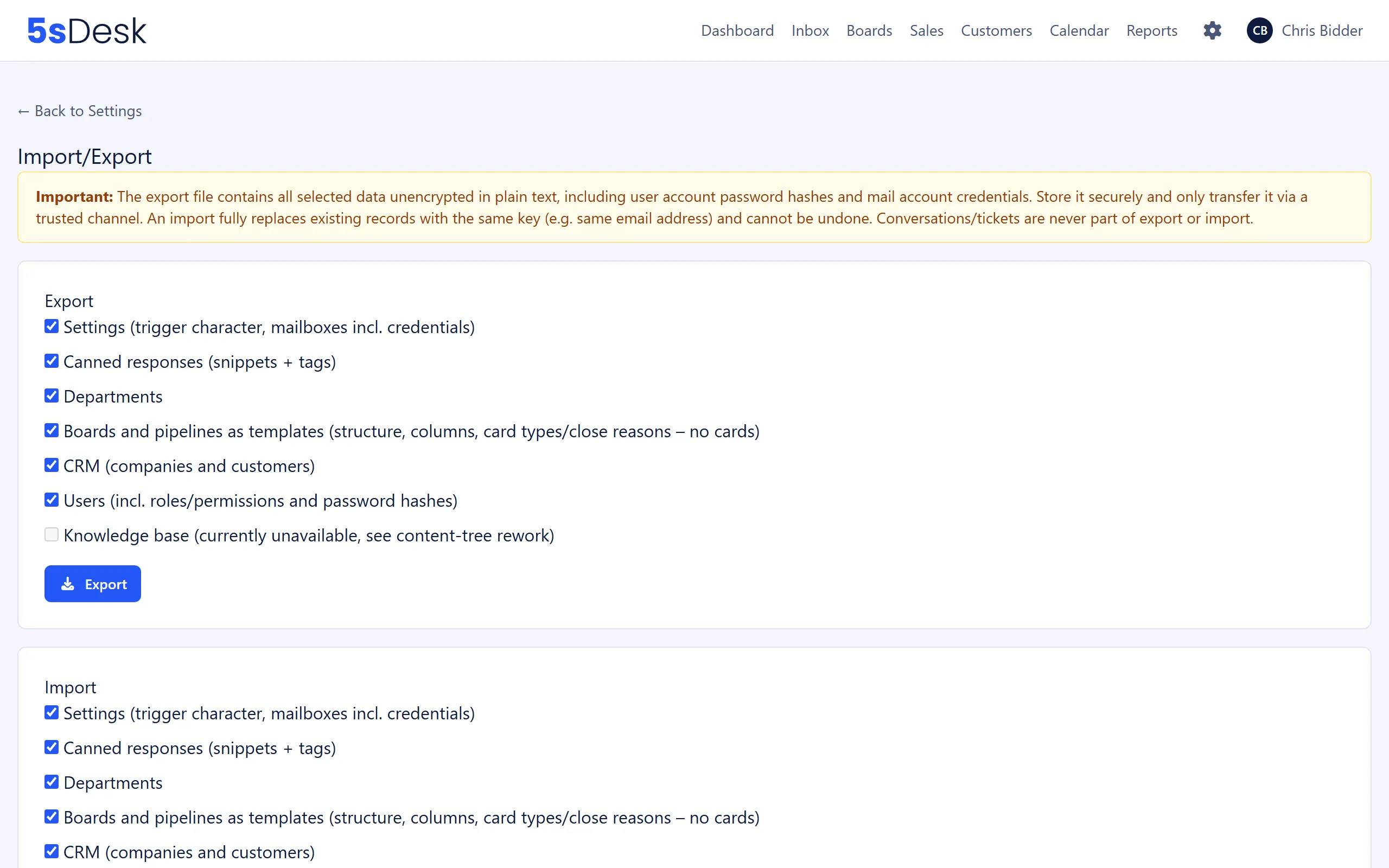
Settings at a glance
Section titled “Settings at a glance”Export and import offer the same categories. By default, all selectable categories are ticked.
| Category | Content |
|---|---|
| “Settings (trigger character, mailboxes incl. credentials)” | The trigger character for canned responses and all mailboxes with their credentials. |
| “Canned responses (snippets + tags)” | All canned responses with their tags. |
| “Departments” | All departments. |
| “Boards and pipelines as templates …” | Only the structure of the boards and pipelines (columns, card types, close reasons). Cards and deals are not included. |
| “CRM (companies and customers)” | Companies and customers with their master data and marketing consent. |
| “Users (incl. roles/permissions and password hashes)” | All users with roles, permissions and password hashes. |
| “Knowledge base (currently unavailable, see content-tree rework)” | Greyed out. Exporting and importing the knowledge base is temporarily unavailable since the switch to the content tree. |
Export
Section titled “Export”Select at least one category and click “Export”. You get a JSON file named sasd-export-<subdomain>-<date>.json.
Import
Section titled “Import”| Field | Meaning |
|---|---|
| Category checkboxes | Only ticked categories are taken from the file. Categories missing from the file are skipped. |
| “Export file (.json)” | The file to import. JSON only, 25 MB at most. |
After the import, the page shows “Import completed” with a summary for each category, for example “Created: 3, Updated: 12”.
How to do it
Section titled “How to do it”- In the source organisation, export the categories you need.
- Store the file securely. It contains password hashes and mailbox credentials in plain text.
- In the target organisation, open “Import/Export”, tick the categories, choose the file and click “Import”.
- Check the summary. Skipped references are counted, for example “company reference skipped” or “department reference skipped”.
Matching rules on import
Section titled “Matching rules on import”The import replaces existing records that have the same key. This is how it finds them:
| Record | Matched by |
|---|---|
| Company | Primary domain, then domain aliases. Free email domains are allowed here. |
| Customer | Email address, primary or additional (case doesn’t matter). |
| A customer’s company | The company’s domain in the file. If there is no matching company, the existing assignment stays and the row counts as “company reference skipped”. |
| User | Email address. |
| Department, board template | Name. |
Further rules:
- Fields included in the file overwrite the existing value. Fields missing from the file (for example from an older export) stay unchanged.
- Custom fields, the VIP flag, the company note, tags and additional email addresses are not part of the file and are kept on import. So a backup made with this file doesn’t contain them.
- Marketing consent from the file is set immediately and without a confirmation email, even if “Email confirmation required” is on under General settings. The history shows “CSV import” as the source.
- Users are created even beyond your plan’s seat limit. Surplus users are deactivated and listed in the summary.
- If no active admin would remain after the import, the entire import is aborted: “The import would result in no admin user existing anymore. The entire import was aborted, nothing was applied.”
- Board templates only create new boards. Missing card types and close reasons are created along the way.
Effects
Section titled “Effects”The import runs as a single transaction: either everything is applied or nothing is. Webhooks are not triggered during the import. Tickets and messages are never part of an export or import.
See also
Section titled “See also”- CRM: how customers, companies and marketing consent fit together.
- Importing and exporting customers and companies: CSV import and export from the customer and company lists.
- Duplicate customers/companies: merging duplicates after an import.
- Canned responses: trigger character and canned responses.
- Migration & Import: importing tickets from mailboxes or Freshdesk.