
Legal: legal notice and privacy policy
On this page you maintain the legal notice and privacy notice for the customer area and the public appointment booking page. You can generate a draft of both texts from your company details and then adjust them in the editor. Only admins can see this page.
Where to find the page
Section titled “Where to find the page”Administration › Settings › System & Branding › “Legal”.
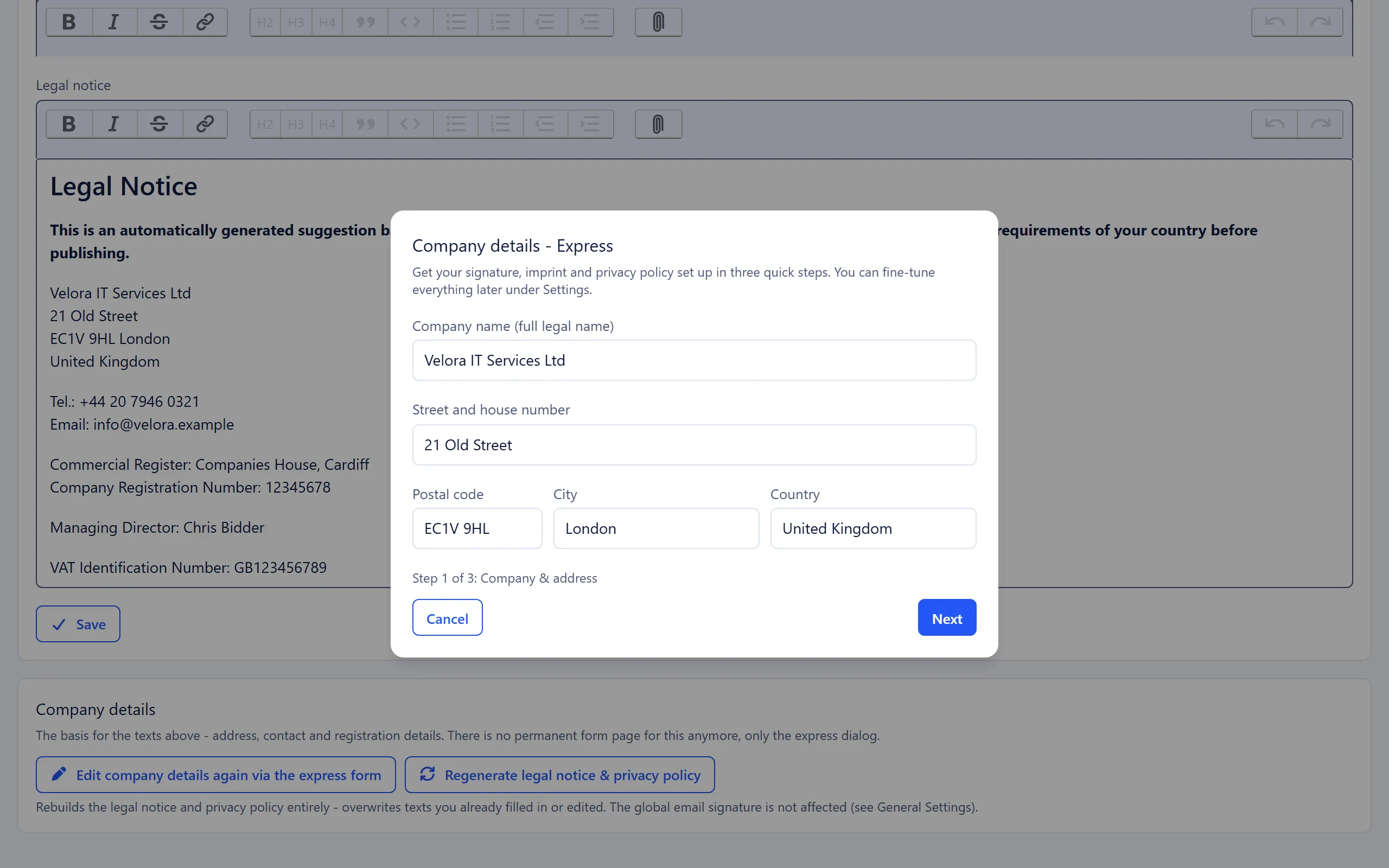
You enter the company details themselves in the express dialog. It opens from the “Getting started” checklist on the dashboard or from the “Edit company details again via the express form” button on this page.
Settings at a glance
Section titled “Settings at a glance”Legal pages
Section titled “Legal pages”| Field | Meaning |
|---|---|
| “Privacy Notice” | Text of the public privacy page of the customer portal in the customer area’s default language. |
| “Privacy Notice ( |
Translation for each active content language. If you leave it empty, the text in the default language is shown for that language. |
| “Legal notice” | Text of the public legal notice page of the customer portal in the default language. |
| “Legal notice ( |
Translation for each active content language, with the same rule as for the privacy notice. |
All fields are saved together with “Save”. An empty main field means that this page does not exist and is not linked anywhere. No placeholder text appears.
The editors support headings, lists, links and images. The generated texts use subheadings, which are kept when you edit them.
Company details
Section titled “Company details”| Button | Meaning |
|---|---|
| “Edit company details again via the express form” | Opens the express dialog with the saved values. |
| “Regenerate legal notice & privacy policy” | Rebuilds both texts completely from the company details. Only appears once a company name has been entered. |
Fields in the express dialog
Section titled “Fields in the express dialog”The dialog has three steps. All fields in the first two steps are required, except the phone number.
| Step | Field | Required |
|---|---|---|
| 1 “Company & address” | “Company name (full legal name)” | yes |
| 1 | “Street and house number” | yes |
| 1 | “Postal code” | yes |
| 1 | “City” | yes |
| 1 | “Country” | yes |
| 2 “Contact & web” | “Email address” | yes |
| 2 | “Phone number” | no |
| 2 | “Website” | yes |
| 3 “Legal” | “Managing director” | no |
| 3 | “Commercial Register” | no |
| 3 | “Company Registration Number” | no |
| 3 | “VAT identification number” | no |
| 3 | “Data Protection Officer” | no |
| 3 | “Privacy contact email” | no, if left empty the general email address is used |
If a required field is missing, you see “Please fill in all required fields.”
How to do it
Section titled “How to do it”- Open the express dialog and fill in the three steps.
- Click “Save & generate texts”. The company details are saved. Then only texts that are still empty are filled in: the global email signature, the legal notice and the privacy notice, each in the customer area’s default language and in the other language (German or English). Existing texts stay unchanged.
- Read both texts in the editor, replace the placeholders in square brackets and remove the bold note at the top.
- Save with “Save”.
If you want to start again later after your company details have changed, click “Regenerate legal notice & privacy policy” and confirm the prompt. Both texts are then overwritten, including versions you have already edited. The global email signature is not affected.
What changes
Section titled “What changes”- Both pages are linked at the bottom of every page in the customer area and on the public appointment booking page. They stay available even if the customer area is switched off under Customer portal.
- A translation only becomes visible once that language is active as a content language of the customer area.
- The generated privacy notice starts with a bold note saying that the text is an automatically generated suggestion and not legal advice. It is published along with the text until you remove it.
See also
Section titled “See also”- Customer portal: Where customers see the legal pages.
- Data protection: Which services 5sDesk uses.
- General settings: Edit the global email signature.
- Getting started: The checklist and express dialog on the dashboard.