
Boards (card types)
On this page you manage the card types that agents choose in the “Type” field on cards in task boards. Only admins can see this page.
Where to find the page
Section titled “Where to find the page”Administration › Settings › Boards & AI › “Boards”.
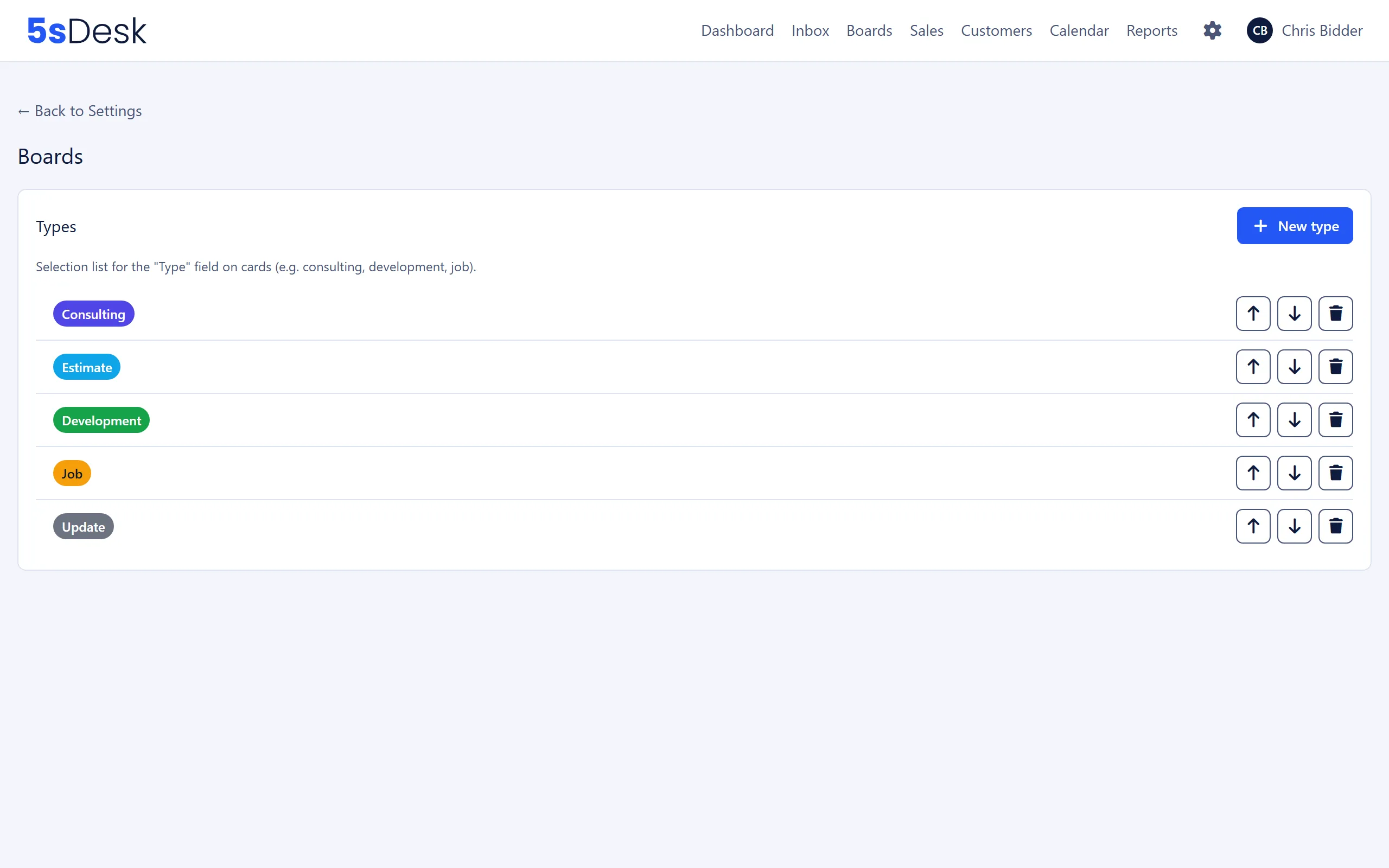
Settings at a glance
Section titled “Settings at a glance”The page consists of a single list, “Types”. The note above it explains its purpose: “Selection list for the “Type” field on cards (e.g. consulting, development, job).” Each entry shows its name as a badge in its colour.
“Create new type” and “Edit type” form
Section titled ““Create new type” and “Edit type” form”| Field | Meaning | Default |
|---|---|---|
| “Name” | Name of the type, as it appears as a badge on the card. Required. | empty |
| “Color” | Background colour of the badge. 5sDesk automatically picks a light or dark text colour for good contrast. Note in the form: “Shown as a badge on the card and in the board.” | prefilled with #6366f1 (indigo) |
“Save” takes you back to the list.
Actions in the list
Section titled “Actions in the list”| Action | Effect |
|---|---|
| Click on the badge | Opens “Edit type”. |
| Up arrow, down arrow | Moves the type up or down one position. The order of the list is the order in the “Type” selection on the card. |
| Bin | Deletes the type after the prompt “Really delete this type?”. Only possible if no card uses the type. |
Deleting and sorting take effect immediately, without reloading the page.
Default types
Section titled “Default types”Every new organisation starts with five types in the language it was created in. For English, these are, in this order:
| Type | Colour |
|---|---|
| Consulting | Indigo |
| Estimate | Light blue |
| Development | Green |
| Job | Orange |
| Update | Grey |
The types are your organisation’s data. You can rename, recolour, reorder or delete them.
How to do it
Section titled “How to do it”- Click “New type”.
- Enter the “Name” and choose a “Color”.
- Click “Save”. The new type appears at the end of the list.
- If needed, use the arrows to move it to the position you want.
Effects
Section titled “Effects”- On cards in task boards, the “Type” field shows all entries in this list plus the option “No type”. The chosen type appears as a coloured badge on the card, on the board, in the board’s list view and in the card overview on the dashboard.
- Deals in sales pipelines don’t have a “Type” field. Card types only affect task boards.
- Renaming or recolouring a type takes effect immediately on all cards with that type. A type change on a card is recorded in the card’s history (“… changed the card type from … to …”).
See also
Section titled “See also”- Boards and time tracking: creating boards, editing cards and setting the type on a card.
- Sales: close reasons and lead sources, the selection lists for deals.
- Custom fields: more fields of your own for cards.