
SLA policies: response and resolution times
With SLA policies, you set the deadlines by which a ticket needs a first response and a resolution. 5sDesk shows the status in the inbox and sends warnings by email. Only admins can see this page.
Where to find the page
Section titled “Where to find the page”Administration › Settings › Team › “SLA / Response times”.
The page has two cards: “General” and “SLA policies”.
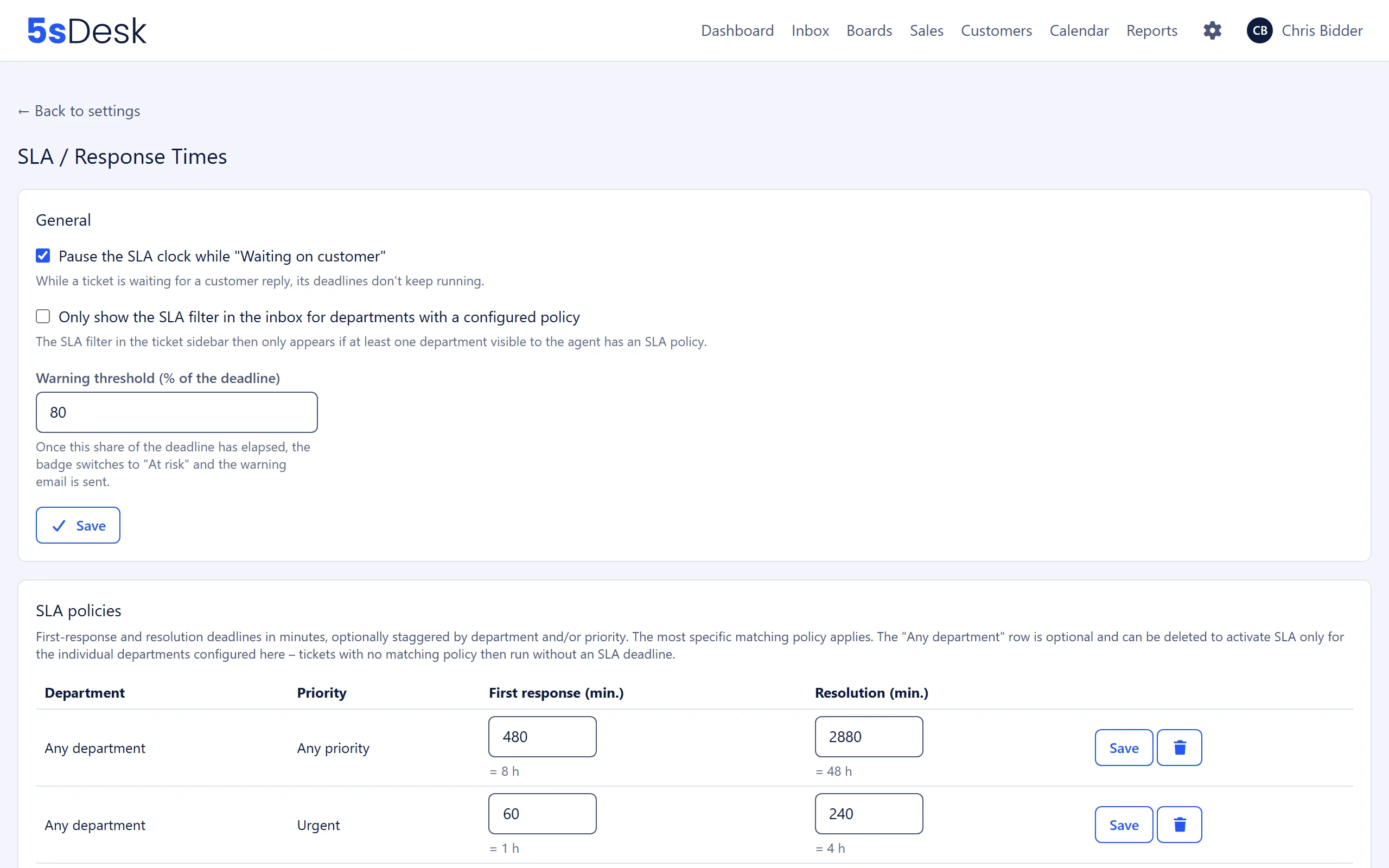
Settings at a glance
Section titled “Settings at a glance”General
Section titled “General”| Field | Meaning | Default |
|---|---|---|
| “Pause the SLA clock while “Waiting on customer”” | While a ticket is waiting for a customer reply, the deadline stops running | on |
| “Only show the SLA filter in the inbox for departments with a configured policy” | The SLA filter in the ticket sidebar only appears if at least one department the agent can see has a policy | off |
| “Warning threshold (% of the deadline)” | Once this share of the deadline has elapsed, the traffic light switches to “At risk” and the warning email is sent. Allowed values: 1 to 99 | 80 |
“Save” confirms with “Settings saved.”.
SLA policies
Section titled “SLA policies”Each policy consists of:
| Field | Meaning | Default |
|---|---|---|
| “Department” | A department or “Any department” | “Any department” |
| “Priority” | “Low”, “Normal”, “High”, “Urgent” or “Any priority” | “Any priority” |
| “First response (min.)” | Deadline for the first reply from an agent, a positive whole number in minutes | empty |
| “Resolution (min.)” | Deadline for closing the ticket, a positive whole number in minutes | empty |
Next to the minute fields, the page converts the value into hours (“= 2.5 h”). “Add policy” creates the row. You change existing rows directly in the table with “Save” or remove them with “Delete” (“Delete this SLA policy?”). There can be at most one policy for each combination of department and priority.
Which policy applies: the most specific match, in this order: department and priority, department only, priority only, then “Any department” with “Any priority”. The “Any department” row is optional. If you delete it, SLAs only apply to departments with their own policy. Tickets without a matching policy run without a deadline.
What changes
Section titled “What changes”- Every new ticket gets the matching policy when it is created and whenever its department or priority changes. This sets the due dates for “First response” and “Resolution”.
- In the inbox and in the ticket, a traffic light shows the status: “On track”, “At risk”, “Breached” or “Met”, with a tooltip such as “First response due on …” or “Resolution deadline missed (was due …)”. You can sort the ticket list by “SLA due” and narrow it down with the SLA filter.
- When a ticket reaches the warning threshold, an email with the subject “SLA-Warnung: …-Frist für … läuft … ab” (SLA warning: … deadline for … expires …) goes to the assigned person. If nobody is assigned, it goes to all active agents in the department. If the ticket has no department either, it goes to all active agents in the organisation.
- When the deadline is missed, the assigned person receives a notification according to their notification settings. If nobody is assigned, an email with the subject “SLA-Verletzung: …-Frist für … überschritten” (SLA breach: … deadline for … exceeded) goes to the department or the organisation.
- Tickets marked “Suspected spam” do not trigger warnings.
See also
Section titled “See also”- Email and inbox: SLA traffic light, filter and sorting in the ticket list.
- Departments: Departments as the basis for policies.
- My Profile: Set up notifications for missed deadlines.