
Boards and time tracking: archive, billable time, CSV
Boards are Kanban boards for tasks: cards move through columns and carry assignees, due dates, attachments and comments. You can log working time on every card and every ticket; the time report sums it up and exports it for accounting. This page covers the points that raise the most questions in day-to-day work.
Where to find it
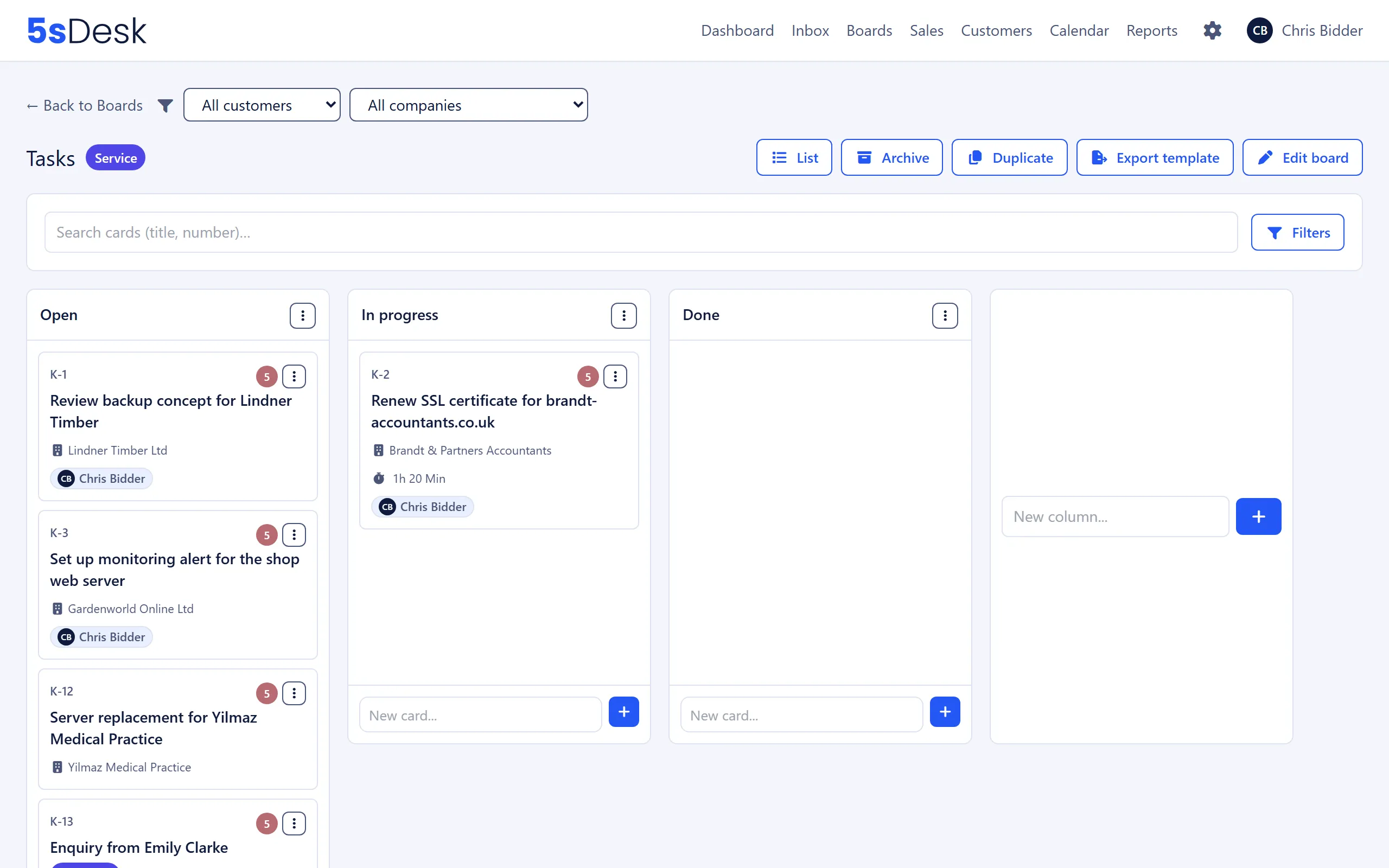
Section titled “Where to find it”- Boards: main menu “Boards”. Pinned boards appear directly in the menu, and “All boards” opens the overview. A board is visible to members of the board’s department; a board without a department is visible to all agents (“Visible to all”). In addition, the agent’s department must have the “Boards” area enabled (see Departments).
- Creating, editing, duplicating and deleting boards: admins only, via “New board” and “Edit board”. Admins and the department lead of the board’s department can create, rename and move columns.
- Time report: main menu Reports › “Time Tracking”. Visible if time tracking is switched on and the department has the “Time report” area.
- Settings: card types under Boards, card numbering and the time tracking switches under General settings.
Archive and permanent deletion
Section titled “Archive and permanent deletion”A card leaves the board in two steps. Archiving can be undone at any time; permanent deletion can’t.
Archiving and restoring
Section titled “Archiving and restoring”- On the card: “Archive”. The card leaves its column but is kept with all its comments, attachments, time entries and history. The history shows “… archived the card”. Any open activities on deals are cancelled.
- In the column menu: “Archive all cards in column”, with a confirmation prompt.
- You’ll find archived cards via “Archive” in the board header. The list shows the last 30 days by default; you can change the period with “From”, “To” and “Filter”.
- The archived card has a “Restore” button. The card goes back into its previous column.
- Anyone who can see the board can archive and restore cards.
An archived card has the “Archived” badge. It can’t be moved, neither within the board nor to another board (“Archived cards cannot be moved to another board - please restore it first.”). It can’t be snoozed either and doesn’t get new activities. You can still stop a timer on it.
Deleting permanently
Section titled “Deleting permanently”- The “Delete permanently” button only appears on archived cards. An active card must be archived first (“Only archived cards can be permanently deleted.”).
- Admins and the department lead of the department the board belongs to can delete cards. On a board without a department, any department lead can delete. Everyone else doesn’t see the button.
- Before deleting, 5sDesk asks: “Permanently delete card? This cannot be undone.”
Time tracking with billable and non-billable time
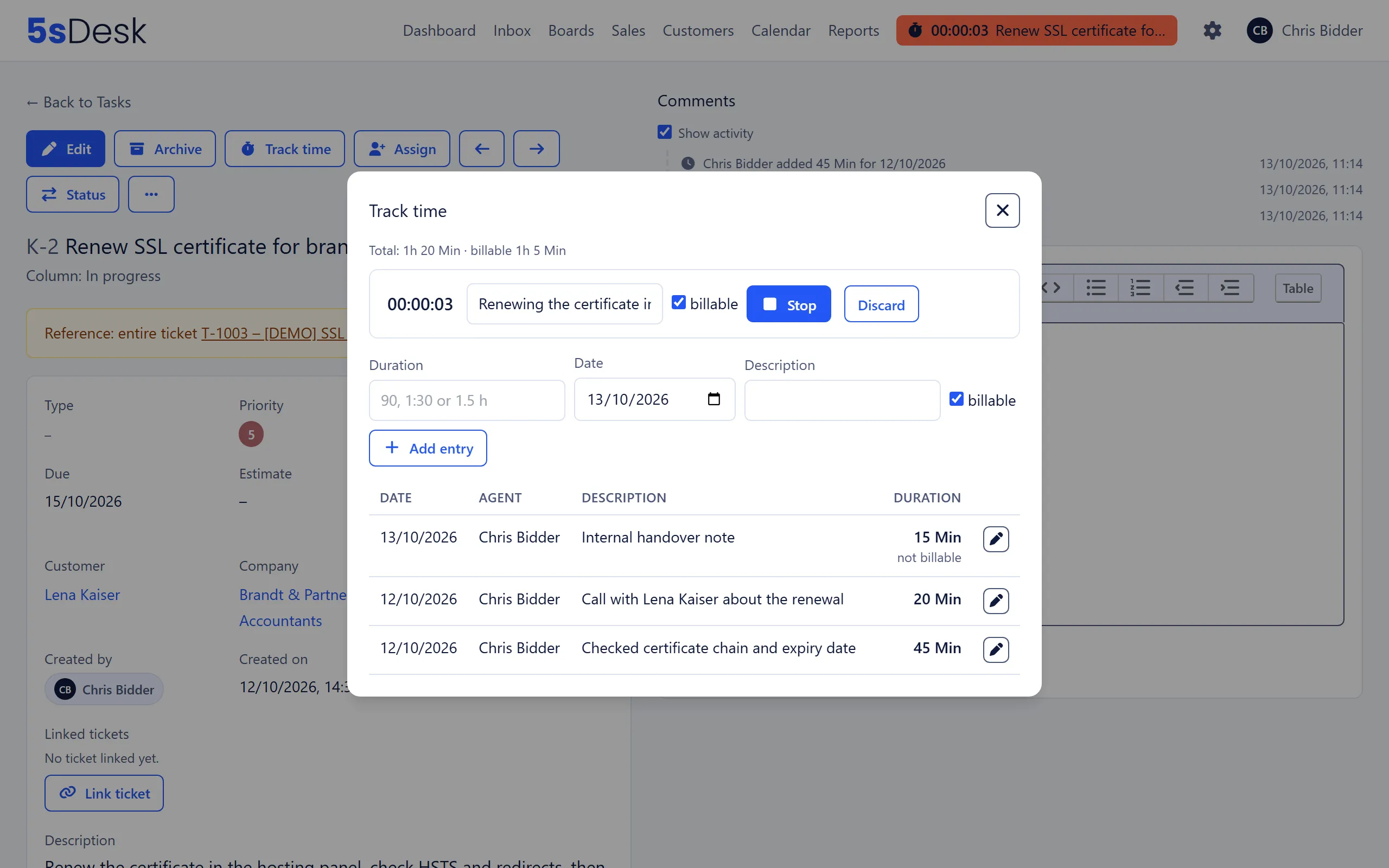
Section titled “Time tracking with billable and non-billable time”“Track time” on the card opens the time panel. There are two ways to log time:
| Method | How it works |
|---|---|
| Timer | “Start timer”, later “Stop” with an optional “Short description (optional)”. “Discard” deletes the timer without logging any time. Each agent can only have one timer running at a time, across tickets and cards (“A timer is already running on another card.”). A timer that has been running for more than 24 hours can no longer be logged, only discarded. |
| Add manually | “Duration” (for example “90, 1:30 or 1.5 h”), “Date”, “Description”, then “Add entry”. Up to 24 hours per entry. |
Both methods have the “billable” checkbox. It is ticked by default. Untick it for internal work, goodwill or rework that the customer doesn’t pay for.
How the label is shown
Section titled “How the label is shown”- Above the panel you see “Total: … · billable …”.
- Non-billable entries are tagged “not billable” in the list, and timer entries are also tagged “via timer”.
- In the card’s history, changes appear as “marked as billable” or “marked as non-billable”.
- Anyone can edit (pencil icon “Edit entry”) or delete their own entries later. Only admins can change other people’s entries.
- The time panel on tickets works the same way (“Total: … · of which billable …”, “billable” checkbox).
The label is purely internal. Logged time and whether it is billable never appear in the customer area, the API or webhooks. Customers never see in their tickets how much time was logged.
Switching time tracking off
Section titled “Switching time tracking off”Under Administration › Settings › System & Branding › “General settings” › “Time tracking” you’ll find “Allow time tracking on mails (tickets)” and “Allow time tracking on cards”. If the box for cards is unticked, the panel shows “Time tracking for cards is switched off. The running timer can still be stopped or discarded.” Time already logged is kept and still shows up in the report and the CSV export. If both boxes are unticked, time tracking disappears from the navigation and the dashboard.
Export for accounting
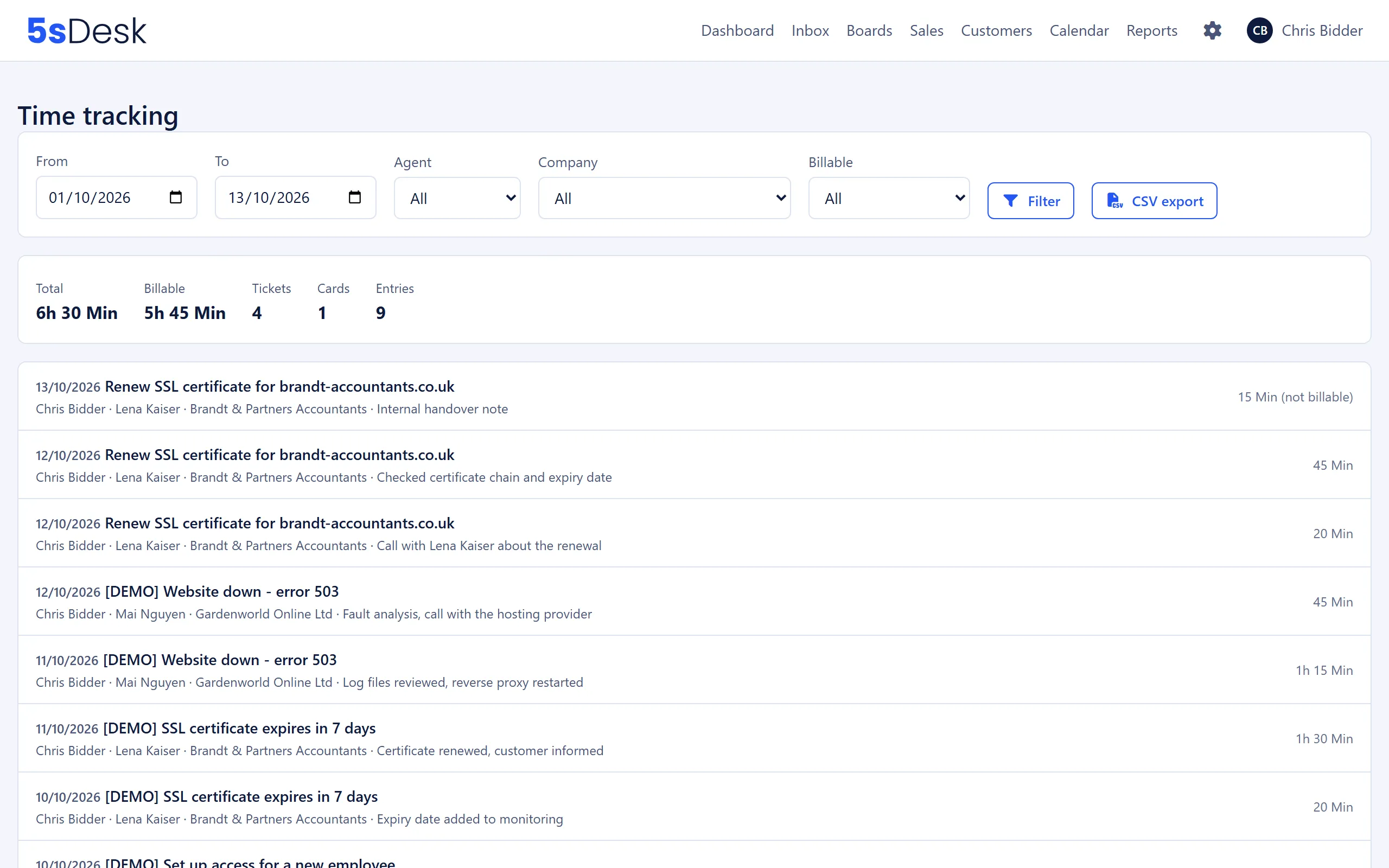
Section titled “Export for accounting”The time report under Reports › “Time Tracking” sums up the time from tickets and cards and delivers it as a CSV file.
Filters and key figures
Section titled “Filters and key figures”| Filter | Meaning |
|---|---|
| “From”, “To” | Period by work date. Default: first day of the current month to today. |
| “Agent” | Only visible to admins and department leads. “All” is only available to admins. |
| “Company” | All companies or a specific one. The company comes from the ticket or from the card. |
| “Billable” | “All”, “Billable only” or “Non-billable only”. |
After “Filter”, the page shows “Total”, “Billable”, “Tickets”, “Cards” and “Entries”. The table below lists up to 2000 entries: “Only the first 2000 entries are shown. Please use the CSV export for the full time range.”
Who sees which time entries
Section titled “Who sees which time entries”| Role | Visible time entries |
|---|---|
| Agent | Only their own time (“You only see your own logged time here.”). |
| Department lead | Their own time and that of the members of the departments they lead, as long as it was logged on tickets and cards of their own departments. |
| Admin | All time entries of all agents. |
The CSV export
Section titled “The CSV export”“CSV export” uses the current filters and downloads a file named after the pattern zeiterfassung-<organisation>-<from>_bis_<to>.csv. The file is prepared for German-language Excel:
- Columns separated by semicolons
- UTF-8 with a byte order mark, so that umlauts and other special characters display correctly in Excel
- “Stunden” (hours) with a decimal comma (for example 1,5), “Minuten” (minutes) as a whole number
- Windows line endings
- Values starting with =, +, - or @ are defused with a leading apostrophe so that Excel doesn’t run them as a formula
The column headers and the values “Ticket”/“Karte” and “Ja”/“Nein” are always in German, whatever language your interface is set to.
| Column | Content |
|---|---|
| Datum | Work date in the format YYYY-MM-DD |
| Typ | “Ticket” or “Karte” (card) |
| Ticket/Karte | Ticket number or card number (without prefix) |
| Betreff | Subject of the ticket or headline of the card |
| Kunde | Name of the customer, if assigned |
| Firma | Name of the company, if assigned |
| Mitarbeiter | Name of the agent |
| Minuten | Duration in minutes |
| Stunden | Duration in hours with a decimal comma |
| Abrechenbar | “Ja” (yes) or “Nein” (no) for billable |
| Beschreibung | Free-text description of the entry |
| Quelle | “timer” (logged via timer) or “manual” (added manually) |
The export has the same limit of 2000 rows per download. If necessary, split longer periods into several exports.
Tags on cards
Section titled “Tags on cards”Cards on task boards carry tags from a fixed list instead of free-text keywords. That way, a filter for “Invoice” doesn’t fall apart into several spellings. Admins and the lead of a department with the “Boards” area manage the list under Administration › Settings › Team › “Tags”, tab “Cards” (see Tags). Pipelines have their own “Deals” list (see Sales).
- Setting tags: on the card, choose “Edit”, click the chips you want in the “Tags” field and save. Clicking a chip again clears it. Anyone who may edit the card can do this.
- If the list is still empty, the field shows “No card tags yet. Admins and leads of a department with the boards area create them under Settings → Tags.”
- Tags appear as coloured chips on the card and in the “Tags” column of the list view. They aren’t shown on the cards in the Kanban view.
- When you duplicate a board, the copied cards keep their tags.
Switch from free-text tags
Section titled “Switch from free-text tags”Card tags used to be free text on each card. During the switch, 5sDesk turned every existing text into a tag in the list:
- Texts that only differed in upper and lower case were merged into one tag, using the spelling of the oldest entry.
- Longer texts were shortened to 50 characters.
- Tags from pipelines went into the “Deals” list, all others into the “Cards” list. They’re sorted alphabetically.
- All migrated tags have the default colour violet. Give them your own colours under “Tags” if you like.
- Saved templates with the old text filter on “Tags” lose that rule. When you open them, 5sDesk reports “… filter was discarded because the field no longer exists.” Recreate the rule with the new conditions and save the template with “Update template”.
List view for each board
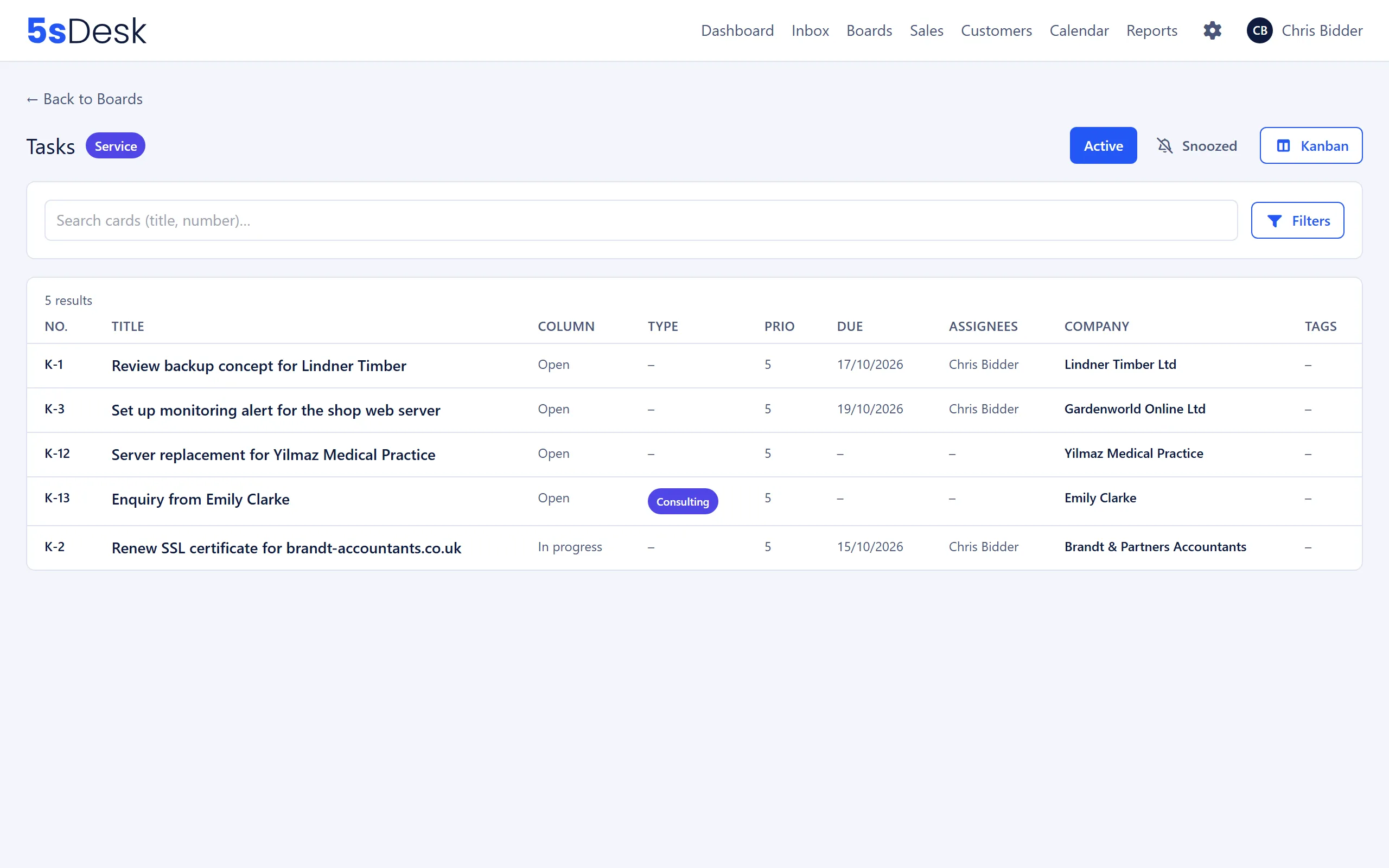
Section titled “List view for each board”Every board comes in two views. In the board header, “List” switches to the table and “Kanban” switches back. Any filter you have set carries over when you switch.
Layout of the list
Section titled “Layout of the list”- Two tabs: “Active” and “Snoozed”. Snoozed cards only appear in the second tab.
- Columns on task boards: “No.”, “Title”, “Column”, “Type”, “Prio”, “Due”, “Assignees”, “Company”, “Tags”. On pipelines, “Value”, “Prob.” and “Next activity” appear instead.
- Click a column header to sort; 25 cards per page.
- Search “Search cards (title, number)…”.
The filter builder
Section titled “The filter builder”“Filters” opens the same rule builder as in the CRM lists (see CRM): “Add filter”, then choose “Field”, “Condition” and “Value”, and click “Apply”. For cards, the standard fields “Title”, “Number”, “Column”, “Type”, “Priority”, “Start”, “Due”, “Tags”, “Assignees”, “Company”, “Customer”, “Created at” and “Last activity” are available, plus all card custom fields that apply to task boards. Conditions range from “contains” and “is any of” to “before”, “between”, “is empty” and “is not empty”.
For “Tags”, you pick tags from the “Cards” list and one of these conditions: “contains any of” (at least one of the selected tags), “contains all of” (every selected tag), “is empty” (cards without a tag) or “is not empty” (cards with at least one tag). You can’t sort by tags.
Templates
Section titled “Templates”To save a filter you have set up, use “Save as template”: in the “Save filters as a template” dialog, enter a “Template name” and use “Visible to everyone” to decide whether colleagues can use the template (“Shared templates can be used by everyone in this organisation. Editing and deleting stays with you.”). The “Template” selection lists “My templates” and “Shared templates”.
Templates don’t belong to a single board but to the board kind: a template for task boards works on every task board, and a template for pipelines on every pipeline. It applies in both the list and the Kanban view. If a template contains a field that no longer exists, or a condition the field no longer supports, 5sDesk reports “… filter was discarded because the field no longer exists.” “Update template” replaces the saved filters, and “Rename” and “Delete” let you manage your own templates. Other people’s shared templates can be used, but only the owner or an admin can change them.
Related settings
Section titled “Related settings”- Boards: card types for the “Type” column and the filter.
- Tags: the “Cards” list with names, colours and order.
- General settings: card numbering and the switches “Allow time tracking on mails (tickets)” and “Allow time tracking on cards”.
- Departments: the “Boards” and “Time report” areas, department lead.
- Custom fields: your own fields on cards, which appear in the list and the filter.
- Roles and permissions: who deletes cards and whose time entries are visible to whom.