
AI features and how they handle your data
5sDesk can optionally switch on an AI that drafts replies, summarises tickets, prefills CRM fields and translates or revises texts. AI is off by default. It only runs with a key that your organisation creates with the provider itself, and every feature is triggered only when an agent clicks. This page is aimed at admins and data protection officers and explains in plain language what happens to the data.
Where to find the feature
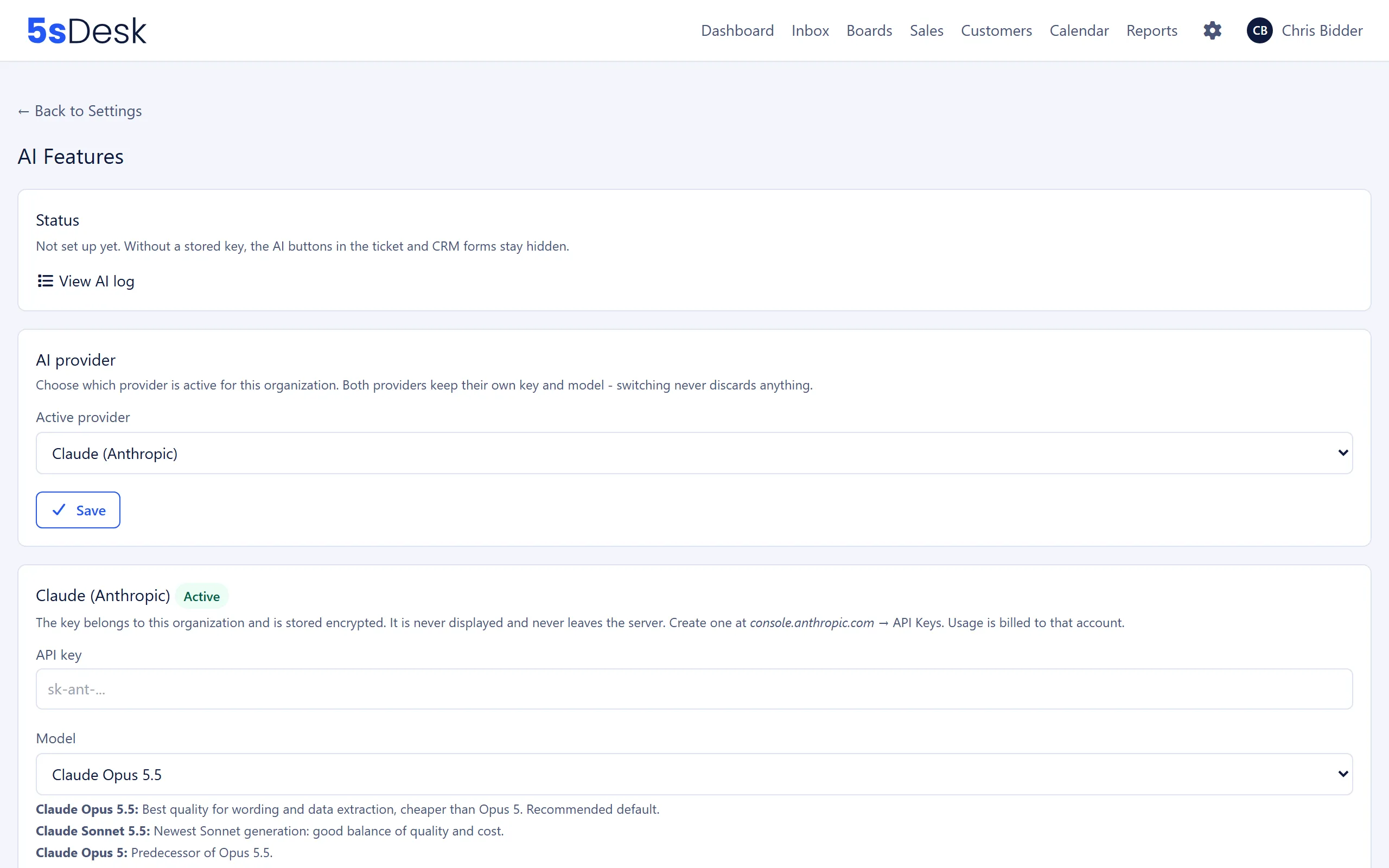
Section titled “Where to find the feature”- Setup and approval: Administration › Settings › Boards & AI › “AI features”. Admins only.
- AI log: on the same page via “View AI log”. Admins only.
- For agents, the AI buttons appear in the ticket (reply editor, “AI summary” section, “Content page from conversation (AI)” menu item), in the CRM forms and the ticket’s CRM sidebar, and under Administration › Content, Forms and Appointment types. Without a stored and approved key, all of these buttons stay hidden.
Available features
Section titled “Available features”Every feature starts only when an agent clicks the relevant button. Nothing runs in the background.
| Feature | Where | What happens |
|---|---|---|
| Draft reply | Ticket, reply editor | The agent provides bullet points, and the AI turns them into a draft reply in the customer’s language and in the stored style. The draft lands in the editor with the notice “AI draft inserted”. |
| “Check reply” | Ticket, reply editor | Checks the typed text for spelling, wording and style and shows the “AI suggestion” with the changes. The agent applies or discards it. |
| Summarise ticket | Ticket, “AI summary” | “Summarize” creates an overview with “Key details”, “Open questions”, “Next steps” and “Topics” and sets matching tags. The summary is saved and marked as “outdated” when new messages arrive. |
| CRM prefill | Customer and company form, CRM sidebar | “Complete with AI from latest ticket” and “Update data with AI” read contact details from the latest customer email (for example from the signature) and suggest them for empty fields. |
| Company detection | Customer record | “Detect company” suggests a company based on the ticket. |
| Translations | Content, forms, appointment types | “Translate to … with AI” for articles; “Copy & translate with AI” creates a translated copy of a form or appointment type. |
| Revise article | Content | “Revise with AI (typos, wording, formatting)” shows an “AI suggestion” with all changes. The agent clicks “Apply” or “Discard”. |
| Article from bullet points | Content | The AI turns bullet points into a draft article. |
| Content page from conversation | Ticket, menu | “Content page from conversation (AI)” writes an unpublished draft of a knowledge base page from the correspondence. It is instructed to leave out names, addresses, case numbers and commitments that relate to the individual case. |
What happens to the data
Section titled “What happens to the data”Under “AI provider” you choose one of two providers. Each provider has its own “API key” and its own “Model”; switching between them discards nothing.
| “Claude (Anthropic)” | “OpenAI” | |
|---|---|---|
| Provider | Anthropic PBC, USA | OpenAI, USA |
| Creating a key | console.anthropic.com › API Keys | platform.openai.com › API keys |
| Models | “Claude Opus 5.5” (default), “Claude Sonnet 5.5”, “Claude Opus 5”, “Claude Sonnet 5”, “Claude Haiku 4.5” | “GPT-5” (default), “GPT-5 Mini”, “GPT-4.1” |
What is transmitted with each request: the content of the conversation in question. For a draft reply, that means the latest customer emails, your own replies, the internal notes, the file names of attachments and any text already typed. For CRM prefill it is the latest customer email including its signature, for the summary it is the ticket history, and for translations and revisions it is the relevant article or form text.
What is never transmitted:
- The contents of attachments. Only the file names are sent, so that the reply can refer to them.
- Values of custom fields that are “Locked for AI” (see CRM and customer data).
- Your API key. It is stored encrypted, never displayed and never leaves the server.
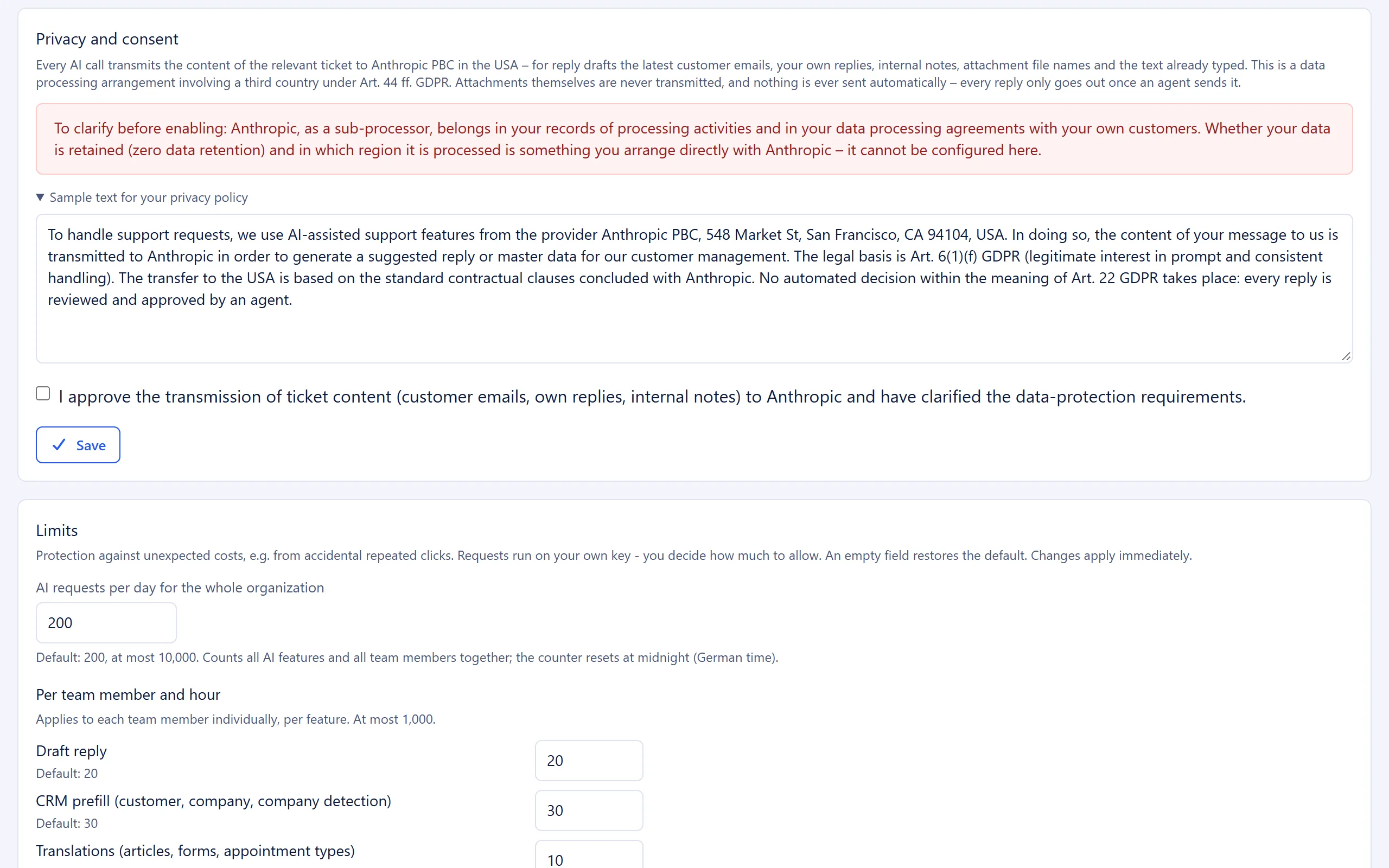
What you need to arrange yourself: Sending data to Anthropic or OpenAI is processing by a processor that involves a transfer to a third country (Art. 44 et seq. GDPR). The provider must be listed as a sub-processor in your record of processing activities and in the data processing agreements (DPAs) with your own customers. Whether the provider stores your data (zero data retention) and in which region it processes it is something you agree directly with the provider. You cannot configure this in 5sDesk. Usage is billed through your account with the provider.
You give approval with the checkbox “I approve the transmission of ticket content (customer emails, own replies, internal notes) to Anthropic and have clarified the data-protection requirements.” (the same applies to OpenAI). 5sDesk records “Approved on …”. A key without approval does not enable anything yet.
What never happens automatically
Section titled “What never happens automatically”- No sending. A reply only goes out when an agent sends it. The AI draft sits in the editor with a reminder to review its content before sending.
- No marketing consent. The AI never sets the “Marketing consent” field and never triggers a confirmation email.
- No links in replies. All links and web addresses are removed from AI drafts. Only addresses that the agent typed into their instruction or into the editor remain. This protects against links that a customer might smuggle into the draft through their email.
- No overwriting in the CRM. Prefill only fills empty fields, marks them visibly (“… field(s) were suggested from the email and are marked.”) and saves nothing until the agent clicks “Save”. Fields that are “Locked for AI” always stay unchanged.
- No publishing. A content page created from a conversation starts as an unpublished draft. In the content area it is labelled as an AI draft and flagged for review. A translation only replaces the existing text after a confirmation prompt. A revision first shows the “AI suggestion” with all changes; only “Apply” writes it into the article, while “Discard” leaves everything unchanged.
- No decisions about customers. The AI does not make any automated decision within the meaning of Art. 22 GDPR. A person reviews every result.
The summary is the only feature that saves something permanently when clicked: the summary text and the tags it sets. Both carry the note “AI-generated, please verify important details in the conversation” and are recognisable as an AI change in the ticket’s activity history.
How to switch it off and what remains
Section titled “How to switch it off and what remains”There are two ways:
- Untick the approval checkbox under “Privacy and consent” and click “Save”. The keys stay stored, but the features are off.
- Click “Remove key” for the provider in question. If that provider is currently active, AI features are then off for the whole organisation.
After that, all AI buttons disappear for agents. The following is kept:
| Kept | Why |
|---|---|
| Saved summaries and the tags set on tickets | They are part of the ticket, like a note. You can change them by hand, just like tags and notes. |
| Text already applied in replies, articles and CRM fields | An agent saved or sent it. |
| The AI log | It documents what was transmitted and stays until the organisation is deleted. There is no automatic deletion period. |
Data stored by the provider itself is subject to whatever you have agreed with them. 5sDesk cannot delete anything there.
Limits
Section titled “Limits”The limits protect against unexpected costs, for example from accidental repeated clicking. They take effect immediately and can be adjusted in the “Limits” section.
| Limit | Default | Maximum |
|---|---|---|
| “AI requests per day for the whole organization” (the counter resets at midnight Central European Time, one hour ahead of the UK) | 200 | 10,000 |
| “Draft reply”, per agent and hour | 20 | 1,000 |
| “CRM prefill (customer, company, company detection)” | 30 | 1,000 |
| “Translations (articles, forms, appointment types)” | 10 | 1,000 |
| “Revise article” | 10 | 1,000 |
| “Article from notes” | 15 | 1,000 |
| “Content page from conversation” | 5 | 1,000 |
| “Summarize ticket” | 20 | 1,000 |
| “Check reply” | 30 | 1,000 |
When a limit is reached, the agent sees a message with the waiting time; their text is not lost. The “Status” section shows “Today: … of … AI requests” and the number of requests over the last 30 days.
Sample text for your privacy policy
Section titled “Sample text for your privacy policy”Under “Privacy and consent” you will find the expandable “Sample text for your privacy policy”. It describes the use of AI assistance, names the provider, the legal basis and the Standard Contractual Clauses for the transfer to the USA, and makes clear that no automated decision-making takes place. Copy it into your privacy policy, for example under Administration › Settings › System & Branding › “Legal”.
For an overview of all third-party services that 5sDesk uses, see Data protection and third-party services.
AI log
Section titled “AI log”The “AI Log” shows the organisation’s last 200 AI requests, newest first. Because it contains the complete transmitted content, including customer emails, only admins can see it.
| Column | Content |
|---|---|
| “Time”, “Feature”, “Provider”, “Model” | When which feature ran, with which provider and model |
| “Agent”, “Ticket” | Who triggered the request and which ticket it belongs to |
| “Status” | “Success” or “Error” |
| “Prompt / Error” | The start of the instruction, or the error message |
“Details” opens a single request with “System prompt”, “Content sent” (unchanged, exactly as sent to the provider) and “Response”. If the selected model declined a request and the provider automatically answered it with a different model, the log shows “Fallback for …”, including a note on the price that was charged.
Related settings
Section titled “Related settings”- AI features: key, model, style guidance, approval and limits in detail.
- Custom fields: exclude fields from prefill with “Locked for AI”.
- Legal: add the sample text to your privacy policy.
- Data protection and third-party services: all third-party services and deletion periods at a glance.
- Roles and permissions: who can see the settings and the AI log.