
CRM and customer data
In the CRM you maintain the customers and companies behind your tickets. This page explains how to give a customer several email addresses, how to group customers and companies with tags, how to create custom fields, how marketing consent is recorded in a way you can prove, what happens when you merge and delete records, and how to back up master data.
Where to find it
Section titled “Where to find it”- Customers: Main menu › Customers › Customers; companies: Main menu › Customers › Companies.
- Customers and companies don’t belong to a department. Whether an agent can see this area depends on the “CRM (customers & companies)” area of their department under Administration › Settings › Team › “Departments” (see Roles and permissions).
- Import and export contact lists as CSV: button “Import/Export” in the customer or company list. Admins and leads of a department with the CRM area only (see Importing and exporting customers and companies).
- Tag list: Administration › Settings › Team › “Tags”, tab “Customers & companies” (see Tags).
- Custom fields: Administration › Settings › Custom fields › “Custom fields”. Admins only.
- Duplicates: Administration › Settings › CRM › “Duplicate customers/companies”. Admins only.
- Double opt-in switch: Administration › Settings › System & Branding › “General settings”, section “Marketing consent”.
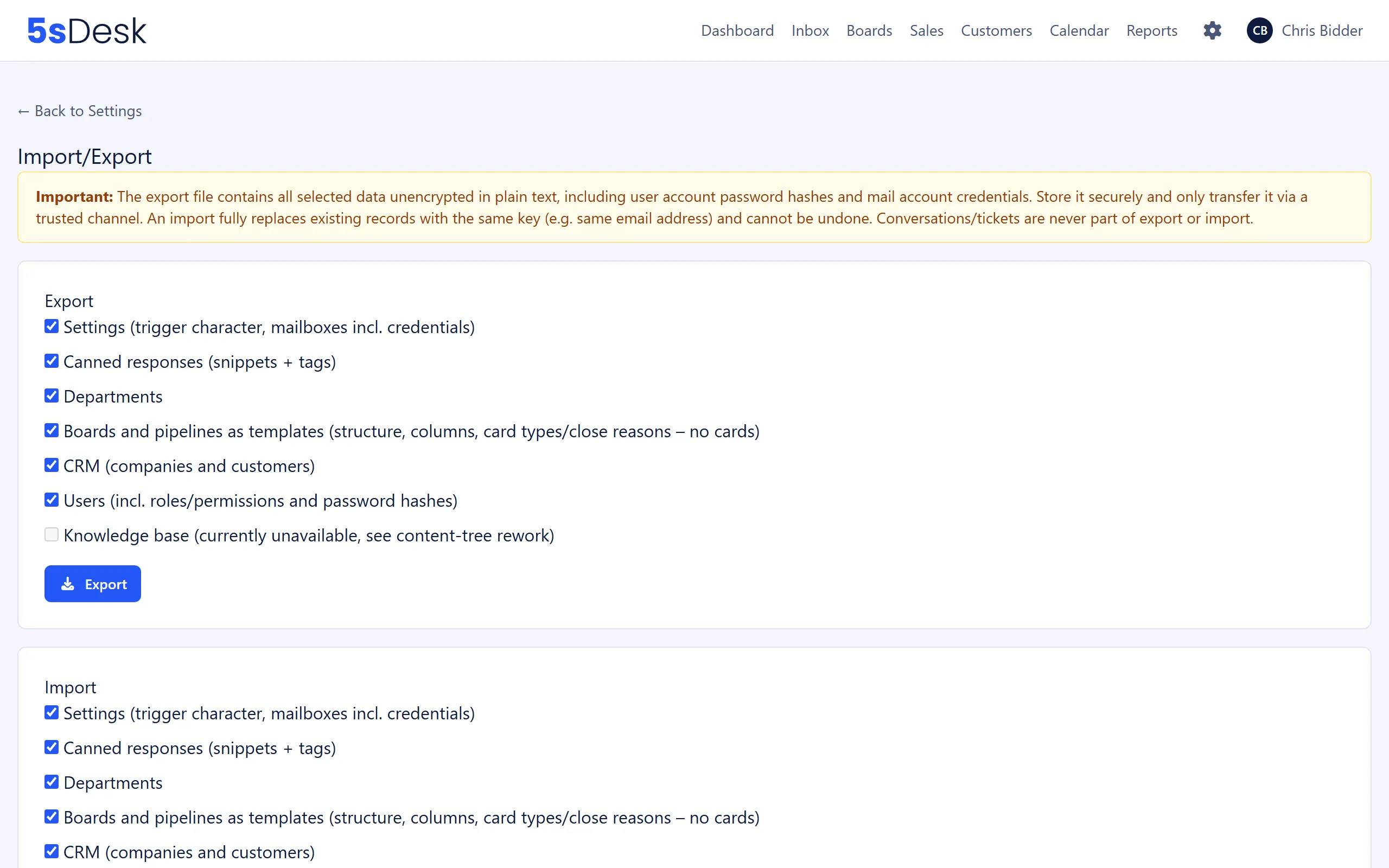
- Back up master data as JSON: Administration › Settings › System & Branding › “Import/Export”. Admins only.
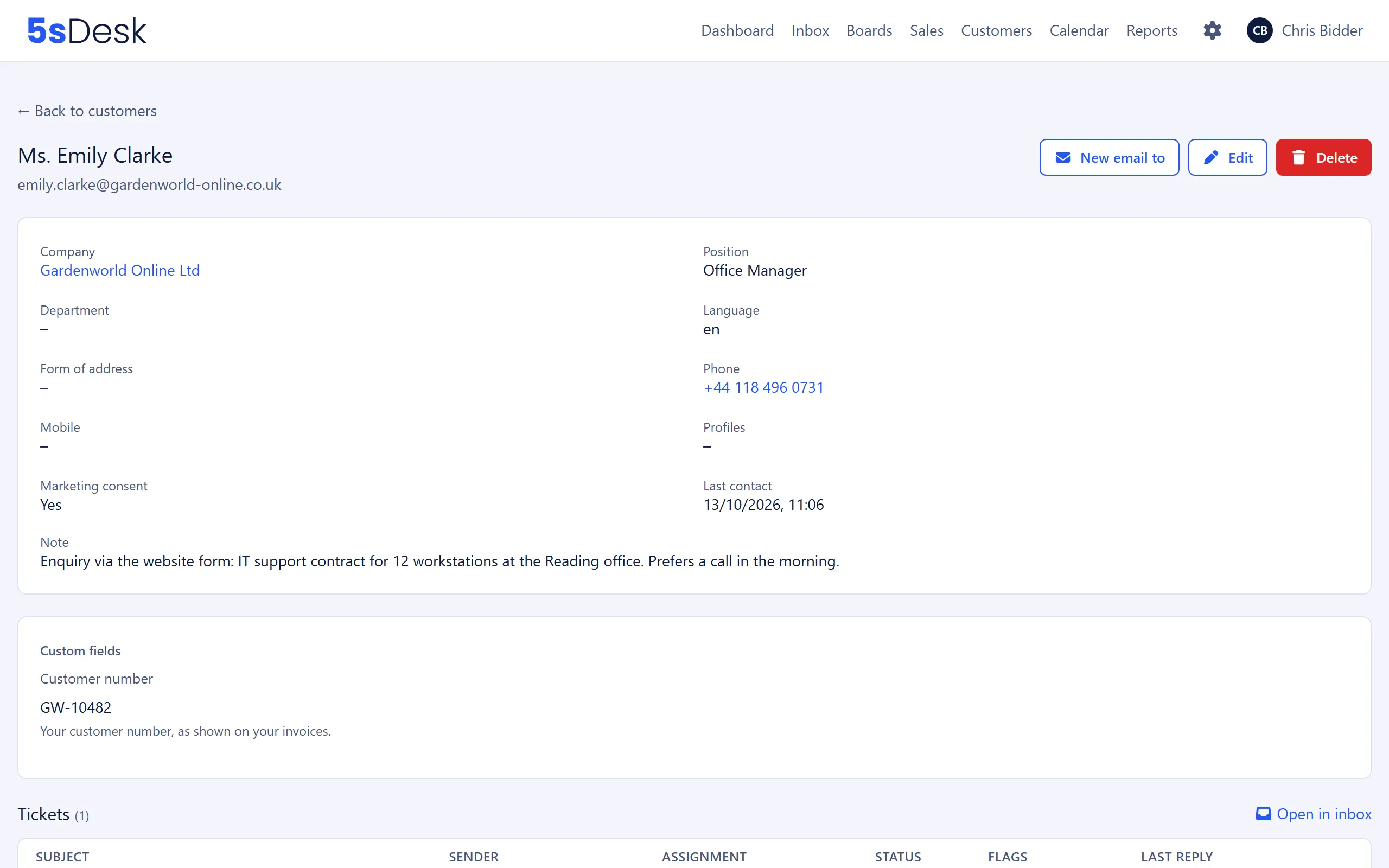
Additional email addresses
Section titled “Additional email addresses”Some customers write from their personal address one day and from a shared mailbox the next. Store both addresses on the same customer instead of creating a second customer.
How to do it
Section titled “How to do it”The customer record shows the “Email addresses” block. The primary address is marked “Primary”.
- Enter the address in the field “Additional email address”.
- Click “Add”. 5sDesk reports “… has been added.”
Next to each additional address there are three icons:
| Icon | Effect |
|---|---|
| “New email to …” | Opens a new email to this address. |
| “Make primary address” | Makes the address the primary address. The previous primary address stays as an additional address. |
| “Remove address” | Removes the additional address. Tickets from this address stay with the customer. |
Every agent with the CRM area can maintain additional addresses. There is no limit on how many. The primary address can’t be removed and can’t be changed in the edit form. To change it, make another address the primary address.
- Each address belongs to exactly one customer, either as the primary or as an additional address. If it already belongs to another customer, you see “… already belongs to the customer …. Duplicate customers can be merged under Settings → Duplicate customers/companies.” The way there is described under Duplicate customers/companies.
- If you create a new customer with an address that already belongs to another customer, you see “A customer with this email already exists.”
- New tickets, customer portal logins, form submissions and appointment bookings from any of these addresses end up with the same customer. Images in emails from any of these addresses load without approval.
- When you add an address, 5sDesk also links tickets from this address that aren’t assigned to a customer yet. Tickets whose customer an agent has already changed or unlinked by hand are left alone.
- Searching the customer list finds a customer by any of their addresses.
- Bulk emails and the marketing consent confirmation email go to the primary address.
- The CSV export only contains the primary address. The CSV import also recognises a customer by an additional address, though (see Importing and exporting customers and companies).
How incoming emails and replies are matched via additional addresses, and how you take over an address straight from a ticket, is described under Email and inbox.
Tags let you group customers and companies, for example as “Partner” or “Newsletter”. Customers and companies share one list, the “Customers & companies” tag list. Admins and leads of a department with the CRM area maintain it under Tags. Every agent with the CRM area can assign the tags.
Assigning and seeing tags
Section titled “Assigning and seeing tags”- In the form of a customer or company, you pick tags as chips in the “Tags” field. If there are none yet, it says “No tags yet. Admins and leads of a department with the CRM area create them under Settings → Tags.”
- Tags appear as coloured chips in the customer and company lists, on the detail page and in the CRM box on the ticket. There the CRM box also shows the tags of the customer’s company.
Filtering by tags
Section titled “Filtering by tags”The filter bar of the customer list has the fields “Tags” and “Company tags”, the company list has the field “Tags”. As the condition, choose “contains any of”, “contains all of”, “is empty” or “is not empty”.
Tags for many records at once
Section titled “Tags for many records at once”- Tick the rows you want in the list, or choose “Select all”. “Select all … matches” covers all matches of the current filter, including those on other pages.
- In the bar above the list, choose “Add tags” or “Remove tags”.
- Pick the tags as chips.
- Click “Apply”. 5sDesk reports, for example, “Tags added to … of … customers.”
Each run can cover at most 10,000 records. With more, you see “At most 10000 entries at once (selected: …). Please narrow the filter or use the CSV import.” Only tags from the “Customers & companies” list are offered. The company list only shows the bar if tags exist there.
Bulk email to a tag
Section titled “Bulk email to a tag”- In the customer list, open “Bulk mails”.
- In the box “New mail to a tag”, select one or more tags. Each chip shows in brackets how many customers have the tag.
- Choose “has one of the tags” or “has all tags”. Next to it, 5sDesk keeps count: “… customers, … of them as recipients”.
- Click “Create draft”.
In an existing draft, you add more customers with “Add recipients by tag” and “Add”.
A bulk email has at most 500 recipients. For this limit, the matching customers are counted before blocked and duplicate addresses are removed. If the number is higher, you see “… customers – at most 500 recipients per bulk mail.” Blocked and duplicate addresses are left out when the recipients are added.
Custom fields
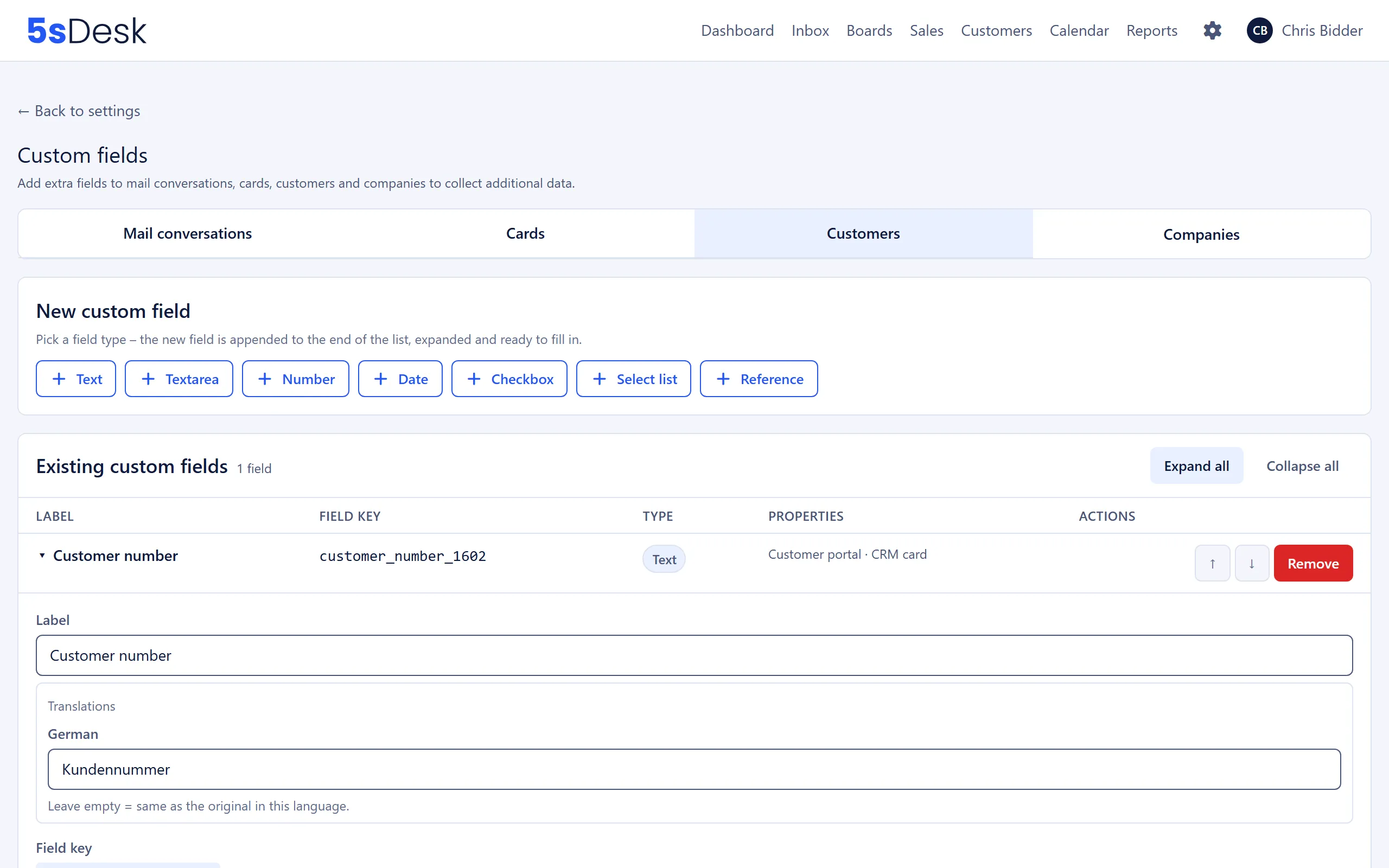
Section titled “Custom fields”Under “Custom fields” you create additional fields for four areas: “Mail conversations”, “Cards”, “Customers” and “Companies”. The field types are “Text”, “Textarea”, “Number”, “Date”, “Checkbox”, “Select list” and “Reference” (a link to a customer or a company). The “Field key” and field type are set when you create the field and can’t be changed afterwards.
Visible in the customer portal or internal only
Section titled “Visible in the customer portal or internal only”By default, custom fields are internal only: only agents see and edit them. With the option “Visible/editable in the customer portal” (available for conversations, customers and companies), the field is also shown in the customer portal, where the customer can edit it:
| Area | Where the customer sees the field |
|---|---|
| Customers | In their profile under “Additional details” |
| Companies | In the company details under “Company details” |
| Mail conversations | In the form for a new request and on their tickets |
Two separate help texts
Section titled “Two separate help texts”- “Help text”: appears in the internal form for agents.
- “Info text (customer portal only)”: appears only below the field in the customer portal. Agents don’t see it. It only makes sense if the field is visible in the customer portal.
You can translate both texts and the “Label” under “Translations” for each customer portal language (see Customer portal).
More options
Section titled “More options”| Option | Effect |
|---|---|
| “Required” | The field must be filled in. |
| “Locked for AI” | AI prefill never suggests a value for this field and leaves it unchanged. The field content is not sent to the AI either (see AI features). |
| “Show in CRM card (Inbox)” | The field appears in a ticket’s CRM sidebar as soon as a value is recorded. |
| “Show in the ticket list” | The field appears as a chip under the ticket in the inbox. At most 4 fields at a time. |
“Remove” archives a field. Values already recorded are kept, and you can bring the field back from “Archived fields” with “Restore”.
Marketing consent (double opt-in)
Section titled “Marketing consent (double opt-in)”Every customer has the field “Marketing consent” (“Yes” or “No”). It records whether the customer has agreed to receive marketing emails. 5sDesk does not check this field when sending bulk emails: whoever you select as a recipient receives the email. Whether you may contact a customer is your responsibility as the sender. The switch “Email confirmation required” under “General settings” › “Marketing consent” turns on double opt-in: consent only takes effect once the customer has confirmed it by clicking a link in an email.
Lifecycle
Section titled “Lifecycle”| Source | With the switch on | With the switch off |
|---|---|---|
| Agent ticks the checkbox in the customer record | Confirmation email, status “Confirmation pending” | takes effect immediately |
| Customer ticks the checkbox in a lead form (see Forms) | Confirmation email, status “Confirmation pending” | takes effect immediately |
| CSV import from the customer list (see Importing and exporting customers and companies) | “Yes” only with the checkbox “Verifiable consent exists for every contact marked “Yes””, then takes effect immediately | “Yes” only with the checkbox, then takes effect immediately |
| JSON import under “Import/Export” | takes effect immediately | takes effect immediately |
| API | takes effect immediately | takes effect immediately |
| Withdrawal (unticking the checkbox), from any source | takes effect immediately | takes effect immediately |
This is how a confirmation works:
- The customer receives the email “Please confirm your marketing consent” in the language stored in the CRM, with the link “Confirm consent”.
- The link is valid for 7 days. Only one link per customer is valid at any time. A new link invalidates the old one.
- Until it is confirmed, consent stays at “No”. The customer record shows “Confirmation pending (email sent on …)” and the button “Resend confirmation email”.
- If the customer clicks, consent changes to “Yes”. If they don’t click, nothing happens and the link expires.
- If an agent unticks the checkbox while the request is still pending, the link becomes invalid immediately and the history records “Request cancelled”.
Saving the customer record again with the checkbox still ticked does not trigger a second email. If the address is on the delivery blocks, the confirmation email can’t be sent. 5sDesk then shows an error instead of leaving the request pending without telling you (see Email and inbox).
Admin exception
Section titled “Admin exception”If consent has already been given and can be proven (for example on a signed form), admins can skip the confirmation email. For this, the customer form shows the checkbox “Consent already proven elsewhere …”, only for admins and only when the switch is on. Consent is then set immediately. The history shows it as “Consent granted” with the source “Manually in customer account” and the admin’s name. There is no separate marker for the exception. So keep the actual proof outside 5sDesk.
History and proof
Section titled “History and proof”The customer record keeps the “Marketing consent history”, newest entries first. Each entry consists of the event, source, time and, for agent actions, the agent’s name:
| Events | Sources |
|---|---|
| “Consent granted”, “Consent withdrawn”, “Confirmation pending”, “Request cancelled” | “Manually in customer account”, “Confirmed by customer”, “Form submission”, “CSV import”, “API” |
What 5sDesk does not store: the customer’s IP address and browser when they click the confirmation link. Resending the confirmation email does not create a history entry, because nothing has changed.
Duplicate detection and merging
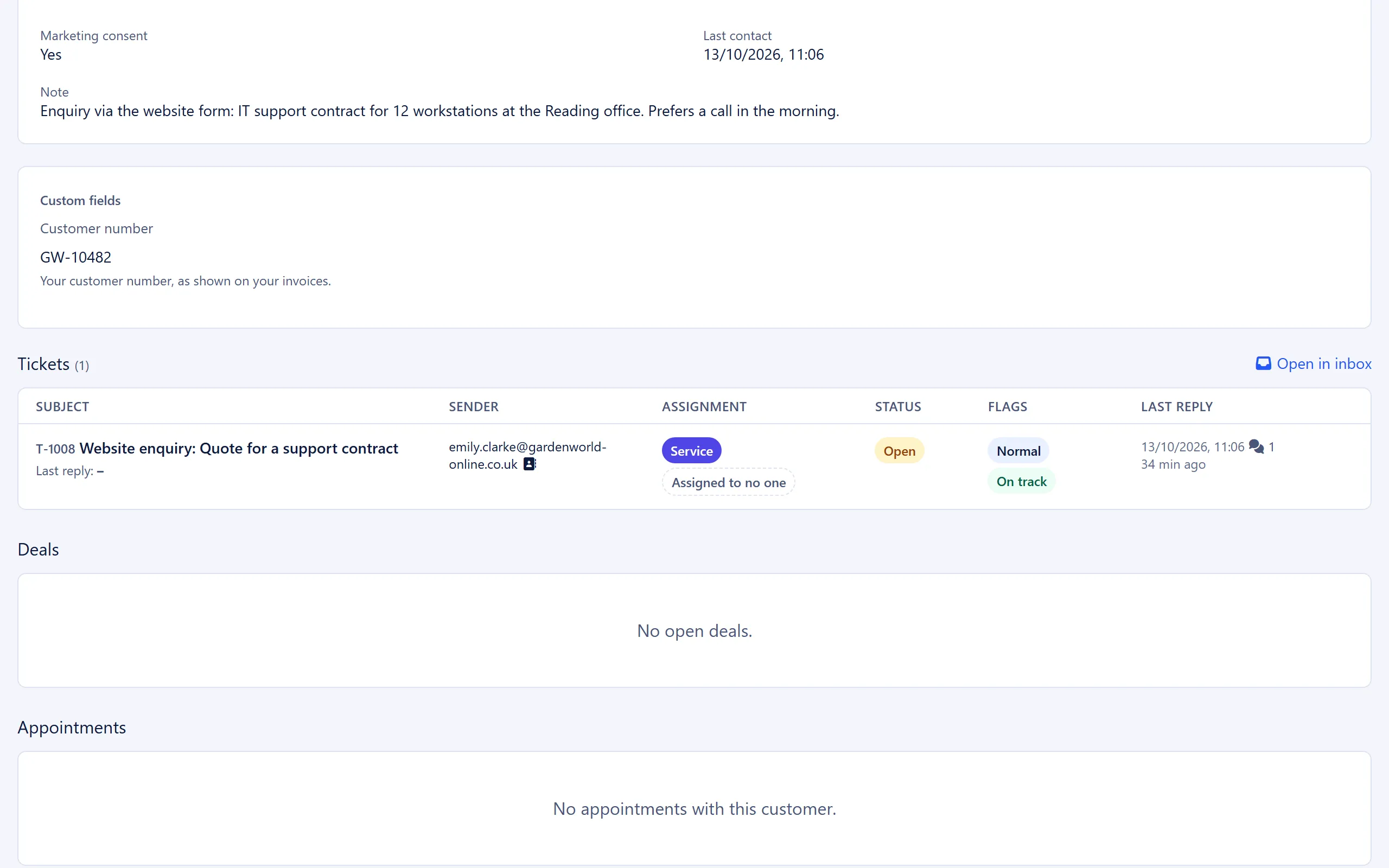
Section titled “Duplicate detection and merging”Under “Duplicate customers/companies”, 5sDesk suggests candidates. Nothing is ever merged automatically.
| Area | Candidates | Typical case |
|---|---|---|
| “Possible duplicate customers” | Same name (first and last name, or the display name; case doesn’t matter), regardless of company and email address | A customer was “added to the CRM” from a ticket with their second address, although a complete record with company already exists. It’s better to store a second address straight away as an additional email address. |
| “Possible duplicate companies” | Same name or a shared domain (main domain or alias). Free email domains such as gmail.com don’t count | The same company was created once by hand and once through a form. |
How to do it
Section titled “How to do it”- In each group, select the record you want to keep (“Keep”) and the one to be dissolved (“Delete & merge”).
- Click “Merge” and confirm the prompt.
What moves and what is lost
Section titled “What moves and what is lost”| Moves to the record you keep | Is lost with the deleted record | |
|---|---|---|
| Customers | Tickets, customer notes, cards and deals, appointments, activities, form submissions, recipient entries in bulk emails, tags; the marketing consent history is combined; the duplicate’s email addresses become additional addresses of the customer you keep | Field values of the duplicate (phone, position, custom fields, VIP flag, company assignment), open customer portal login links |
| Companies | Customers, company notes, tags; the duplicate’s main domain and aliases become aliases of the company you keep | Field values of the duplicate (customer number, note, custom fields), links to cards |
For customers, the most recent confirmed marketing consent decision from either record applies afterwards. Emails, customer portal logins and forms from the duplicate’s address end up with the customer you keep from then on. The success message lists the addresses taken over: “… stay(s) as additional address(es).”
If one of the duplicate’s domains already belongs to a third company, it is skipped. 5sDesk lists the affected domains in the success message.
Deleting customers and companies
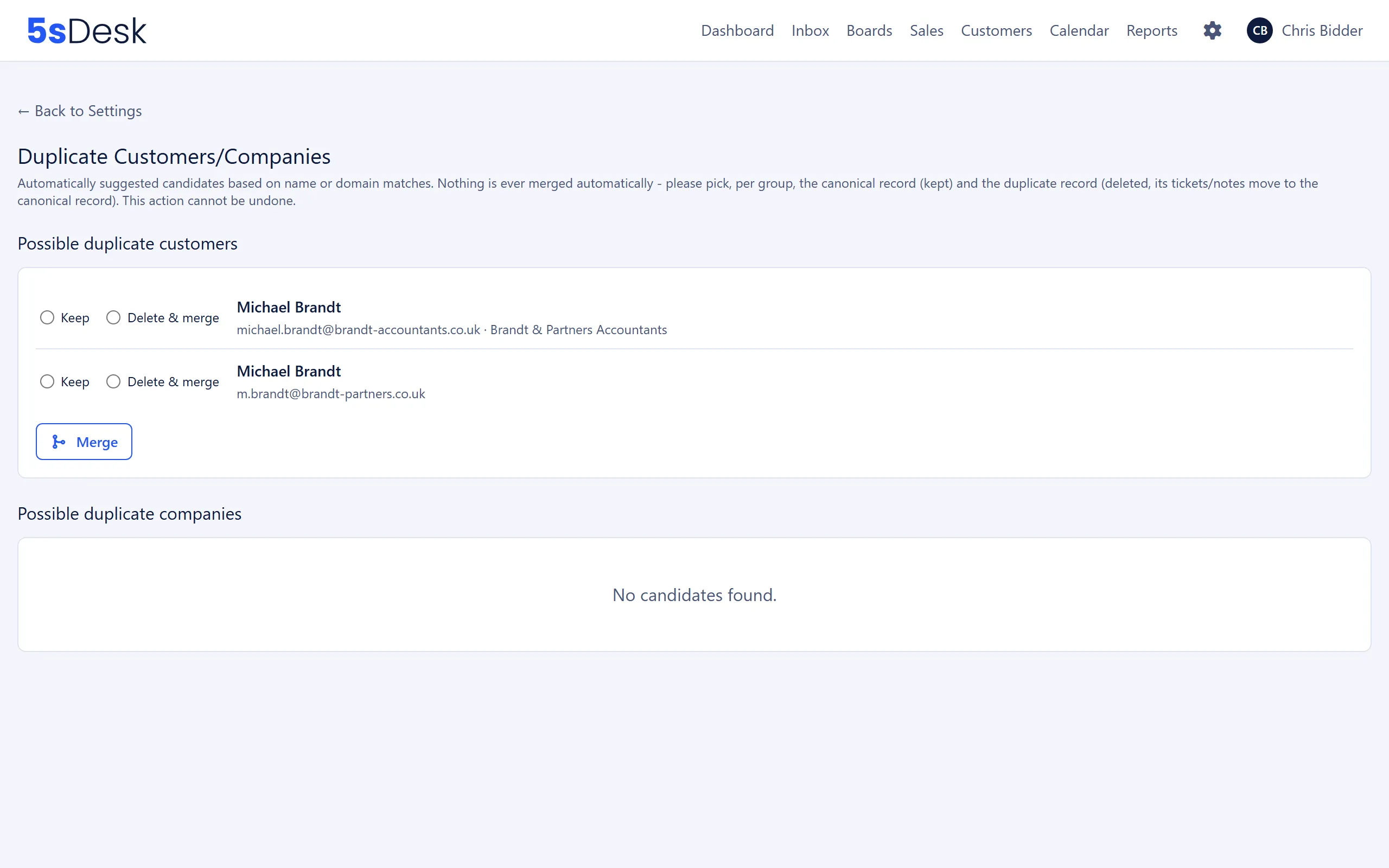
Section titled “Deleting customers and companies”Admins and department leads delete customers with “Delete” in the customer record. Nothing blocks the deletion: linked tickets and cards are kept but lose their link to this customer. Customer notes and additional email addresses are deleted too.
You can’t delete companies that still have linked customers. 5sDesk reports “Company cannot be deleted: still linked to ….” Proceed as follows:
- Open the company and check the “Contacts” section.
- Move each contact to another company (edit the customer, “Company” field), detach them with “Remove from company”, or delete the customer.
- Then delete the company. Linked cards are kept but lose their link to the company.
Backing up master data (JSON)
Section titled “Backing up master data (JSON)”There are two separate ways to bring customers and companies in and out:
| Way | What for | Where |
|---|---|---|
| CSV import and export | Bring in contact lists from Excel, Outlook or another CRM, download your data as a spreadsheet. With column mapping, preview and undo. | Button “Import/Export” in the customer or company list, see Importing and exporting customers and companies |
| JSON backup | Back up the master data of a whole organisation or use it as a template in another organisation | Administration › Settings › System & Branding › “Import/Export” |
This section describes the JSON backup. Under “Import/Export” you export departments, users, “CRM (companies and customers)”, settings, canned responses and board templates as a JSON file, and import such a file again. Tickets are never part of an export or import. Marketing consent changes from the JSON file also appear in the history with the source “CSV import”.
Matching on import
Section titled “Matching on import”| Record | Matched by | If found | If not found |
|---|---|---|---|
| Company | Main domain, then the alias domains from the file | Name, domain, aliases and external customer number are taken from the file | A new company is created |
| Customer | Email address, primary or additional (case doesn’t matter) | Fields from the file overwrite the existing data | A new customer is created |
| A customer’s company | The company’s domain in the file | The customer is assigned to this company | The previous company stays; the case counts as “company reference skipped” |
Conflict rules
Section titled “Conflict rules”- Fields missing from the file stay unchanged. Fields included in the file overwrite the existing data, even with empty values.
- Note, custom fields, the VIP flag, tags and additional email addresses are always kept on re-import, because the export file doesn’t contain them. For a complete spreadsheet with custom fields and tags, use the CSV export.
- An external customer number that already belongs to another company is not applied. The company keeps its current number.
- Marketing consent from the file takes effect immediately, without a confirmation email, with the source “CSV import” in the history.
- The whole import runs in a single transaction: if one record fails, nothing is applied.
Related settings
Section titled “Related settings”- Importing and exporting customers and companies: CSV import with mapping, preview and undo, CSV export.
- Tags: maintain the “Customers & companies” tag list.
- Custom fields: all field options in detail.
- Duplicate customers/companies: candidates and merging.
- Import/Export: JSON backup, categories, file format and messages.
- General settings: the “Email confirmation required” switch.
- Forms: how form submissions create customers and companies.
- Customer portal: what customers see of their data.
- Data protection and third-party services: retention and deletion.