
Appointment booking
With appointment booking, customers book an appointment with an agent or a department themselves, by phone, Microsoft Teams or Google Meet. Available times are based on working hours and calendars, and the confirmation with a calendar file goes out automatically. This page explains how admins set up appointment types, what visitors see and what happens after a booking.
Where to find it
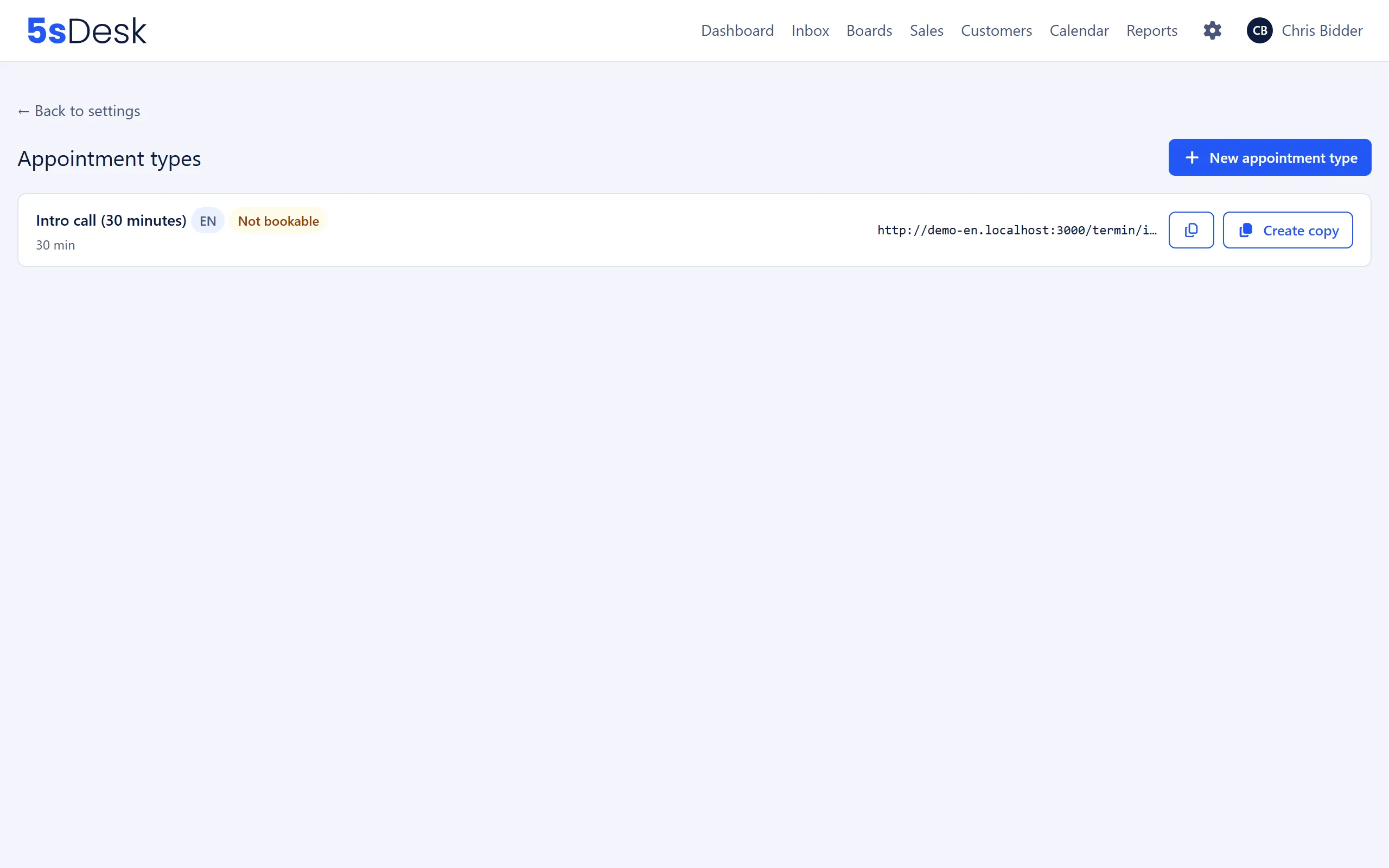
Section titled “Where to find it”- Create appointment types: Administration › Settings › “Appointments” › “Appointment types”, admins only.
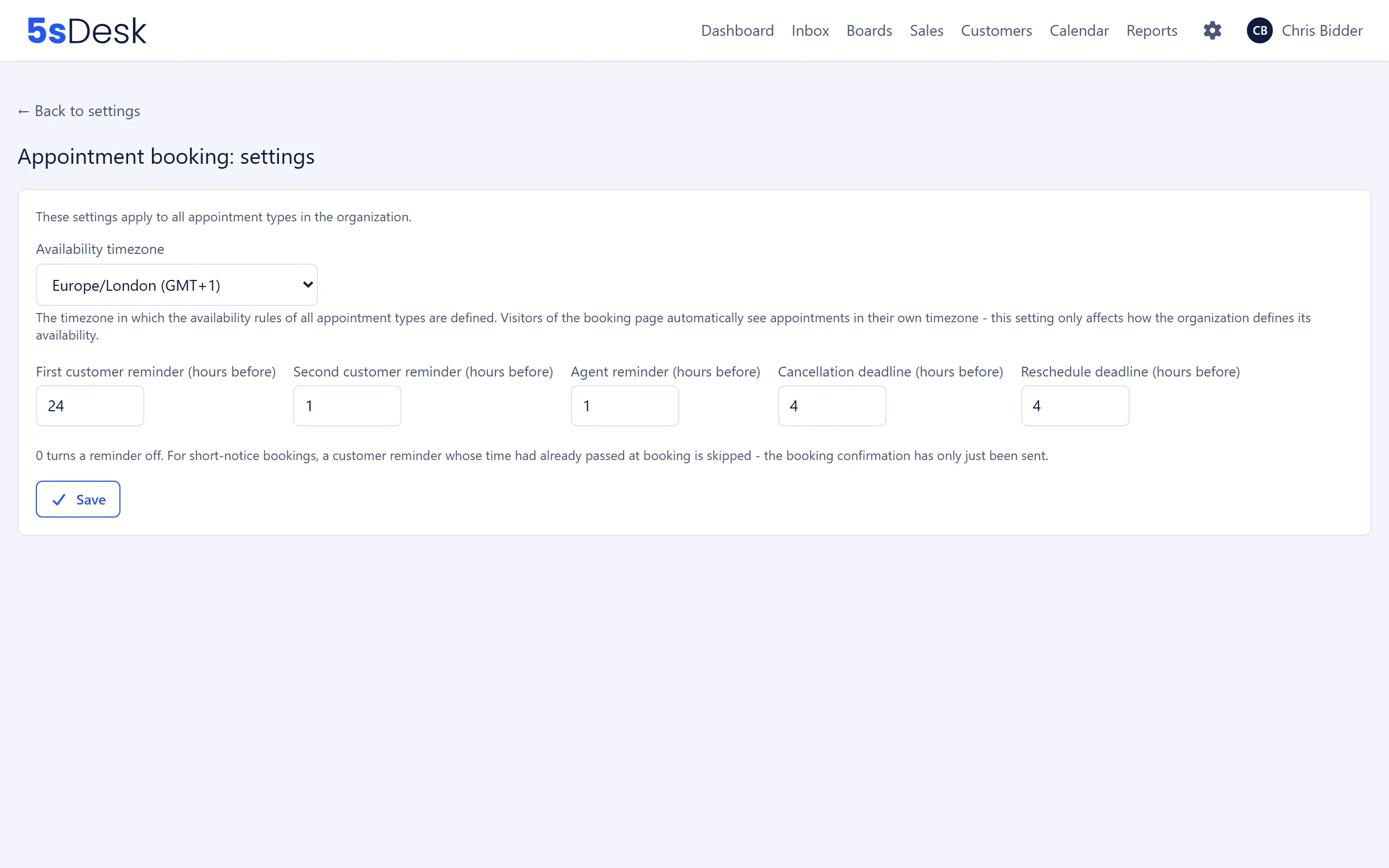
- Deadlines, reminders and time zone for all appointment types: Administration › Settings › “Appointments” › “Appointment booking: settings”.
- Connect your own calendar: avatar menu › “My Profile” › “Calendar” card with “Sign in with Microsoft” and “Continue with Google”. Each agent does this themselves.
- Agents see booked appointments under Calendar › Appointments (“My appointments” with the tabs “Upcoming”, “Past” and “Cancelled”).
Related settings: Appointment types, Appointment booking: settings, My Profile.
Booking link and embedding
Section titled “Booking link and embedding”Every active appointment type has a public booking link following the pattern https://<your address>/termin/<short-name>. You copy the link straight from the “Appointment types” list. It works well in email signatures, on business cards and as a link on your website.
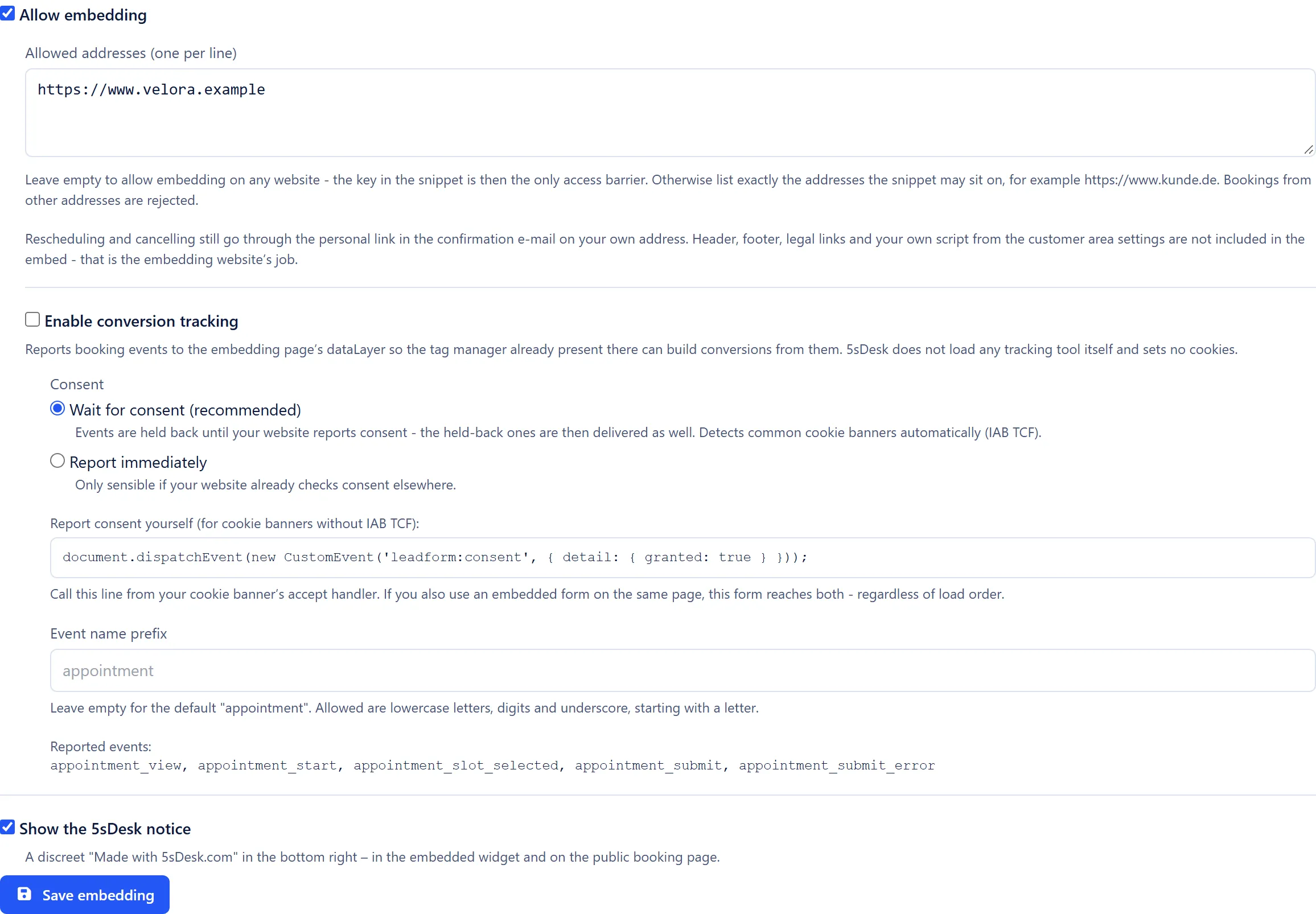
You can also build the same appointment type into a page on your website. To do this, open the appointment type, tick “Allow embedding” under “Embed on your website” (default: off) and click “Save embedding”. A two-line snippet then appears with “Copy snippet”, which your web team pastes where the booking should appear. Visitors can then book without leaving your website.
Both options work side by side: the booking link keeps working whether or not embedding is allowed. In both cases, rescheduling and cancelling go through the personal link in the confirmation email, which leads to your 5sDesk address. After booking in the embedded widget, visitors therefore only see the hint “To reschedule or cancel, use the link in your confirmation e-mail.”
Embedding security
Section titled “Embedding security”Every appointment type has its own key, which is included in the snippet. This key controls access to the embedded booking and has nothing to do with the booking link.
- “Allowed addresses (one per line)”: Empty means the snippet may be placed on any website. If you enter addresses such as
https://www.kunde.de, bookings from other addresses are rejected, not just left without a response. Unlike with forms, this list really does protect you. - “Renew key”: Creates a new key after a confirmation prompt. Snippets already in place stop working immediately and must be replaced. Appointments and the booking link are not affected. This is useful if another website has copied the snippet.
- Switching off: Untick “Allow embedding” or deactivate the appointment type. The snippet then shows an error; the booking link doesn’t change.
- Isolated area (Shadow DOM): The widget runs separately from your website’s stylesheet. When its container is 1024 pixels wide or more, it switches to a two-column layout; below that, it uses a single column.
- Loading errors: If the widget can’t be loaded (key renewed, embedding switched off, appointment type inactive), visitors see “Die Terminbuchung konnte nicht geladen werden.” (“The appointment booking could not be loaded.”) with the link “Zur Buchungsseite” (“To the booking page”).
Custom texts and language per appointment type
Section titled “Custom texts and language per appointment type”In the appointment type form, you write what visitors read:
| Field | Where it appears |
|---|---|
| “Intro text (booking page)” | At the top of the booking page and in the widget. |
| “Help text for the mode selection” | Below the question “How should the appointment take place?”. |
| “Message field label” | Instead of “Message (optional)”. |
| “Help text for the message field” | Below the message field. |
| “Message is required” | Makes a message mandatory (“Please enter a message.”). |
| “Confirmation page text” | On the “Thank you!” page straight after booking. |
An appointment type has exactly one “Language of the appointment type”. It applies to the booking page, the embedded booking, the confirmation and all customer emails, regardless of the visitor’s browser language. For another language, use “Create copy” or “Copy & translate with AI” to create a second appointment type. The copy takes over the owner, times, modes and embedding settings, but starts out inactive (message “Copy created. It is still inactive”, please review the texts and then activate it). It gets its own booking link and its own key.
What makes an appointment type bookable
Section titled “What makes an appointment type bookable”An appointment type belongs either to “A single agent” or to a “Department (pool)”. Whether times are offered depends on the calendars of the agents involved and on the allowed modes:
- Every agent always has the 5sDesk calendar. “Phone” needs no further connection.
- “Microsoft Teams” can only be offered by an agent who has connected Microsoft under “My Profile” › “Calendar”.
- “Google Meet” can only be offered by an agent who has connected Google.
- At least one mode must be allowed.
The “Appointment types” list shows the badges “Inactive” and “Not bookable” for this, along with the hint “No responsible agent can offer … (Microsoft or Google calendar missing).” For a pool, the booking form shows, for each time, only the modes that at least one agent who is free at that time can offer.
Working hours are not a requirement. If an agent has no working hours set, they count as bookable around the clock. The list then warns: “At least one active appointment type has no working hours stored - it is currently bookable around the clock. Working hours can be set in user management; anyone allowed self-service can also set them in their own profile.”
What visitors see when there are no available times (whatever the reason): “Online booking is currently not available for this appointment type. Please get in touch directly.” The actual reason (no calendar, calendar error, fully booked) is deliberately not revealed. A link to an inactive appointment type leads to the page “This appointment type doesn’t exist”.
Free and busy from three sources
Section titled “Free and busy from three sources”A time counts as busy if it is busy in any of these sources:
- The agent’s 5sDesk calendar: booked appointments, own entries marked as busy and scheduled actions with a duration.
- A connected Microsoft calendar (free/busy only, no titles).
- A connected Google calendar (free/busy only).
Bookings made in 5sDesk block the time immediately. External calendars are cached for about 60 seconds. When the booking is actually made, 5sDesk checks the time again and prevents double bookings, even when several people try at the same moment (“That time was just taken - please choose a different one.”).
Booking parameters with an example
Section titled “Booking parameters with an example”| Field | Meaning | Default |
|---|---|---|
| “Duration (min)” | Length of the appointment. | 30 |
| “Grid (min)” | Interval between the offered start times. | 15 |
| “Buffer before (min)” | Time that must be free before the appointment. | 0 |
| “Buffer after (min)” | Time that must be free after the appointment. | 0 |
| “Minimum notice (min)” | Earliest possible appointment, counted from now. | 240 (4 hours) |
| “Booking horizon (days)” | How far ahead bookings can be made (1 to 365). | 60 |
| “Max. open appointments per email” | Open future appointments one email address may have at the same time (1 to 20). | 2 |
Buffers apply against busy times, not against the limits of working hours: an appointment may start right when working hours begin and end right when they end. “Max. open appointments per email” counts across all appointment types of the organisation. When the limit is exceeded, the visitor sees “You already have … open appointments with this email address.” Disposable email addresses are rejected (“Please use a permanent email address, not a disposable one.”).
Worked example
Section titled “Worked example”An appointment type with duration 30, grid 15, buffer before 15, buffer after 15 and minimum notice 240 minutes. The agent works on Monday from 09:00 to 17:00 and already has an appointment from 10:00 to 10:30. A visitor opens the page on Monday at 08:00.
- Because of the minimum notice of 4 hours, 12:00 is the first time offered; 09:00 to 11:45 drop out.
- If the notice were 0, the visitor would see 09:00 and 09:15. 09:30 to 10:30 are missing: an appointment at 09:30 ends at 10:00, so with the buffer after, the time up to 10:15 would have to be free, but the existing appointment is there. 10:30 is missing because the buffer before would need to be free from 10:15. The first time after the existing appointment is 10:45.
- The last time of the day is 16:30, because that appointment ends at 17:00. The buffer after extends beyond the end of working hours, which is allowed.
- So from 12:00 onwards, 12:00, 12:15, 12:30 … up to 16:30 are offered, as long as nothing else is booked.
Time zones
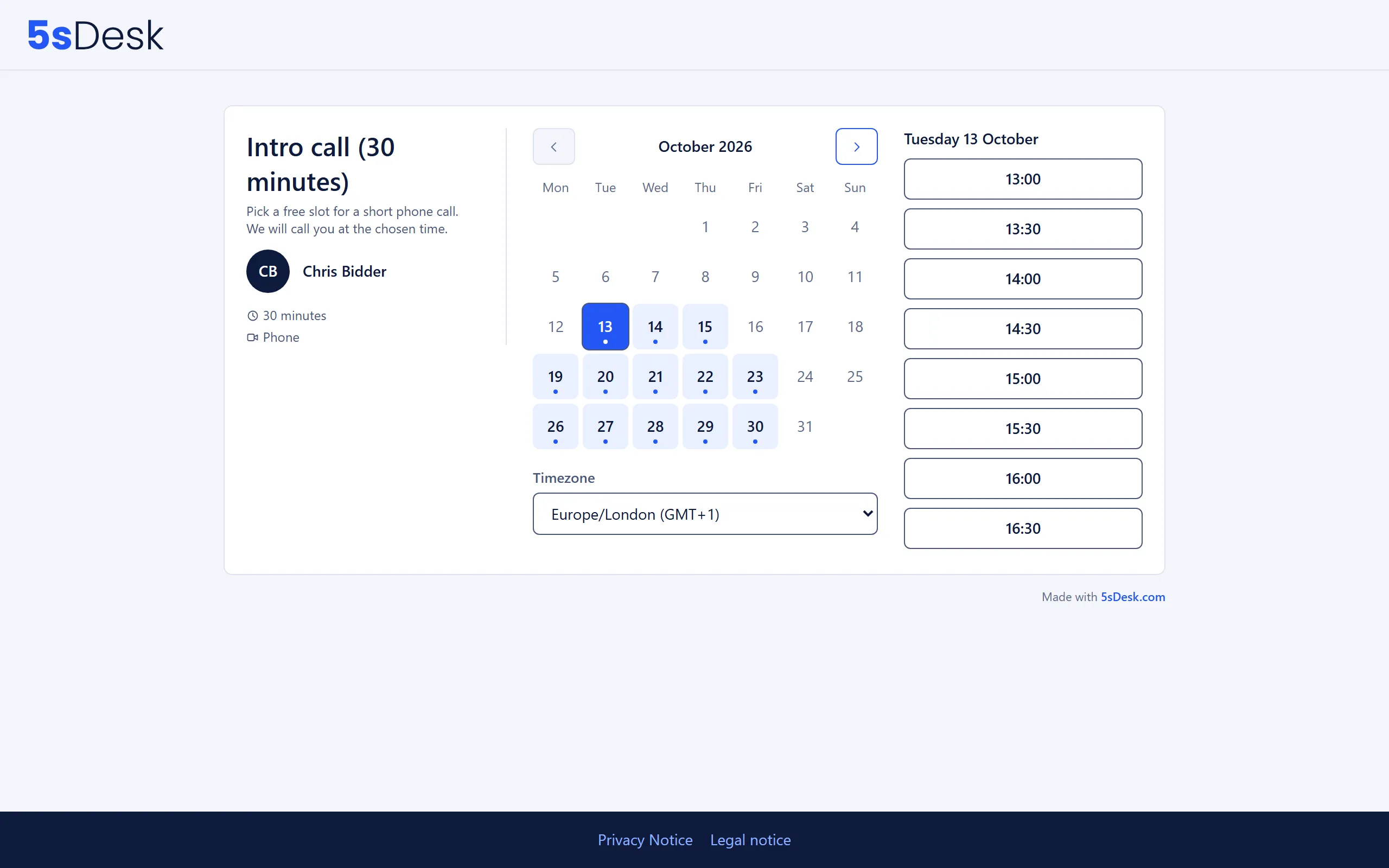
Section titled “Time zones”Working hours and availability rules for all appointment types apply in the “Availability timezone” set under “Appointment booking: settings” (default: Europe/Berlin). Visitors automatically see the times in their own time zone, shown as “Detected timezone:” above the calendar, and can change it there. The confirmation email shows both: “confirmed for … (local time …)”, first the visitor’s time and then your organisation’s local time in brackets. On the appointment’s management page, the time is shown in the time zone the visitor chose when booking.
Pooled booking
Section titled “Pooled booking”If an appointment type belongs to a “Department (pool)”, the visitor sees the combined available times of all active members. 5sDesk only picks the agent when the booking is made, in this order:
- The agent with the fewest appointments in the last 28 days.
- If there is a tie, the agent whose last assignment was longest ago.
- If there is still a tie, the agent with the lowest internal number.
Only agents who can offer the chosen mode and are still free at that time are considered. If the customer reschedules later, the agent is chosen again, so the appointment can move to a different agent. If the agent moves the appointment themselves, however, they stay responsible for it.
If one person’s calendar fails (connection interrupted, Microsoft or Google not responding), only that person provides no times. The other members can still be booked. If not a single calendar responds within 12 seconds, the visitor sees the generic message and can’t book.
After the booking
Section titled “After the booking”After clicking “Book appointment”, the visitor lands on the “Your appointment” page with “Thank you!”, the “Confirmation page text” and the appointment details. At the same time, the email “Appointment confirmed: … on …” is sent, with the Teams or Meet link or the note “We will call you at …”, and the link “Manage appointment (cancel or reschedule)”.
In the CRM, a basic customer with name and email address is created if none exists with this address yet. Additional email addresses of existing customers count too. If there is a company with the domain of the address (not a free email domain), the customer is assigned to it.
Linking an appointment to a deal
Section titled “Linking an appointment to a deal”The page of a single appointment (Calendar › Appointments, open the appointment) shows the “Deal” box, provided the agent’s department has the “Sales” area. To assign an appointment to a sales opportunity:
- In the “Deal” box, click “Link to deal”.
- The customer’s open deals are listed at the top as suggestions. With “Search deals (title or number)” you can find any other non-archived deal on a pipeline you can see, including a closed one.
- Click “Save” to link it. The box then shows the deal’s number and title with its pipeline and stage.
Rules:
- An appointment has at most one deal. To switch to a different deal, click “Unlink” first and then link again.
- Only the agent who owns the appointment can link it. Unlinking also works in the deal, for anyone who can see the deal (see Customer appointments on a deal).
- If, at the time of a new booking, the customer has exactly one open deal that the assigned agent can see, 5sDesk links it automatically. With several open deals, nothing is linked automatically; the box then shows “Not linked to a deal yet – the customer has … open deals.”
- When an appointment is rescheduled, an existing link moves with it, even if a different agent in the pool takes over. No new automatic link is made.
- If the deal is on a pipeline you can’t see, the box only tells you that a link exists. You can still “Unlink” it.
Customers don’t see the link. Their emails stay unchanged.
Customer self-service
Section titled “Customer self-service”Using the personal link, the customer can open the “Your appointment” page at any time, with the buttons “Reschedule appointment” and “Cancel appointment” (with an optional reason). You set how long this is possible under “Appointment booking: settings”:
| Field | Meaning | Default |
|---|---|---|
| “Cancellation deadline (hours before)” | The customer can cancel up to this many hours before the start. | 4 |
| “Reschedule deadline (hours before)” | The customer can reschedule up to this many hours before the start. | 4 |
Once the deadline has passed, the buttons disappear. Anyone who tries anyway sees: “The deadline to cancel/reschedule this appointment has already passed - please contact us directly.” The agent can still move or cancel the appointment themselves. The customer then receives the email “Your appointment was moved” or “Your appointment was cancelled” with the reason given.
The personal link is valid until 7 days after the appointment starts. After that, it leads to the page “This appointment type doesn’t exist”. Rescheduling follows the same rules as booking (minimum notice, horizon, grid). The customer receives “Appointment rescheduled: …” with the old and the new time.
Reminders and agent notifications
Section titled “Reminders and agent notifications”| Field | Meaning | Default |
|---|---|---|
| “First customer reminder (hours before)” | Email “Reminder: … on …”. | 24 |
| “Second customer reminder (hours before)” | Email “Your appointment starts soon: …”. Must be closer to the appointment than the first. | 1 |
| “Agent reminder (hours before)” | Notification to the agent. | 1 |
0 switches a reminder off. If an appointment is booked at such short notice that the time for a customer reminder has already passed, that reminder is skipped, since the confirmation has only just arrived. Agents receive notifications for new, cancelled and rescheduled appointments according to their settings under “My Profile” (“Someone books an appointment with me”, “One of my appointments is cancelled”, “One of my appointments is rescheduled”, “A reminder for one of my upcoming appointments”). The notification about a new appointment and the agent reminder also name the linked open deal with its number, title and stage, never its value. If no deal is linked but the customer has open deals, they point out that you can link the right one on the appointment page.
Calendar file and Teams invitation
Section titled “Calendar file and Teams invitation”The confirmation email and every rescheduling email include the calendar file termin.ics. Cancellation and reminder emails have no attachment.
For Teams and Meet appointments, 5sDesk also creates the appointment in the agent’s connected calendar, so the customer receives an invitation from Microsoft or Google. The calendar file carries the same event ID as this invitation, so calendar apps merge the two into one entry instead of creating two. When an appointment is rescheduled, the existing entry is updated and the meeting link stays the same. For phone appointments without an external calendar, the calendar file is the only thing the customer gets for their calendar.
If the Teams or Meet link couldn’t be created yet at the time of booking, the email says: “You will receive the Teams link shortly in a separate invitation.” or “You will receive the Google Meet link shortly in a separate invitation.”
Conversion tracking
Section titled “Conversion tracking”In an embedded booking, the widget reports events to the dataLayer of the embedding page if “Enable conversion tracking” is switched on under “Embed on your website”. 5sDesk doesn’t load a tracking tool of its own and doesn’t set any cookies. The prefix is appointment by default (“Event name prefix”).
| Event | Meaning |
|---|---|
appointment_view |
The booking was displayed |
appointment_start |
The visitor started choosing |
appointment_slot_selected |
A time was chosen and step 2 reached |
appointment_submit |
Appointment booked (your conversion) |
appointment_submit_error |
Booking failed, with a rough cause (input error, time already taken, server error, security check) |
Only the ID and name of the appointment type and the timestamp are sent, never the visitor’s name, email or message.
Consent works the same way as for forms: “Wait for consent (recommended)” holds events back until your cookie banner reports consent (IAB TCF is detected) and then sends them. Use “Report immediately” only if your website checks consent elsewhere. For banners without TCF, the appointment type shows a line under “Report consent yourself (for cookie banners without IAB TCF):” for your banner to call when the visitor consents. If you also use an embedded form on the same page, the same line reaches both. You’ll find details on events and cookie rules under Forms.
Spam protection for bookings
Section titled “Spam protection for bookings”Unlike with forms, protection for bookings is always active and has four parts:
- Rate limit: at most 5 booking attempts in 15 minutes per IP address (“Too many booking attempts - please wait a moment and try again.”).
- A hidden honeypot field that only bots fill in.
- An ALTCHA computational puzzle in the browser, with no third party.
- A check against the blocklist: blocked senders can’t book.
When the honeypot, ALTCHA or the blocklist catches a booking, the sender sees the page “Thank you for your request” (“We’ve received your request and will get back to you if needed.”), but no appointment is created, no calendar entry is written and no email is sent. A bot shouldn’t find out why it failed.
Interrupted calendar connection
Section titled “Interrupted calendar connection”If Microsoft or Google refuses access to an agent’s calendar (access revoked, sign-in expired, password changed), the following happens:
- The affected agent receives a one-off notification “Calendar connection needs to be reconnected” with the link “Manage calendar connection”, by email or Teams depending on the setting “My calendar connection needs to be reconnected” in their profile.
- In “My Profile” › “Calendar”, the account shows: “The connection to your … calendar is broken - please reconnect.”
- Until it is reconnected, this agent provides no available times, because their free/busy information can’t be read. For a single-agent appointment type, visitors see the generic message and can’t book. In a pool, only this person’s times are missing.
What to do: the agent clicks “Sign in with Microsoft” or “Continue with Google” again in “My Profile” › “Calendar”. They can be booked again straight away. Admins can’t see the cause in the settings, so if you see “Not bookable” or no available times, it’s worth checking with the agent.
A second notice concerns individual appointments: if the calendar doesn’t respond in time during booking, the visitor sees “Your appointment is being confirmed - this may take a moment. You’ll receive an email shortly.” 5sDesk checks again within a few minutes. If the appointment has arrived in the calendar, it is confirmed. If it can’t be found there, the time is released again and the agent receives “Appointment could not be synced: …” with a request to contact the person directly.
Related settings
Section titled “Related settings”- Appointment types: duration, grid, buffers, modes, texts, embedding and tracking for each appointment type.
- Appointment booking: settings: time zone, reminders, and cancellation and rescheduling deadlines for all appointment types.
- My Profile: connect a Microsoft or Google calendar, notifications, working hours.
- Users: agents’ working hours, set by administrators.
- Blocklist and trusted senders: blocked senders can’t book.
- Delivery blocks: addresses that no longer receive appointment emails.
- Forms: the same embedding and tracking mechanism.